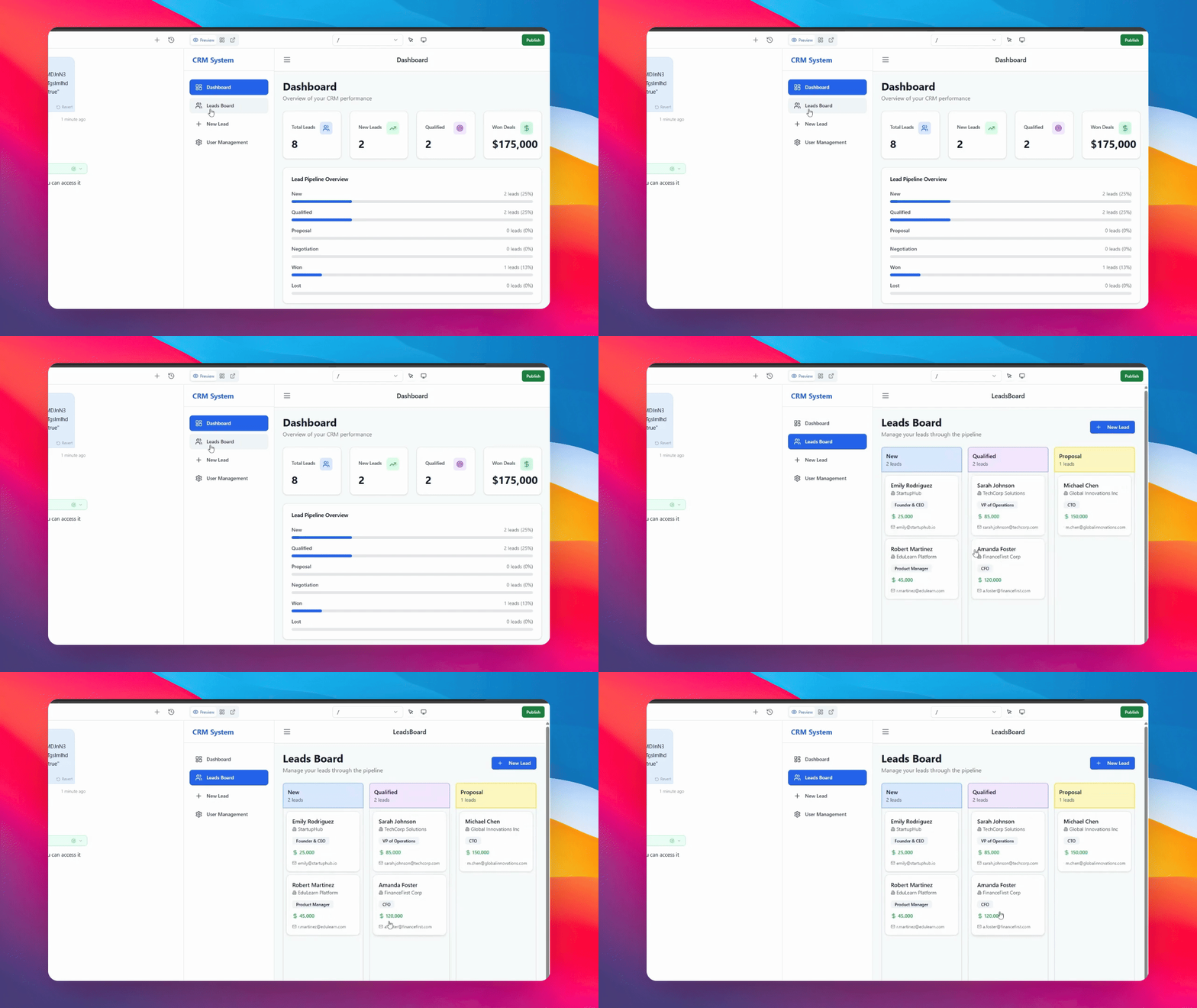
Step 1: Configure the “Embed” Parameter
In your app's chat, tell the AI to set up the screen you want to share. Be clear about what to hide and where to go. For example, say: “When the embed parameter = true, hide the menu and go to the accounts screen if I'm not there.”
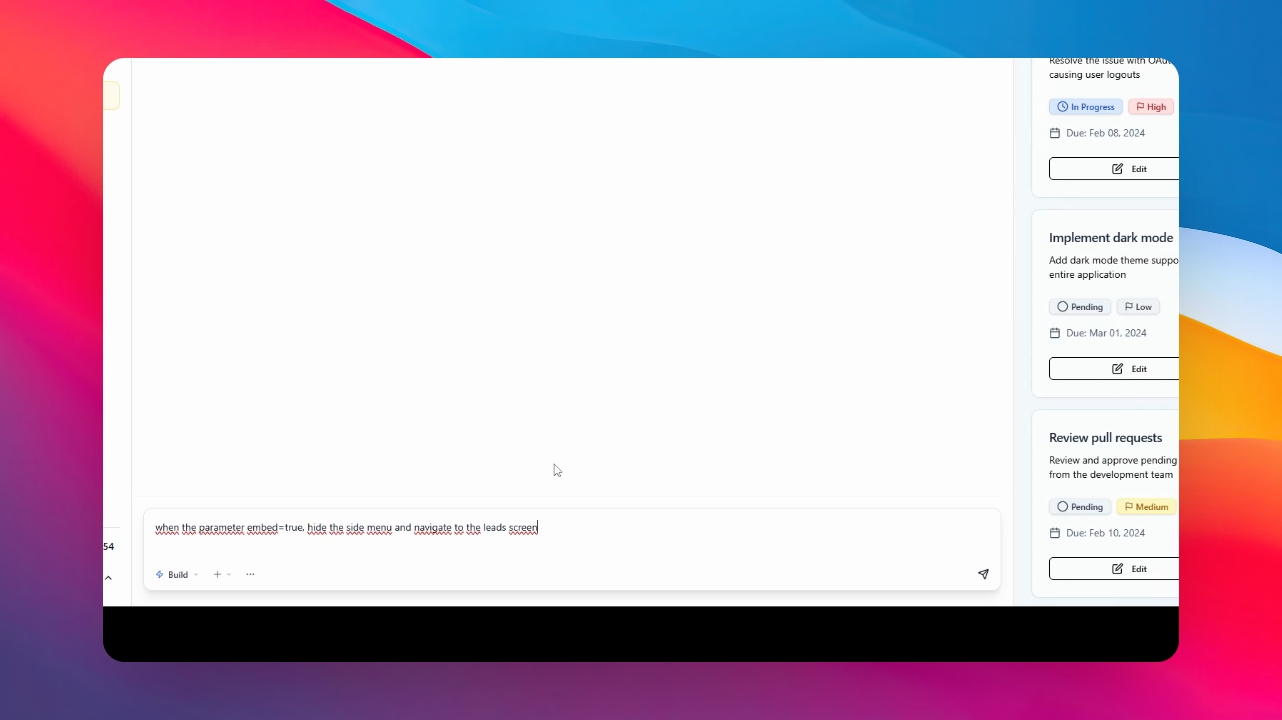
Step 2: Verify the Screen Name
Make sure to give the AI the exact name of the screen you want to embed. You can find screen names at the top of the interface, like “dashboard” or “leads”
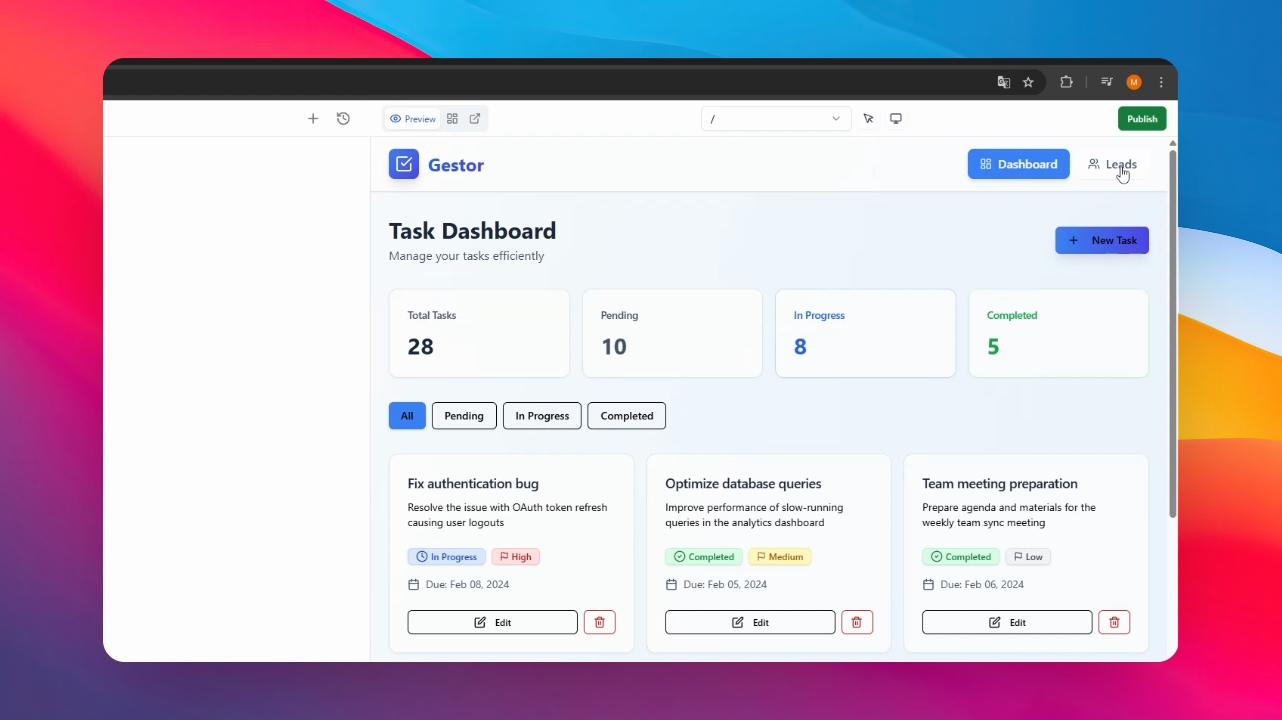
Step 3: Send the Message and Wait
Send your request to the AI. It will change the app's layout to hide menus and adjust the view for sharing. Wait a moment for it to complete the changes.
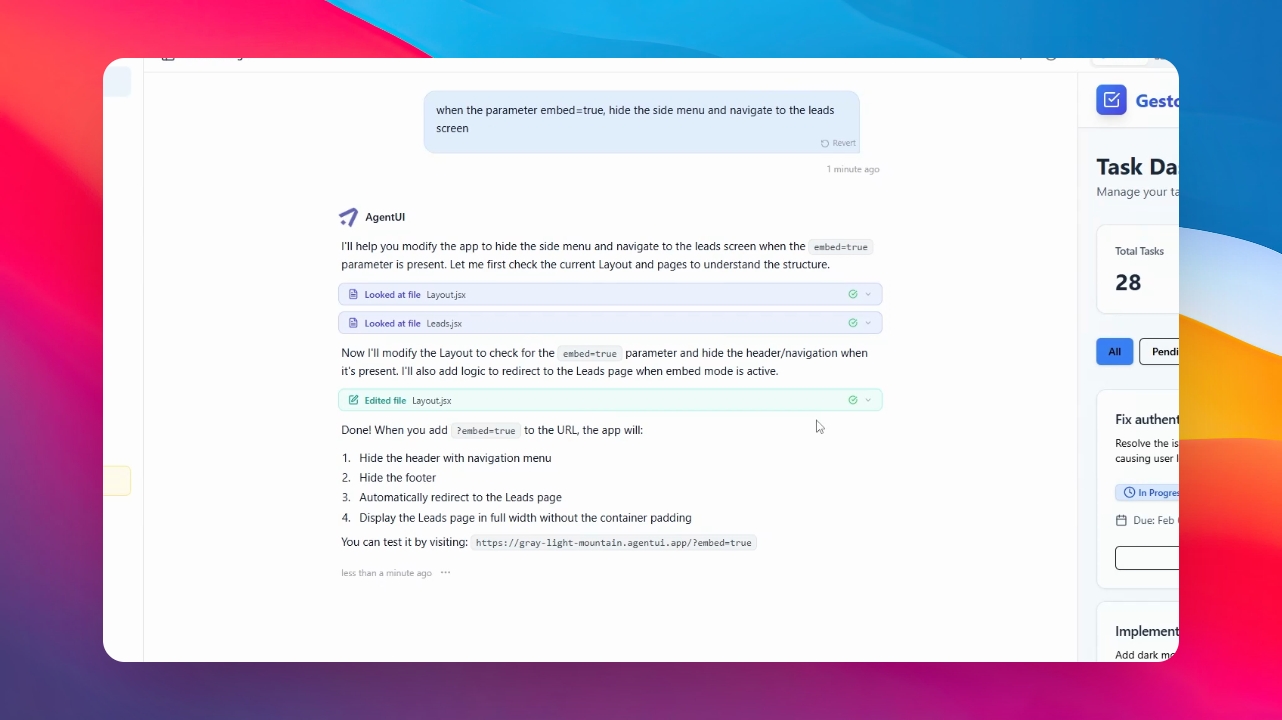
Step 4: Publish the Application
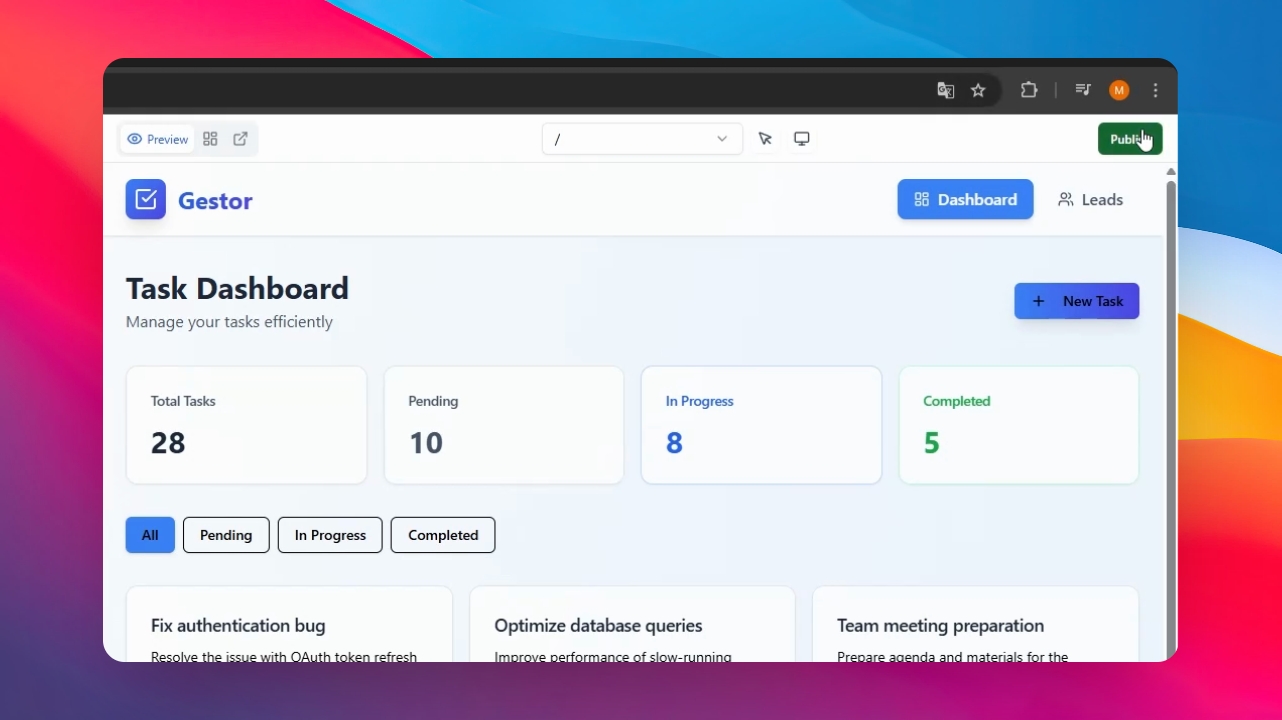
After the AI finishes applying changes and the layout looks good, click the “Publish” button at the top.
Step 5: Copy the Generated Code
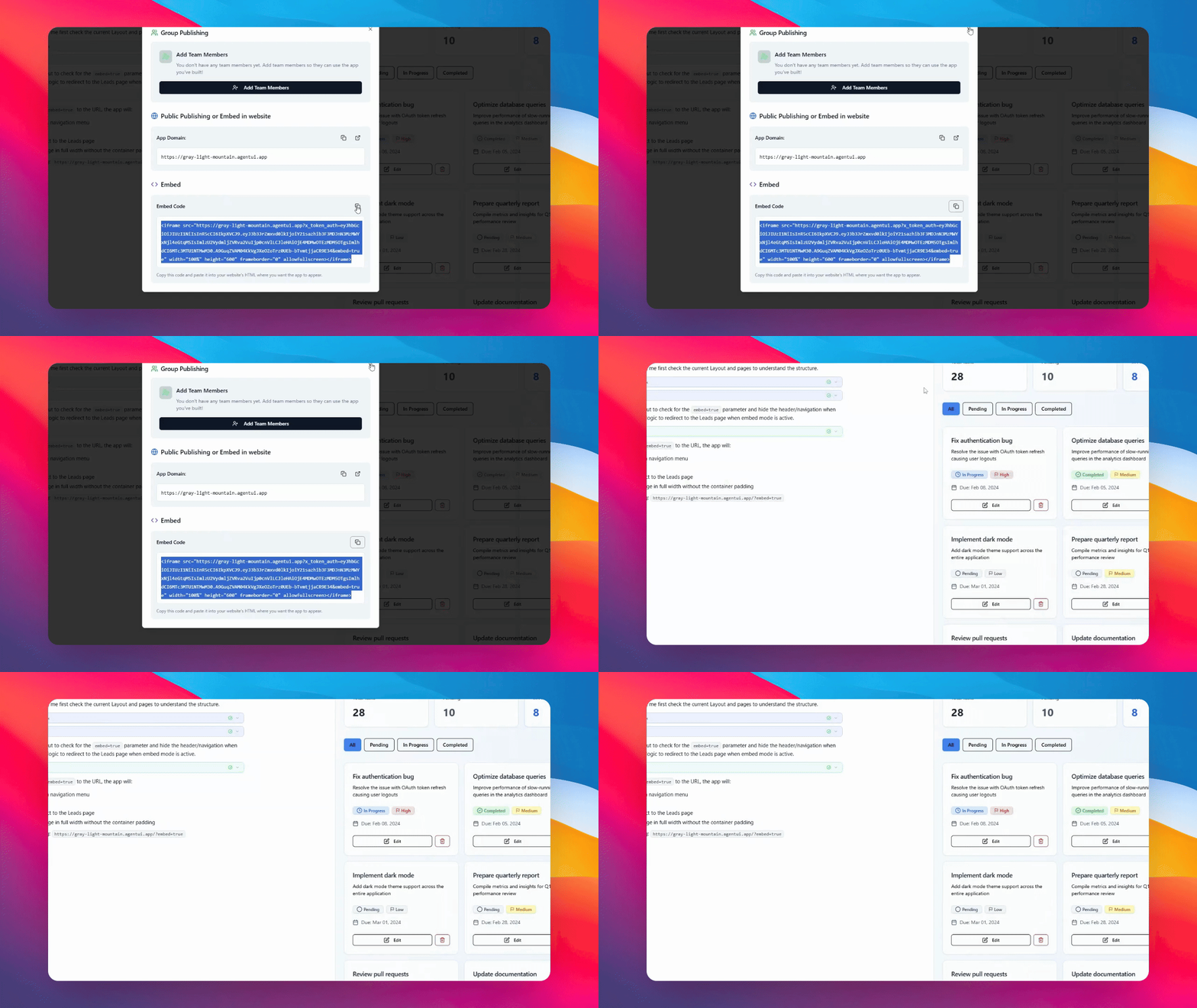
When you publish, the platform will automatically create a secure, ready-to-use code for that screen. Just copy this code.
Step 6: Go to the Target Application
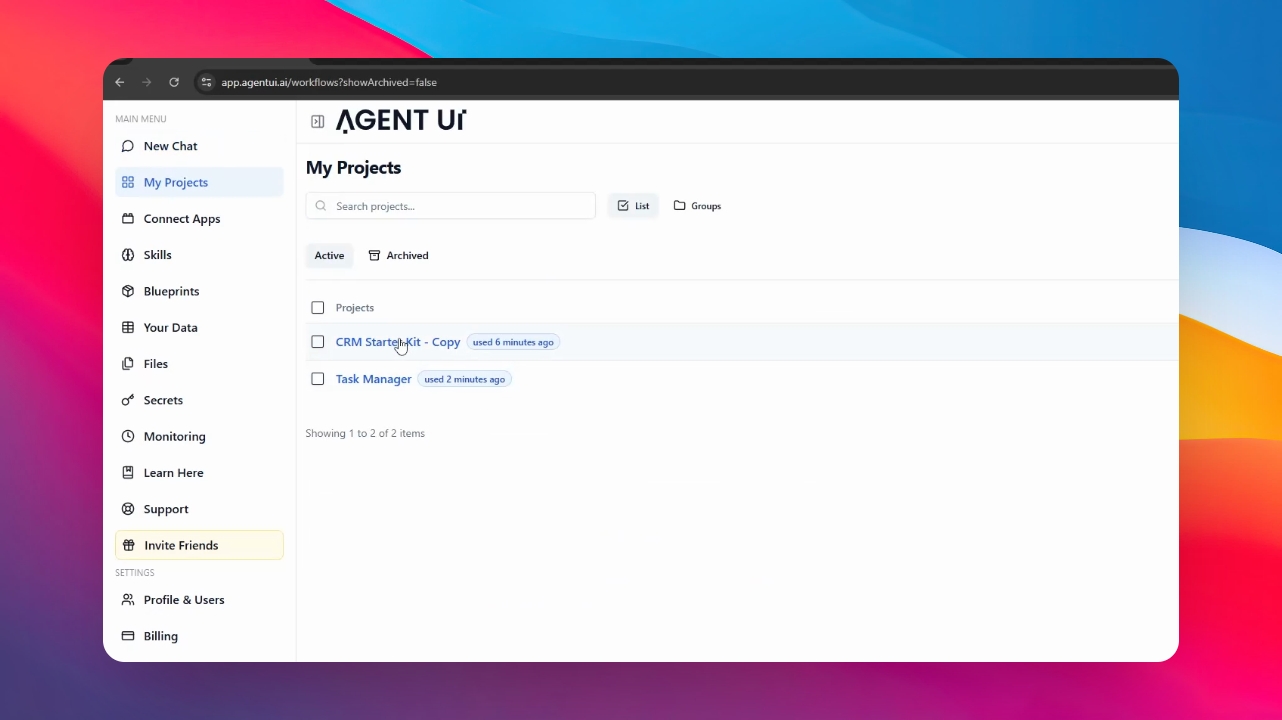
Go to the other Agent UI application where you want to integrate the screen you just set up.
Step 7: Ask the AI to Add the Code
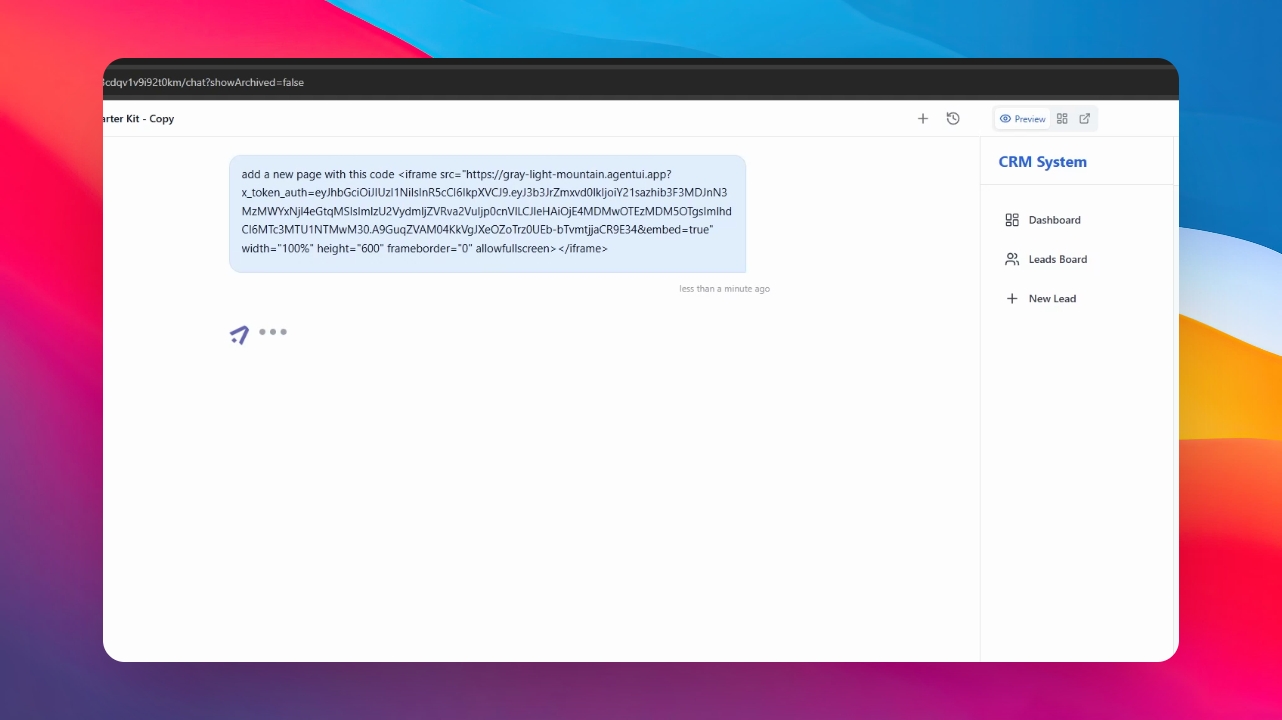
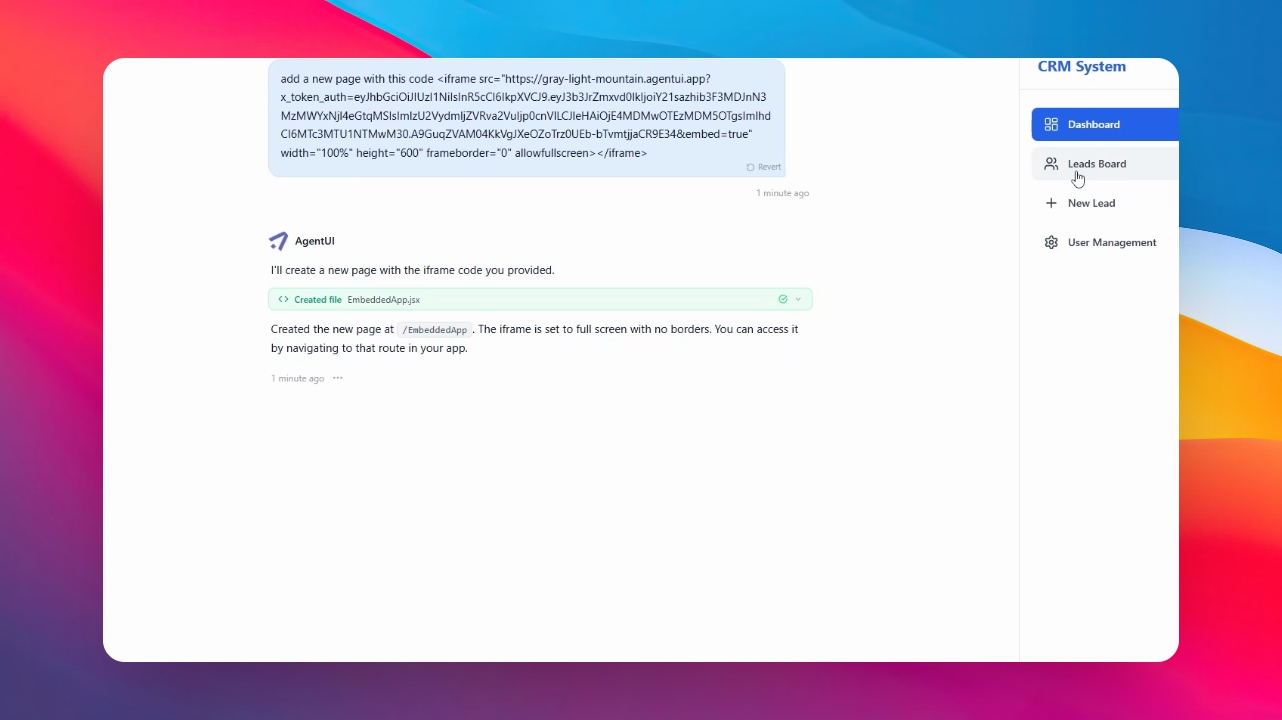
Open the chat in your target application and tell the AI to implement the feature. For example, say, “Add a new page with this code” and paste the code you copied in Step 5.
Step 8: Wait for Integration
The AI will process the code and create the new embedded screen. Wait a few minutes for this to finish.
Step 9: View the Result
Once it’s ready, you’ll see your updated app with the embedded screen fully functional.