

How to view your application databases
Step 1: Click on the dashboard icon
The Dashboard view is displayed.
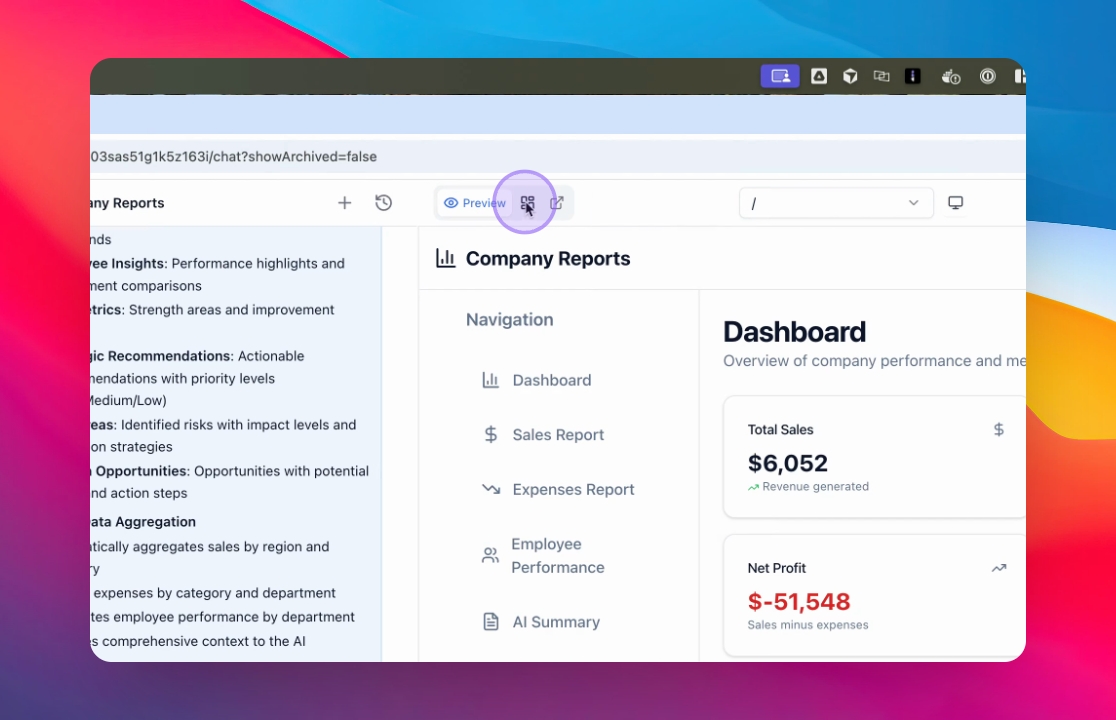
Step 2: Your data tables will appear in the Your Data section.
The database tables in use are visible.
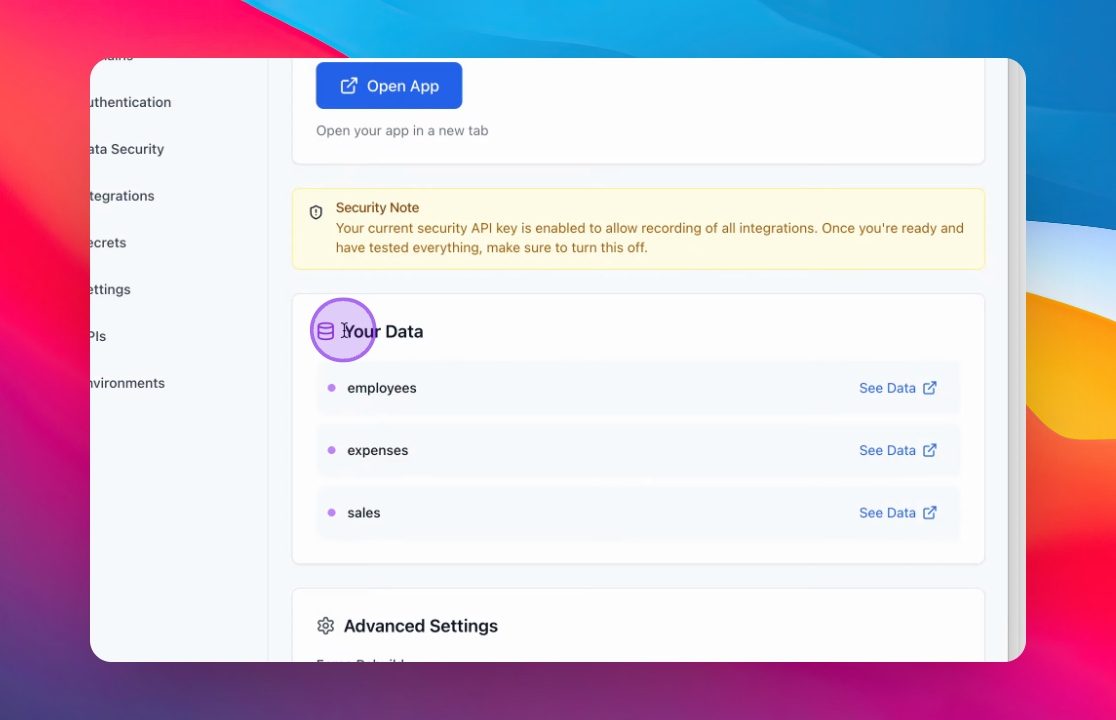
Step 3: Select a Table
Click on a see data to view its data.
The data for the selected table appears.
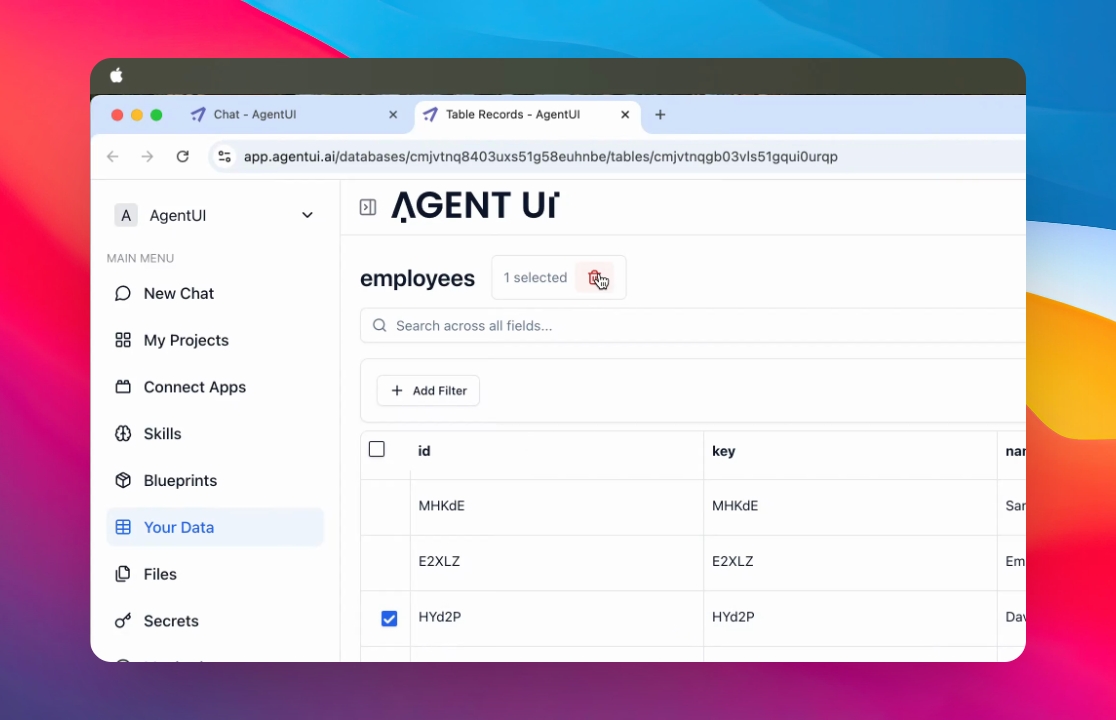
How to Delete a Row
Delete a specific row if needed.
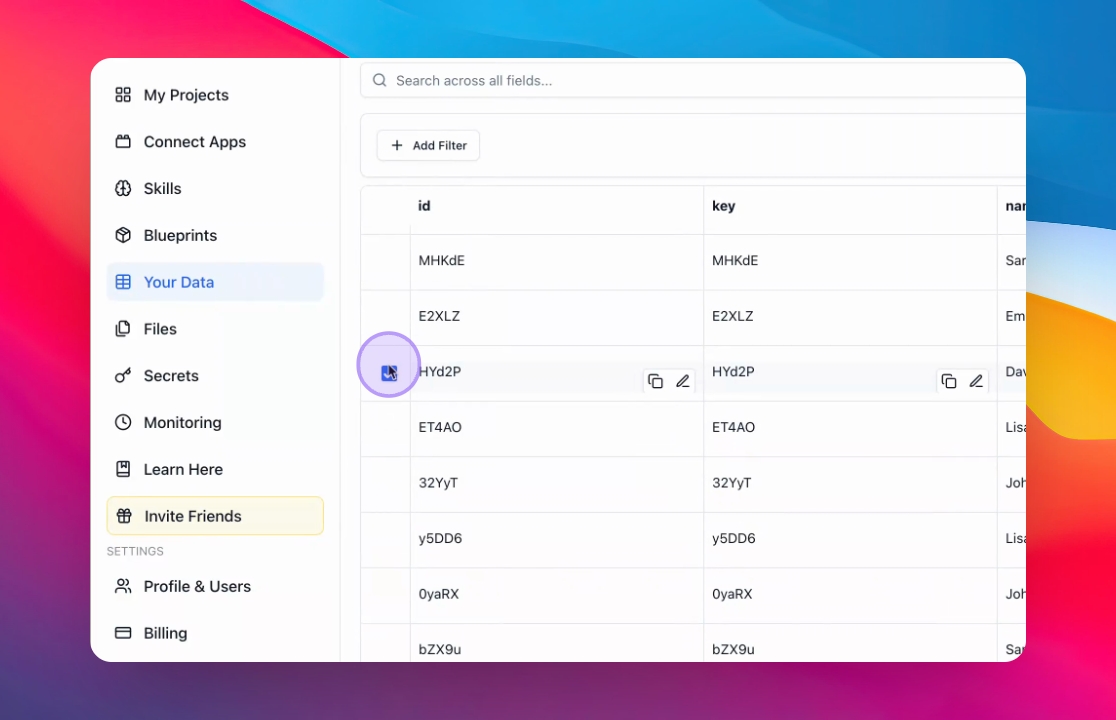
Delete the row
Click the delete button and then click apply
How to Filter Data
Filter the data by a specific field, such as email.
Step 1: Click on add filter
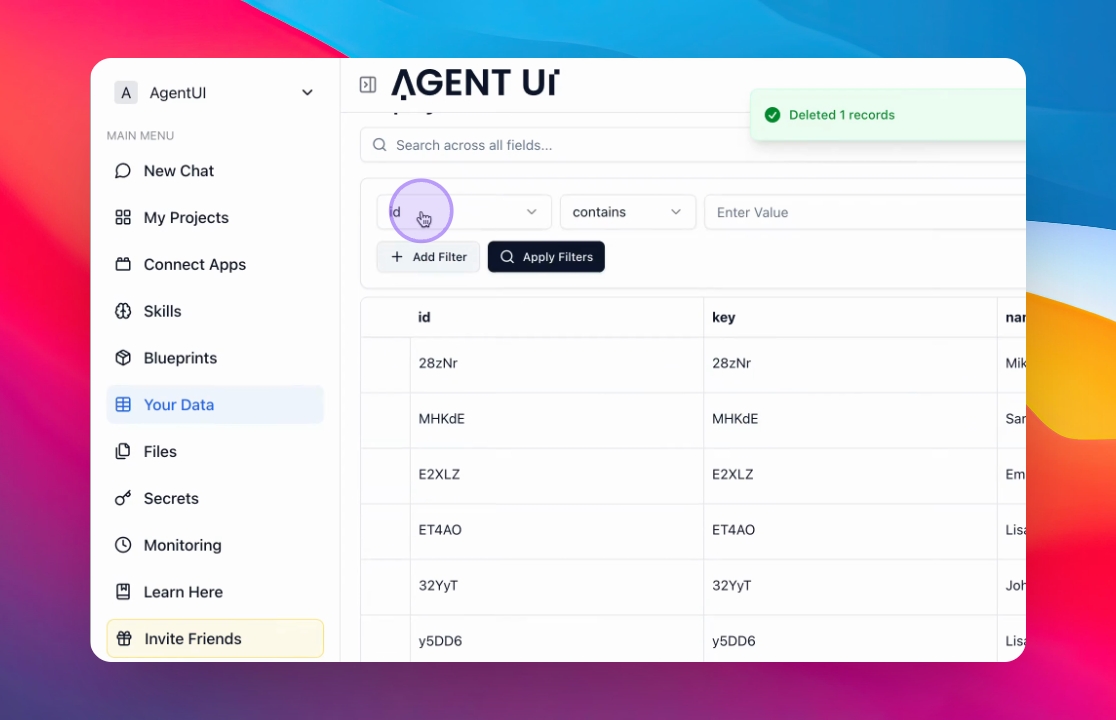
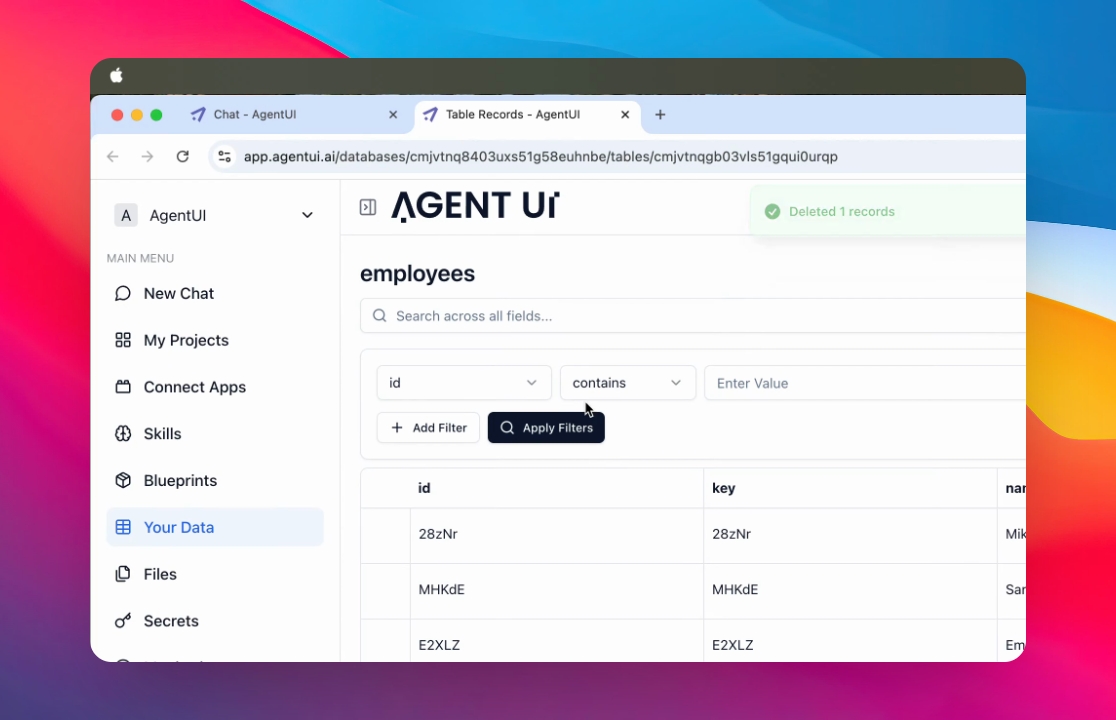
Step 1: Enter your search query
Click on the column you want to search, selects a filter condition, and enter the value they want to find.
Results matching the search criteria are displayed.
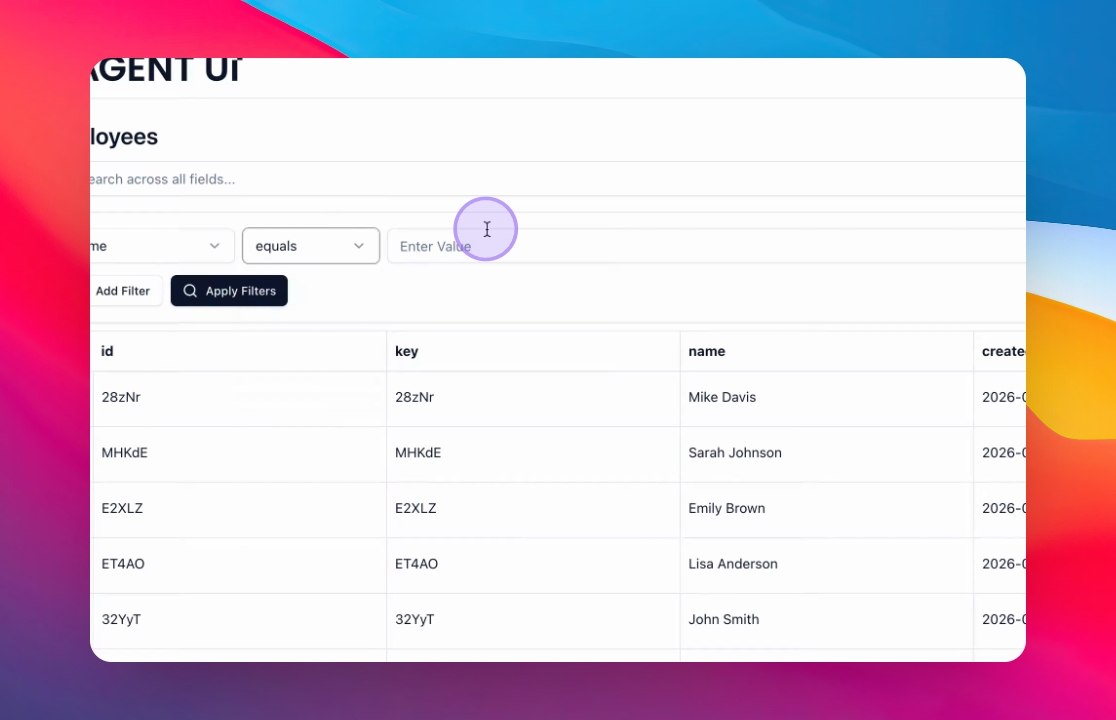
How to Modify a Field
Double click on the value you want to modify and enter the value
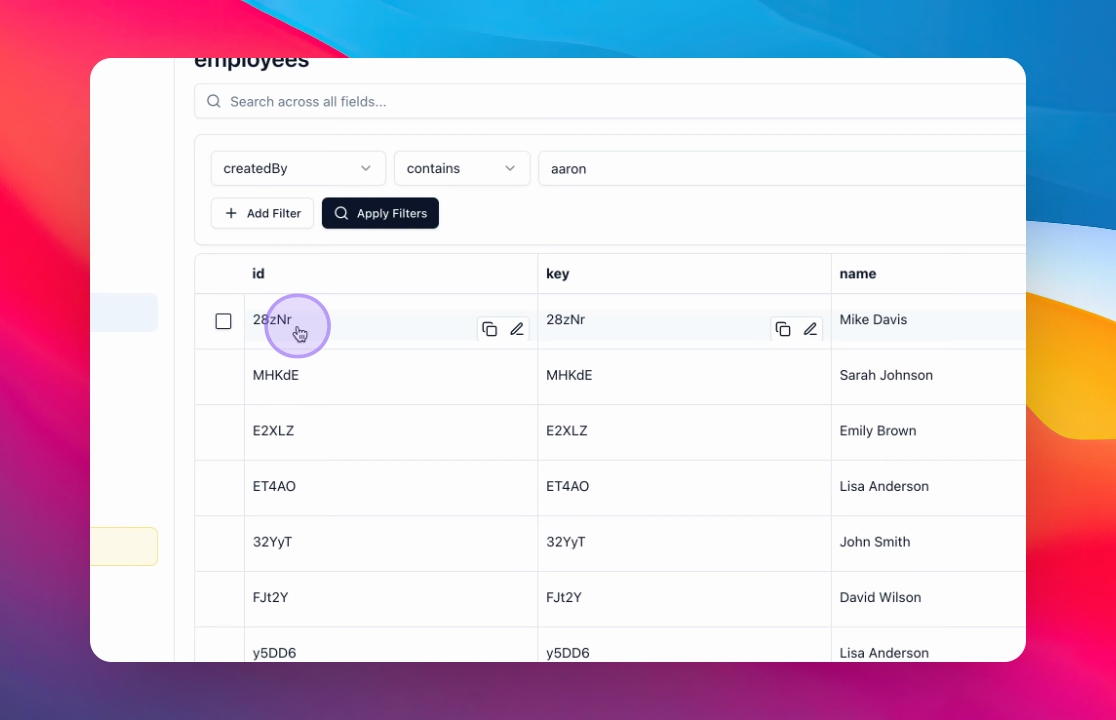
How to Copy a Value
Click on the copy icon
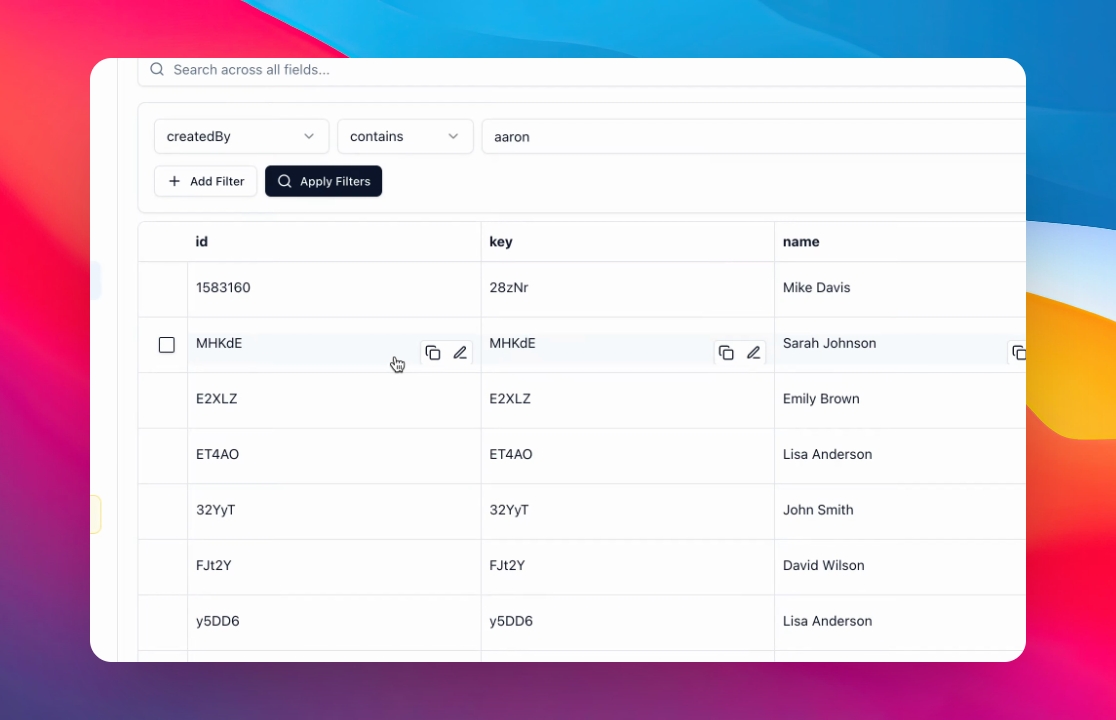
How to reuse the database in an automation or in another app
Click on Add other databases to integrate additional data sources.
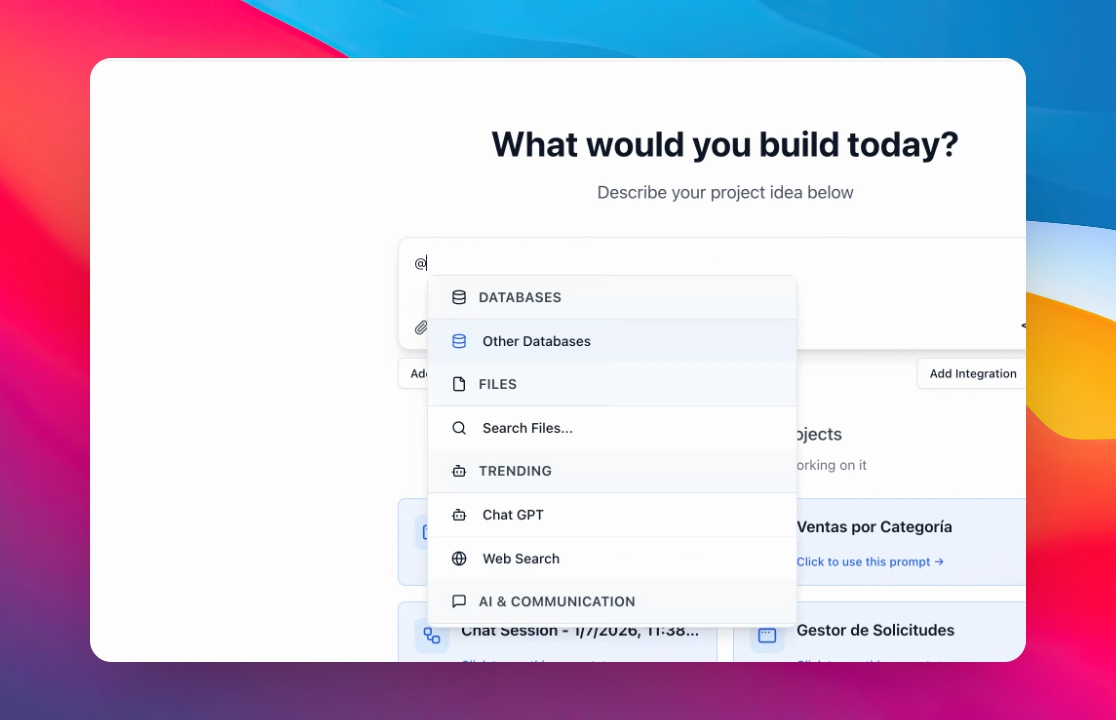
Step 1: Select @ and the select other databases or shared databases to view all the databases
Find and select the database you wish to use.
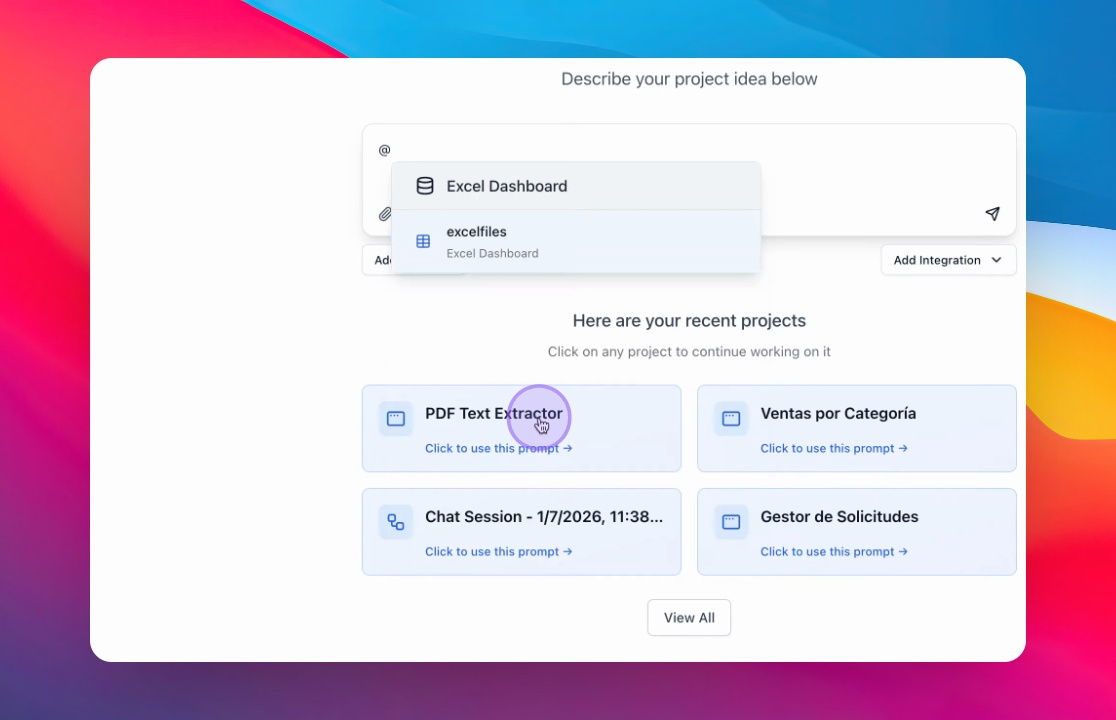
Step 2: Select a Database and and Table
Find and select the table that contain the data you wish to use.
Tell the AI how you want use the database in the automation
Set up automation tasks—such as sending daily emails—by explaining what data to use, when the automation should run, and what action the AI should take.