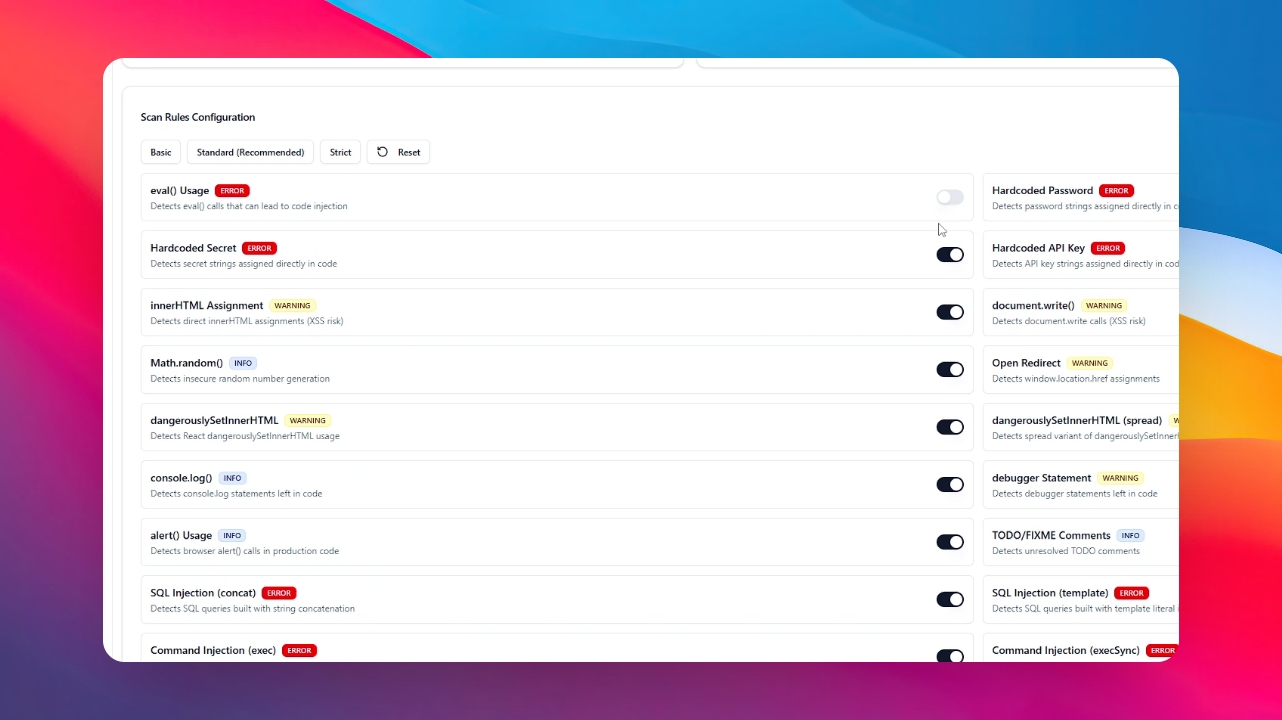
Step 1: Navigate to Code Scanning
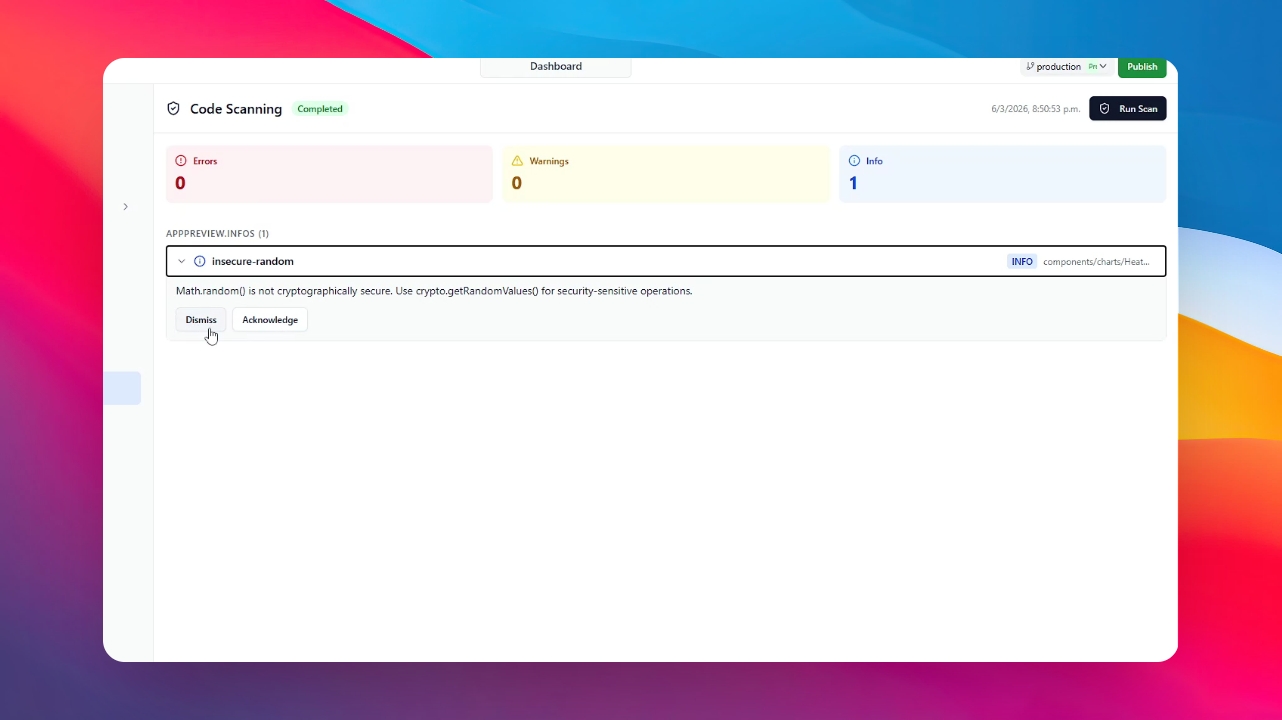
To begin, select the app you want to analyze. Open the Dashboard and click on the Code Scanning section.
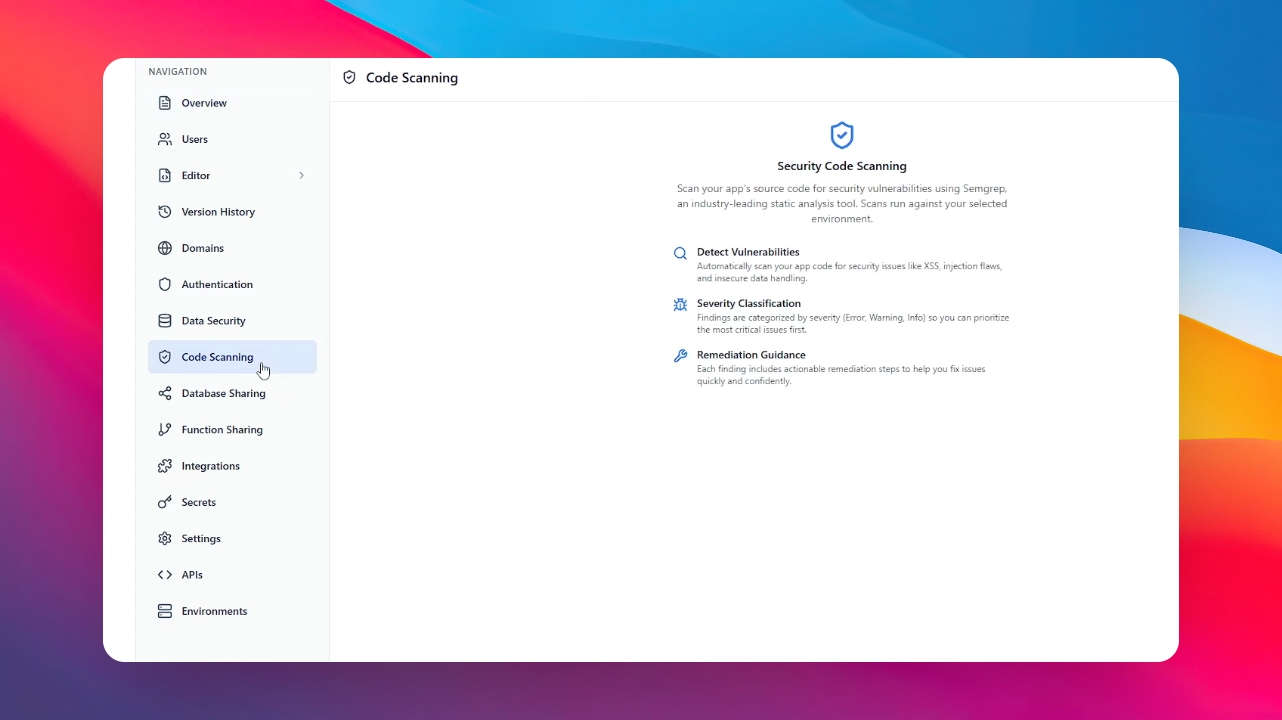
Step 2: Run the Scan
Once inside the section, click the "Run Scan" button. The AI will start analyzing your app’s source code immediately.
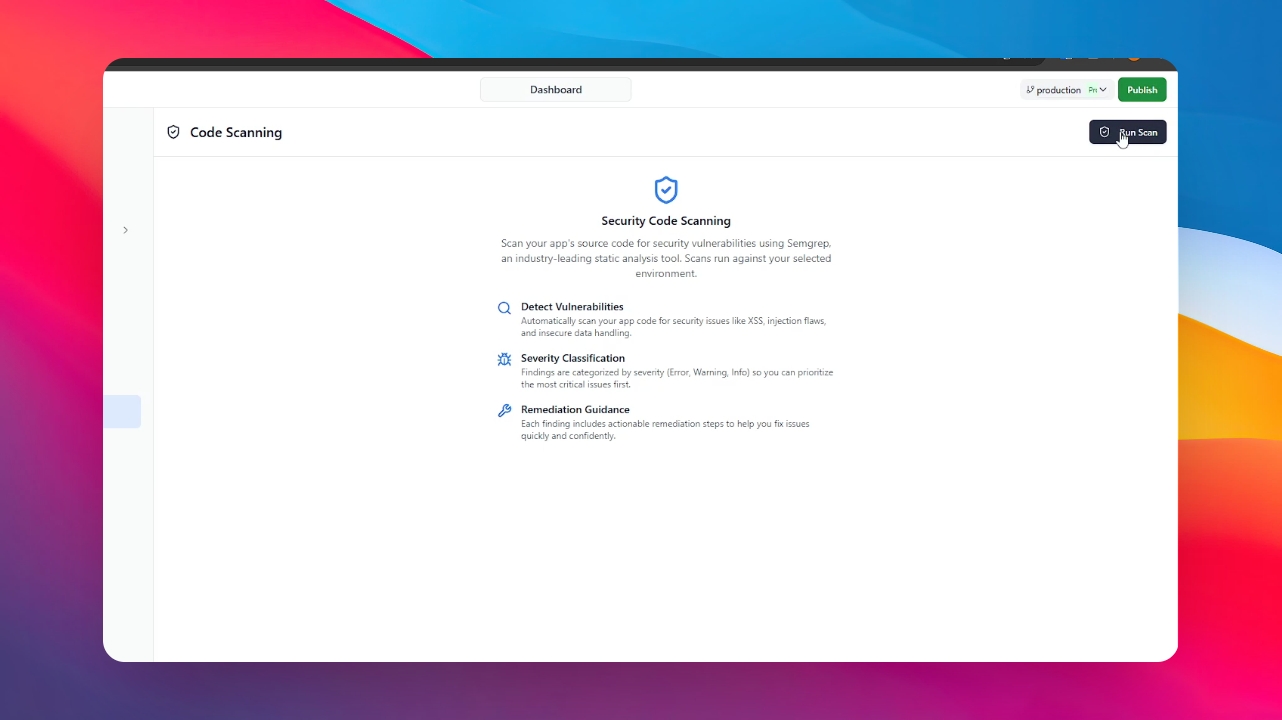
Step 3: Review the Results
Wait a moment for the process to finish. You will see a detailed list of errors, warnings, and information that the scan found regarding your code’s security.
Step 4: Manage Findings
Below the results list, you can select specific findings and choose what action to take with them to improve your app.
Step 5: Access the Security Dashboard
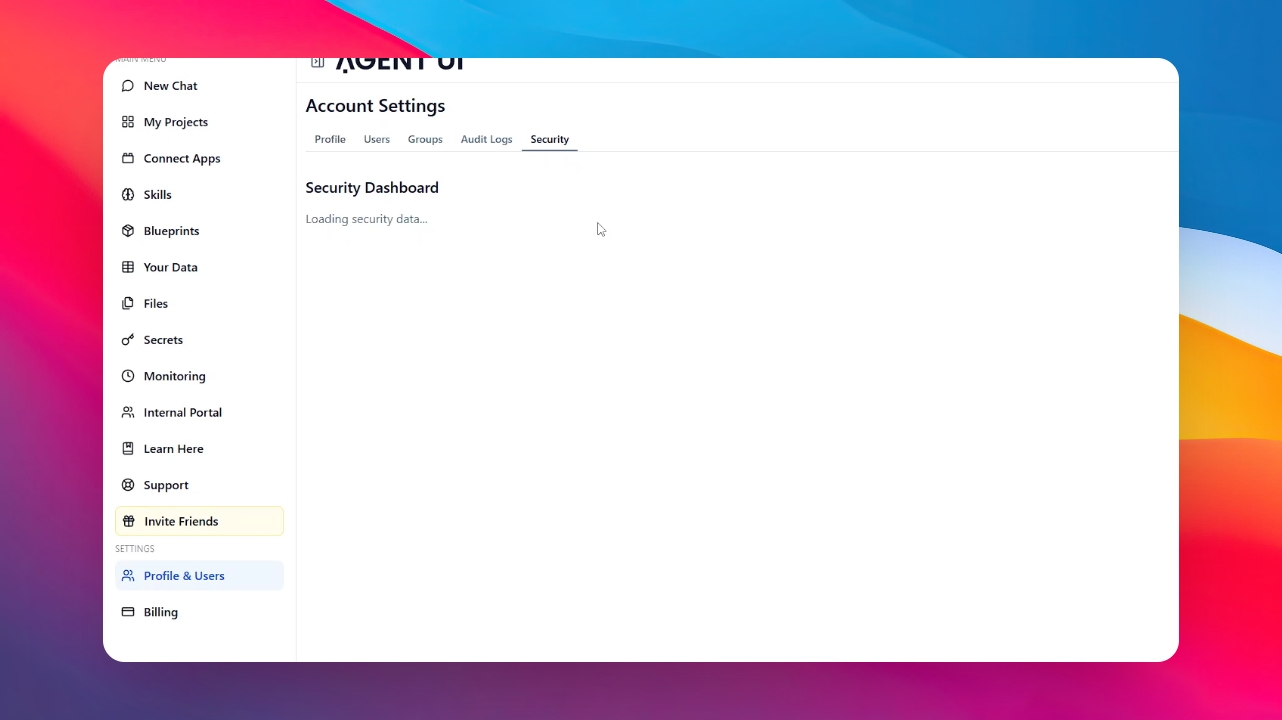
To see a broader view of your security posture, go to Profile and Users in the main menu, then click on Security.
Step 6: Check Your Security Score
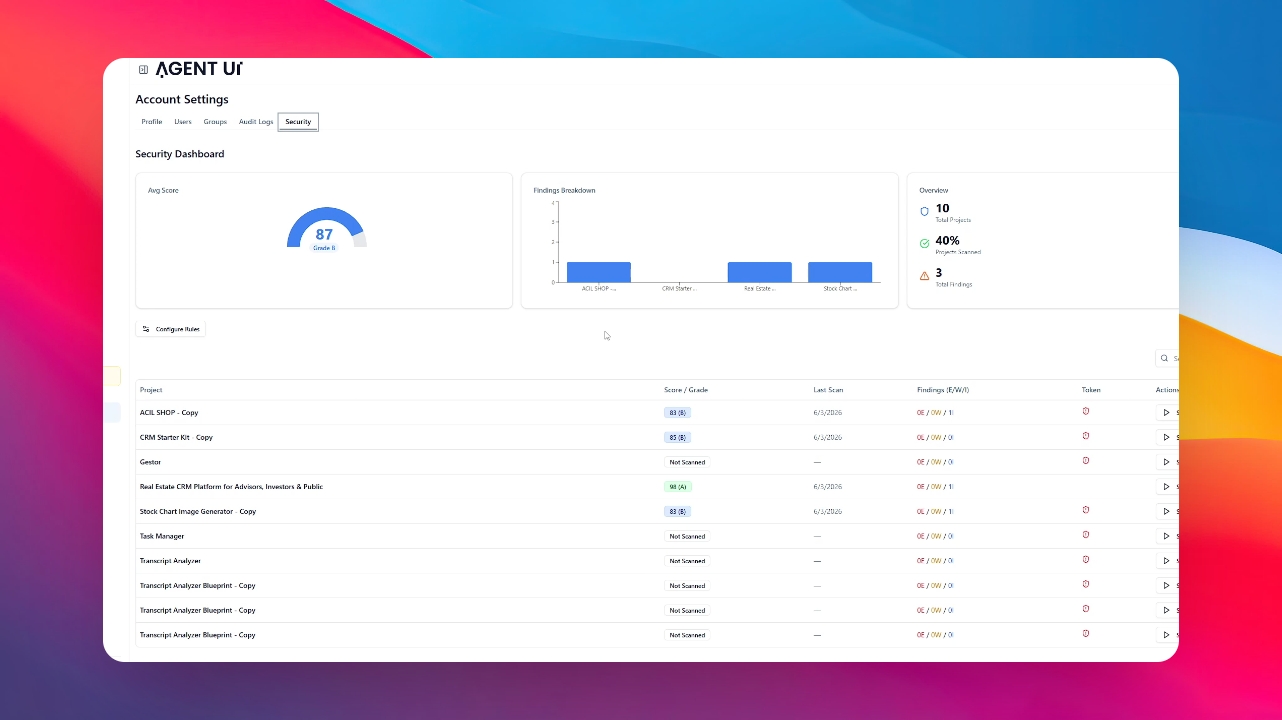
In the Security Dashboard, you’ll see an average score from 0 to 100, accompanied by a letter grade from A to F. This gives you a quick snapshot of your project's overall health.
Step 7: Personalize Scan Rules
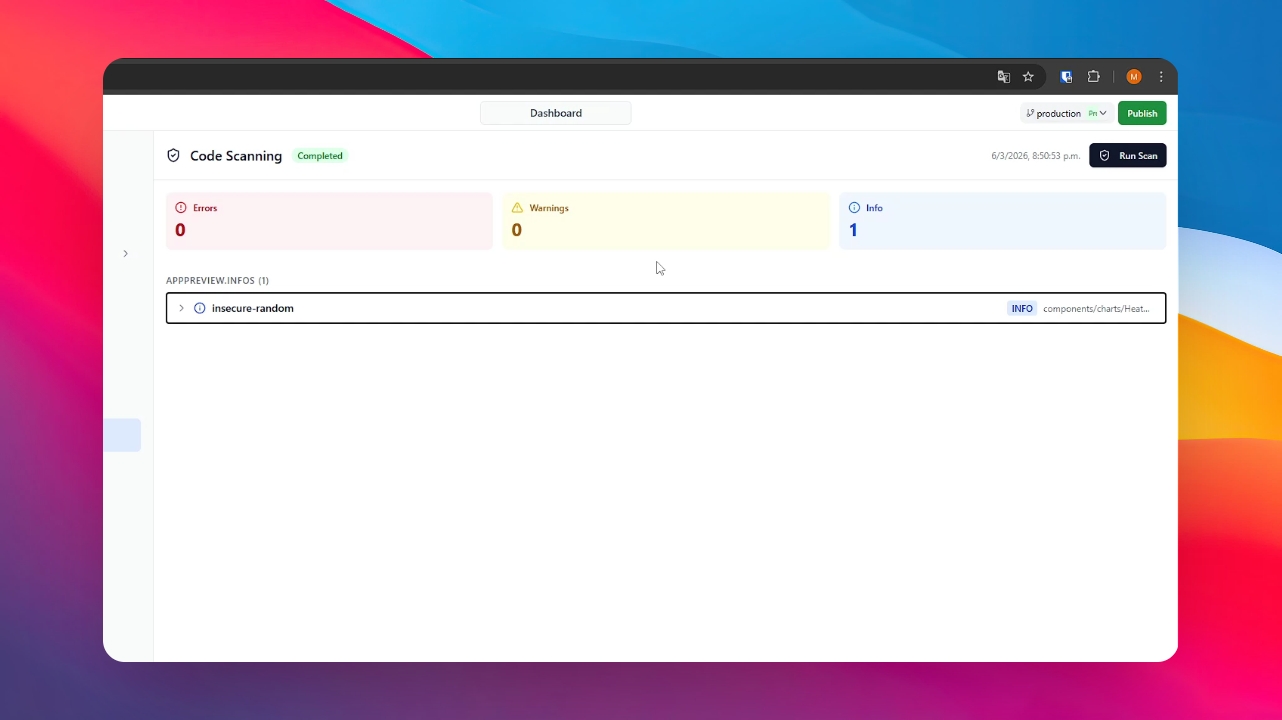
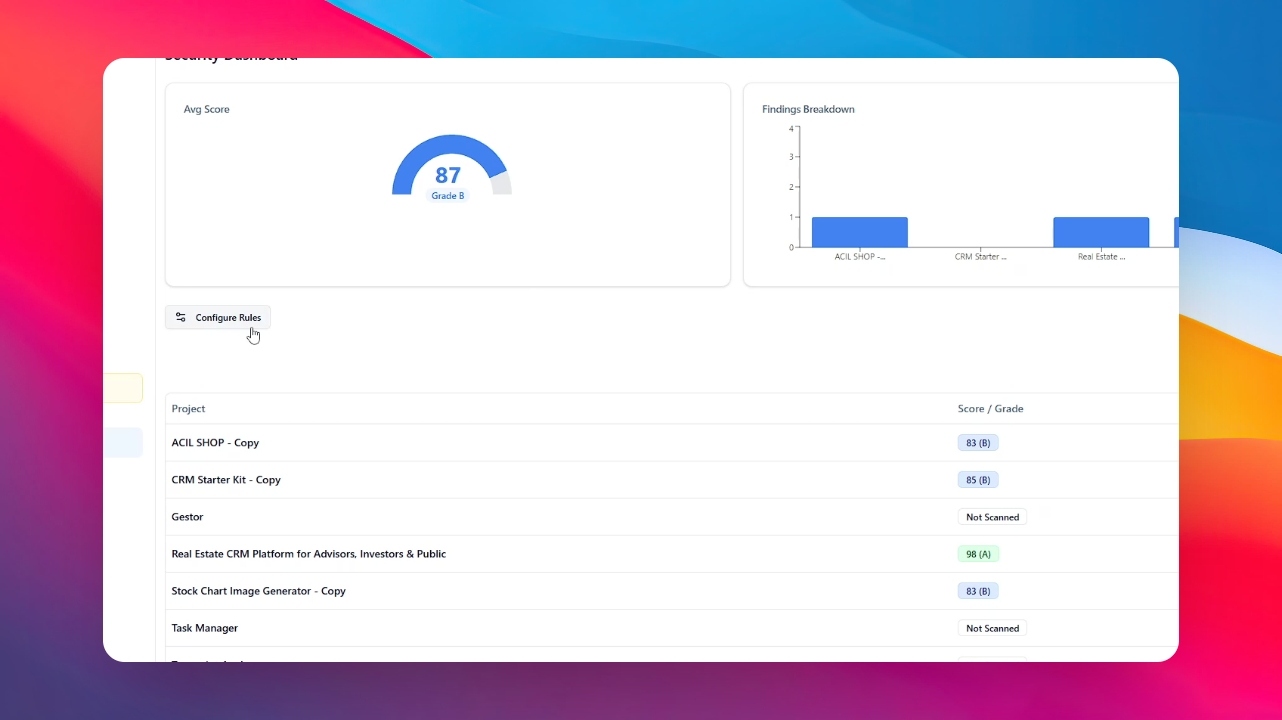
Click on "Configure rules" to decide what the scan should detect. You can choose between three predefined profiles:
Basic: Essential security checks.
Average: A balanced approach for most projects.
Strict: Maximum security oversight.
Step 8: Create a Custom Profile
If you need specific settings, you can create a Custom Profile by manually changing the checkmarks on each rule. Don't forget to click Save when you're done