Skills
Trigger Skills (start workflows automatically)
Trigger skills start a workflow automatically when an event occurs, an email arrives, a WhatsApp
message comes in, a webhook fires, or a scheduled time is reached. They are the entry point that kicks off your agent without you having to do anything.
Action skills are tools you call on-demand during a conversation by typing @[Skill Name]. They
perform a specific task — like extracting text from a PDF or sending an email — but only when you explicitly ask for it.
In short: triggers listen and react, action skills do work when asked.
Skills | Description |
Receive Email | Monitor and process incoming emails |
Receive WhatsApp | Receive and process WhatsApp messages |
Webhook | Receive and process data from external webhooks |
Schedule | Run workflows on a schedule (time, timezone, frequency) |
Step by step guide
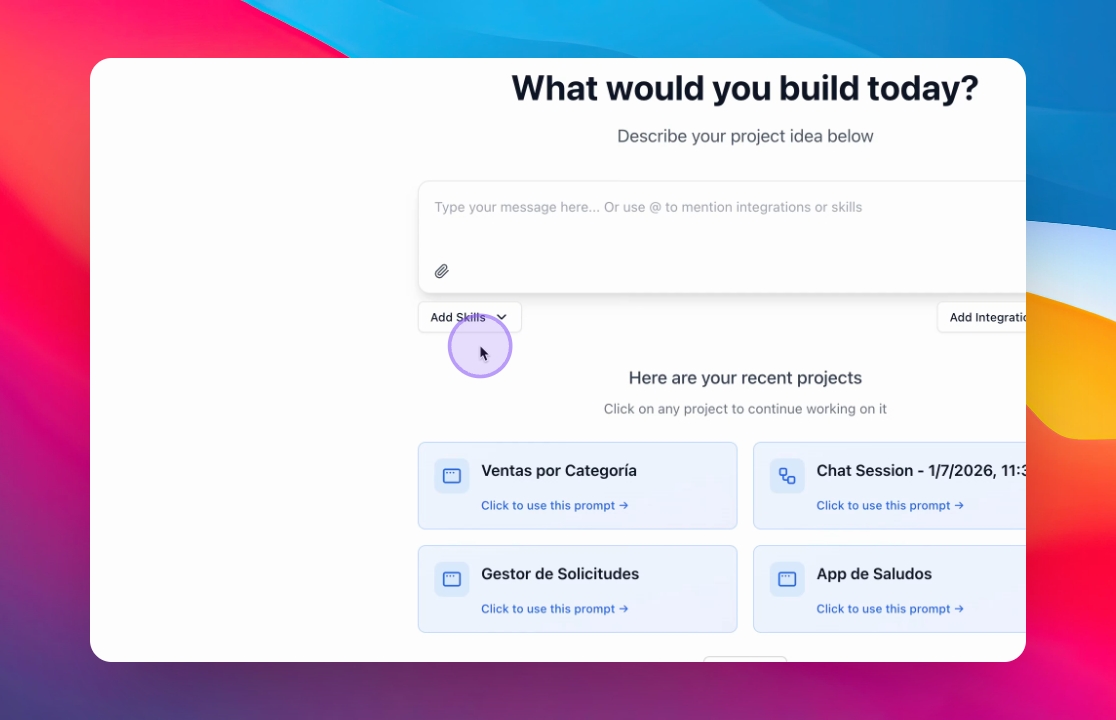
Step 1: Add Skills
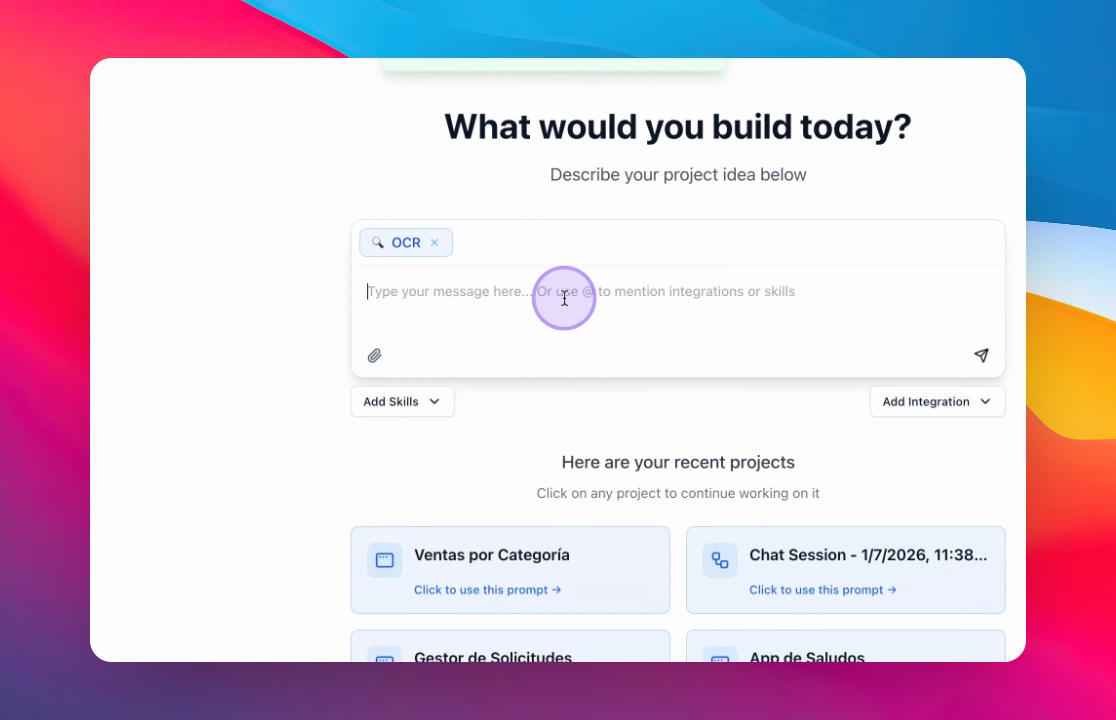
From your chat, click the Add Skills button to begin browsing available skills. Skills are pre-built capabilities that extend what your App or Automation from reading documents to generating reports.
Step 2: Search for Skills
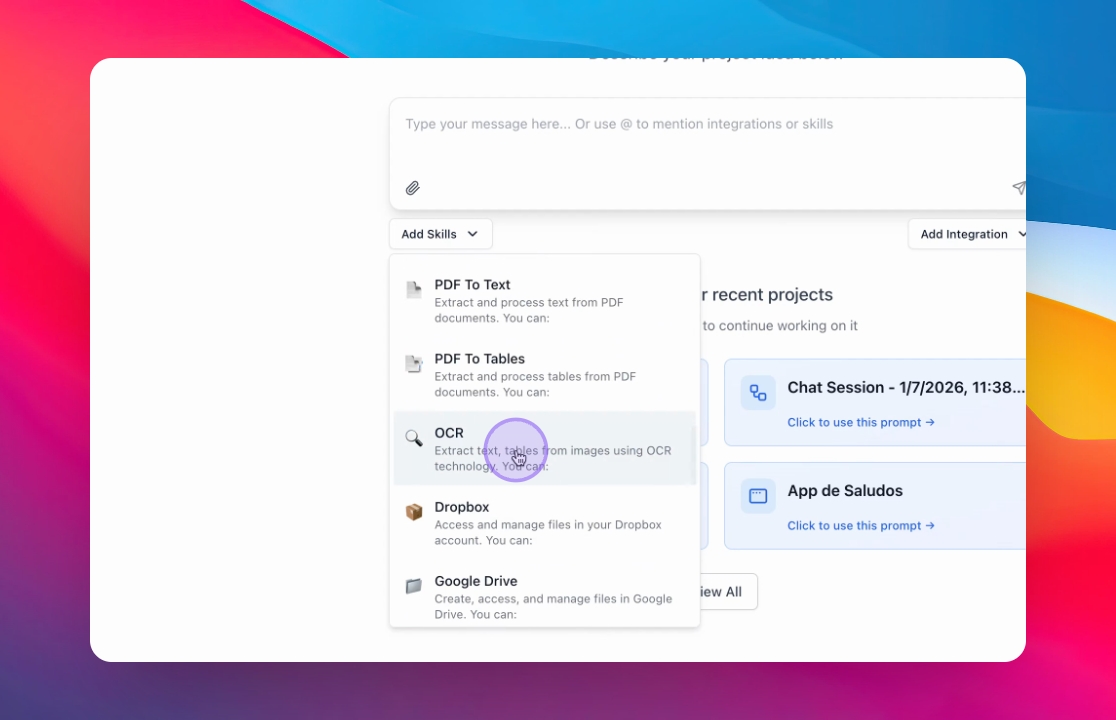
Use the search bar to find the skill you need. You can search by name or keyword — for example, type "PDF" to find skills related to document extraction.
Step 3: Select a Skill
Click on the skill to add it to your agent. Once selected, the skill card will appear in your workspace, ready to be configured with your instructions.
Step 4: Instruct AI on Skill Use
Tell the AI how you want the skill to be used. Be specific about the task you want to accomplish — for example: "Extract key details such as name, date, and total amount from uploaded invoices."
The AI will interpret your instructions and begin building an app around the selected skill.