

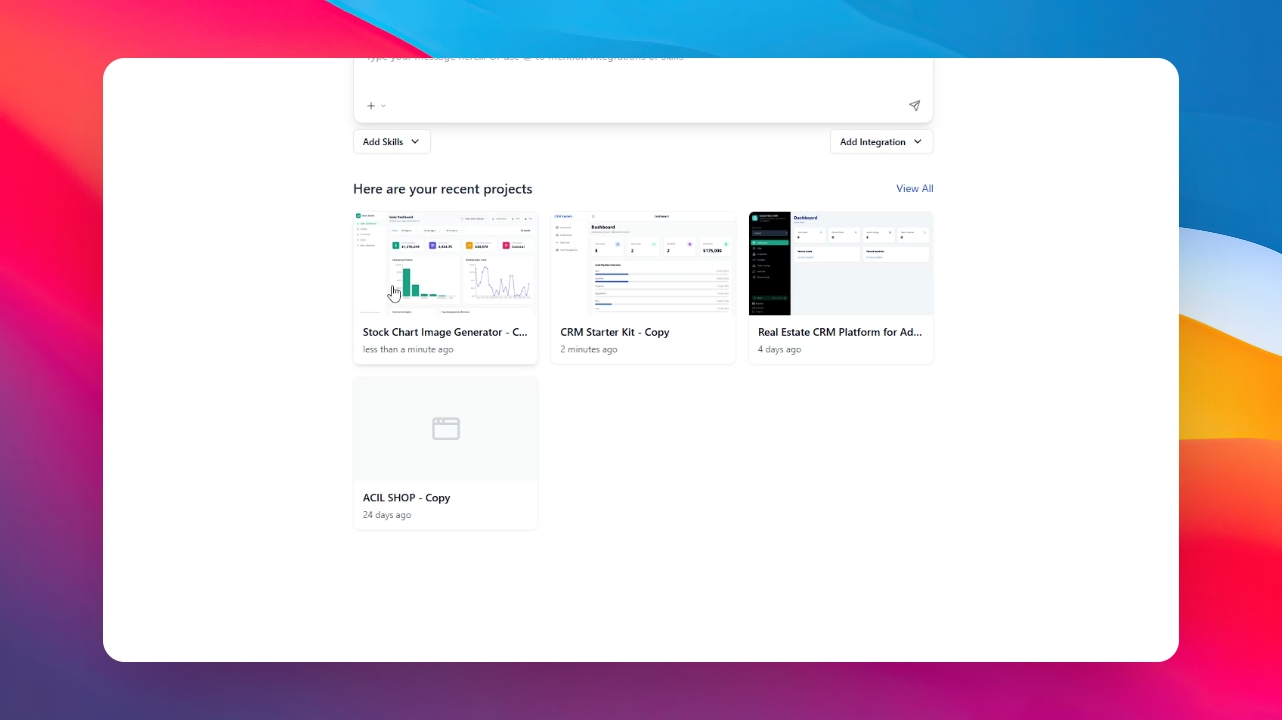
Step 1: Go to your App
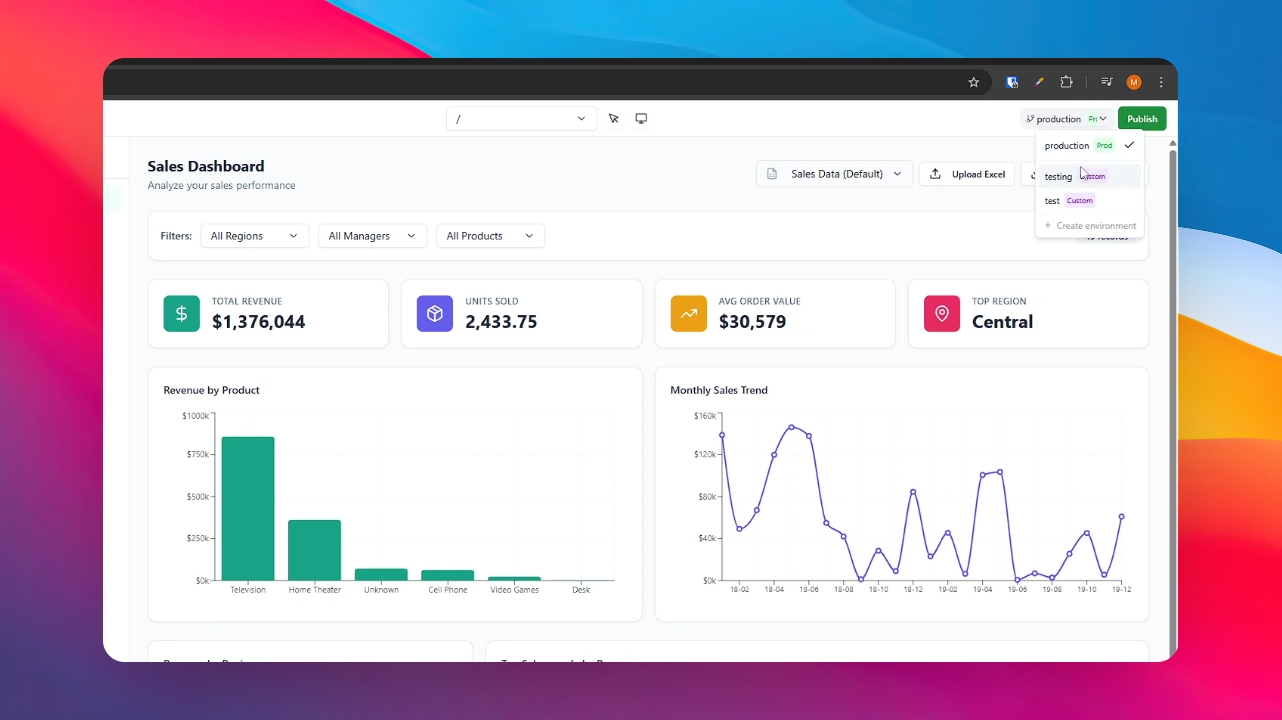
Step 2: Identify your Environments
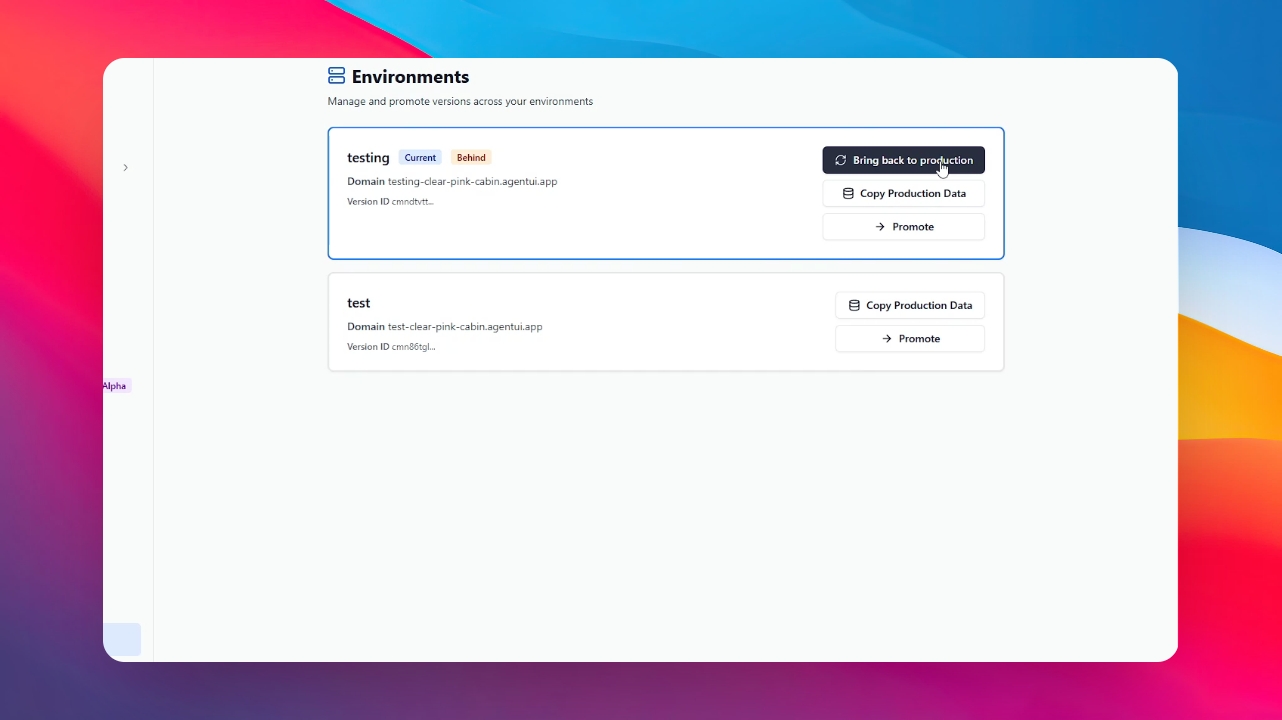
Locate your environment list. You will notice two main sections: Production and Testing. Check if the testing environment is currently behind the production version.
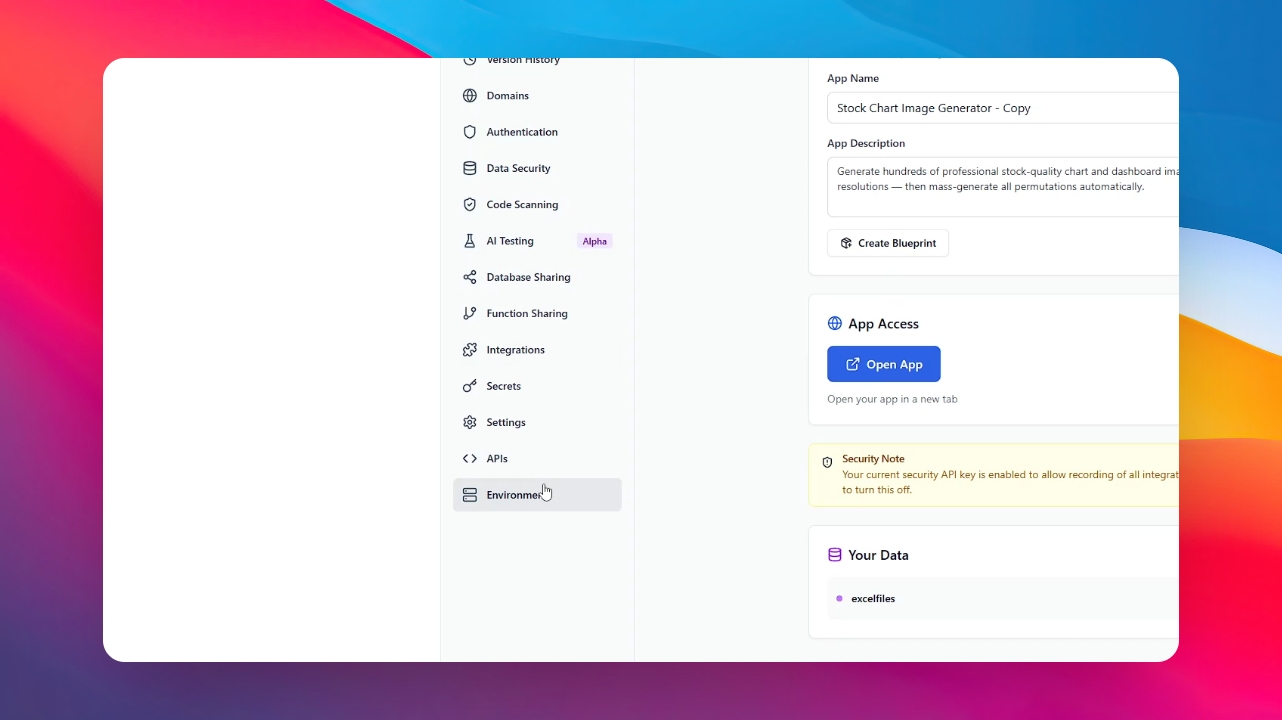
Step 3: Access the Environments Section
Head over to the Environments section found in the dashboard menu.
Step 4: Locate the Testing Environment
In the environments dashboard, find the specific Testing environment that needs to be updated.
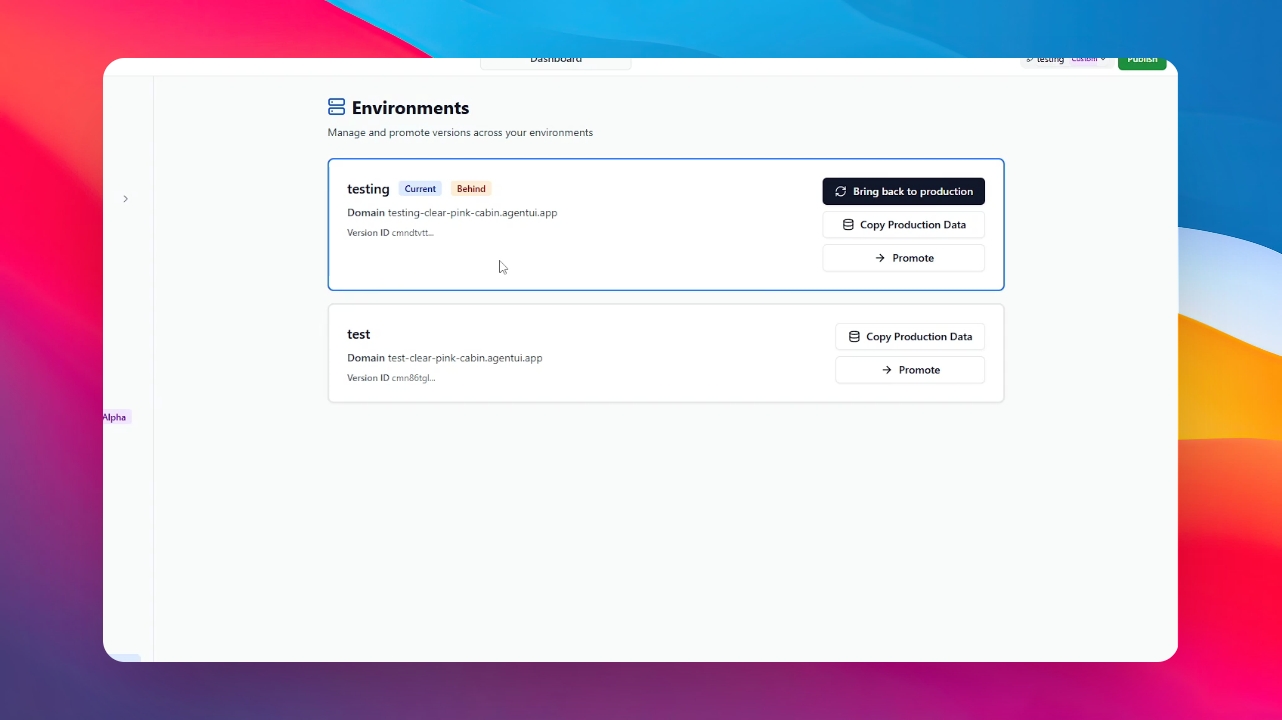
Step 5: Sync from Production
Click on the button labeled "Bring back from Production." This action will trigger the synchronization process.
Step 6: Verify the Update
Once the process is complete, your production and testing environments will be running the exact same version, ensuring consistency across your development workflow.