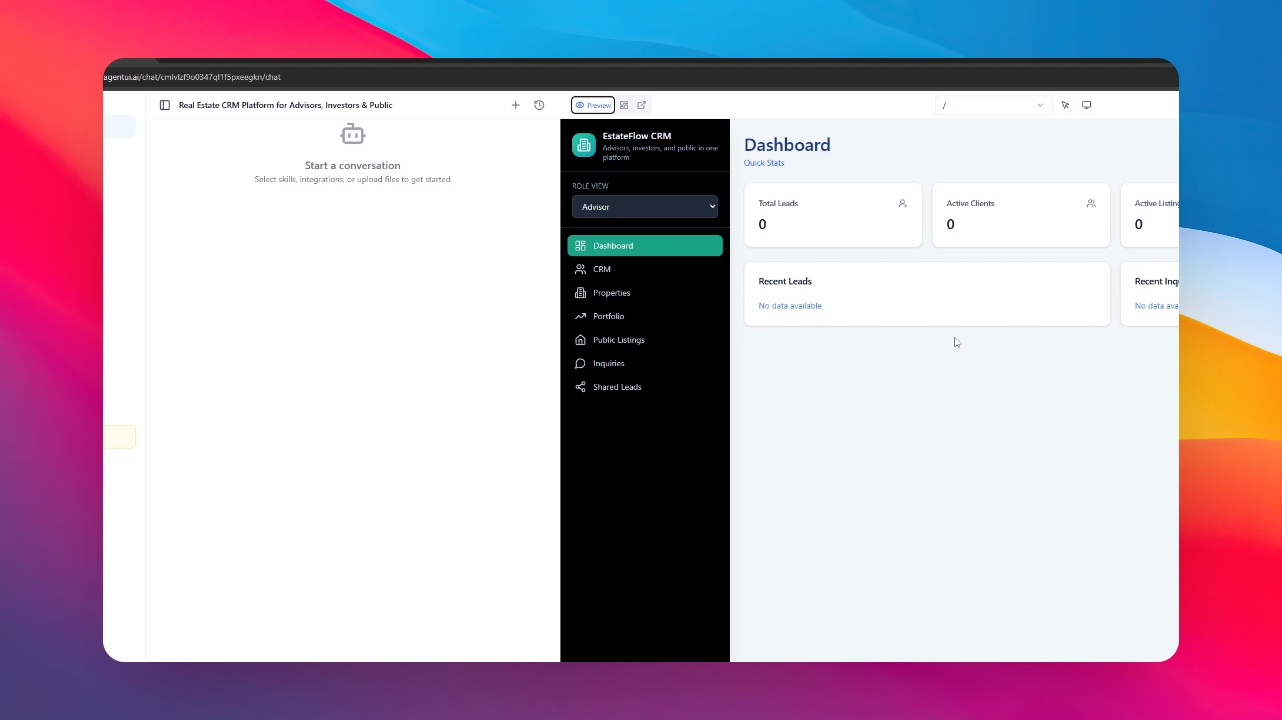
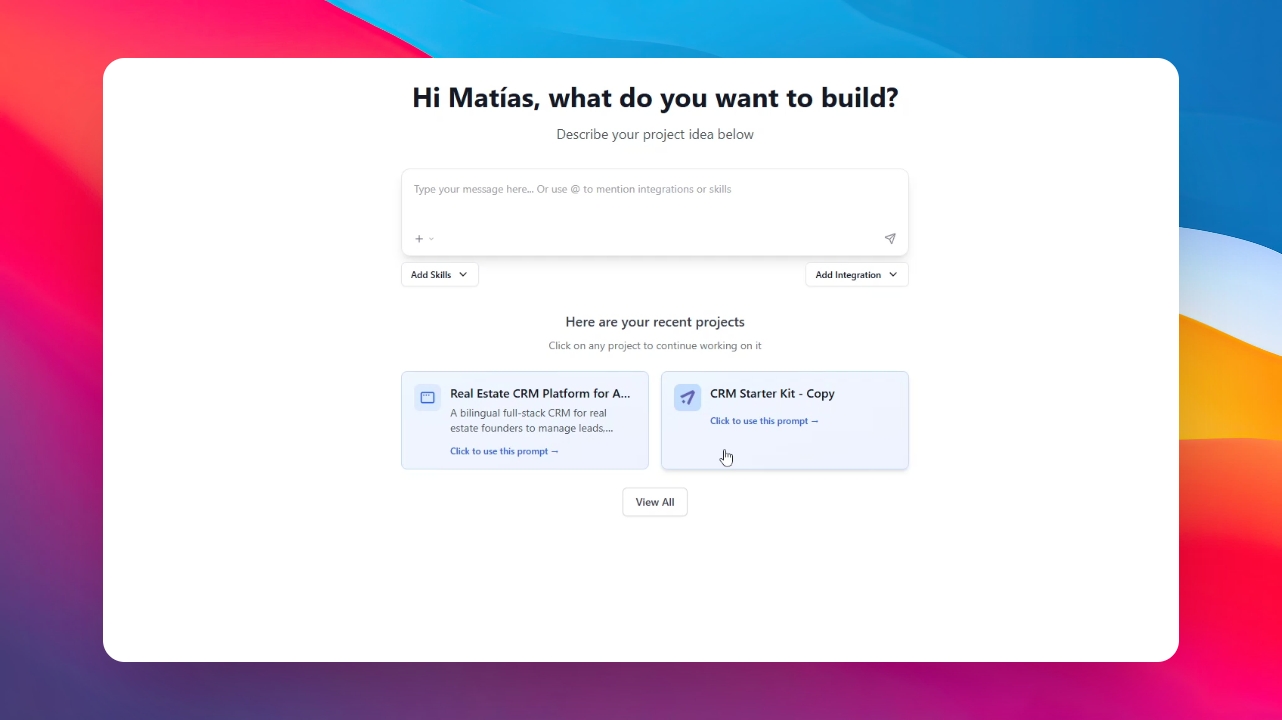
Step 1: Select Your Project
To get started, navigate to the main menu and select the chat of the specific app you want to roll back.
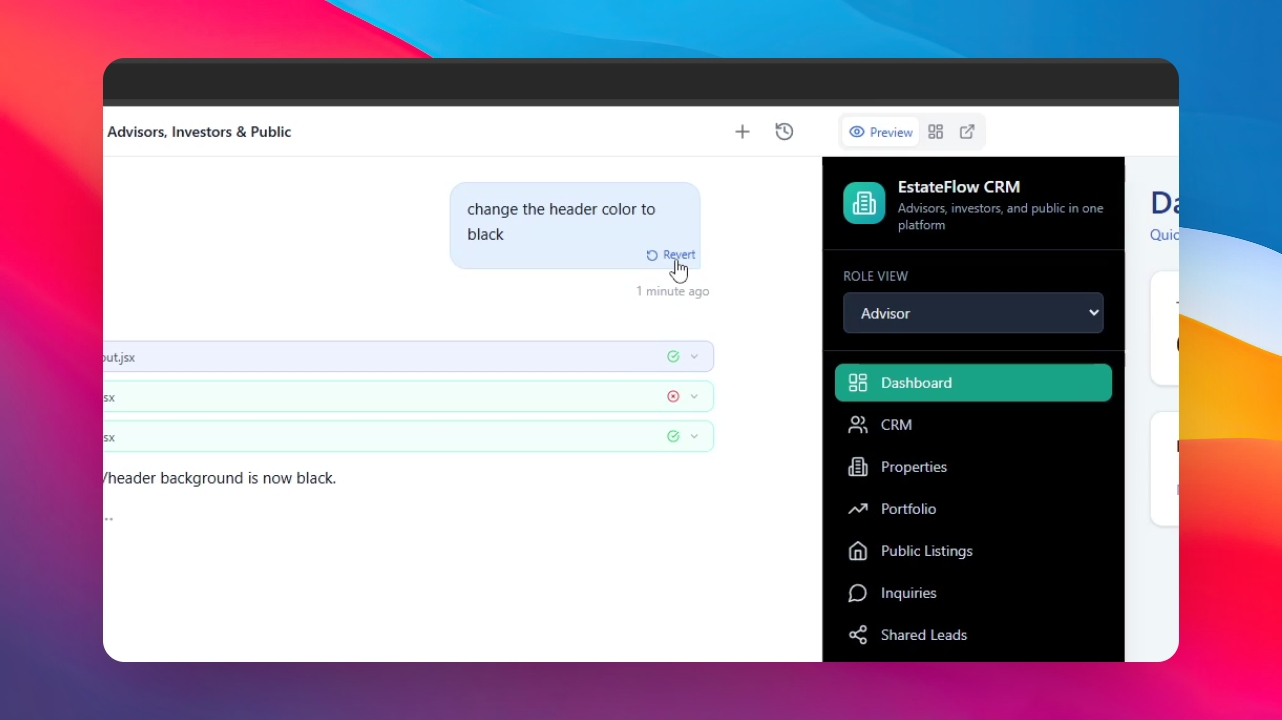
Step 2: Method 1 - Use the Rollback Icon
If you want to undo a recent change, locate the specific message in the chat that triggered the update. You will see a Rollback symbol attached to that message.
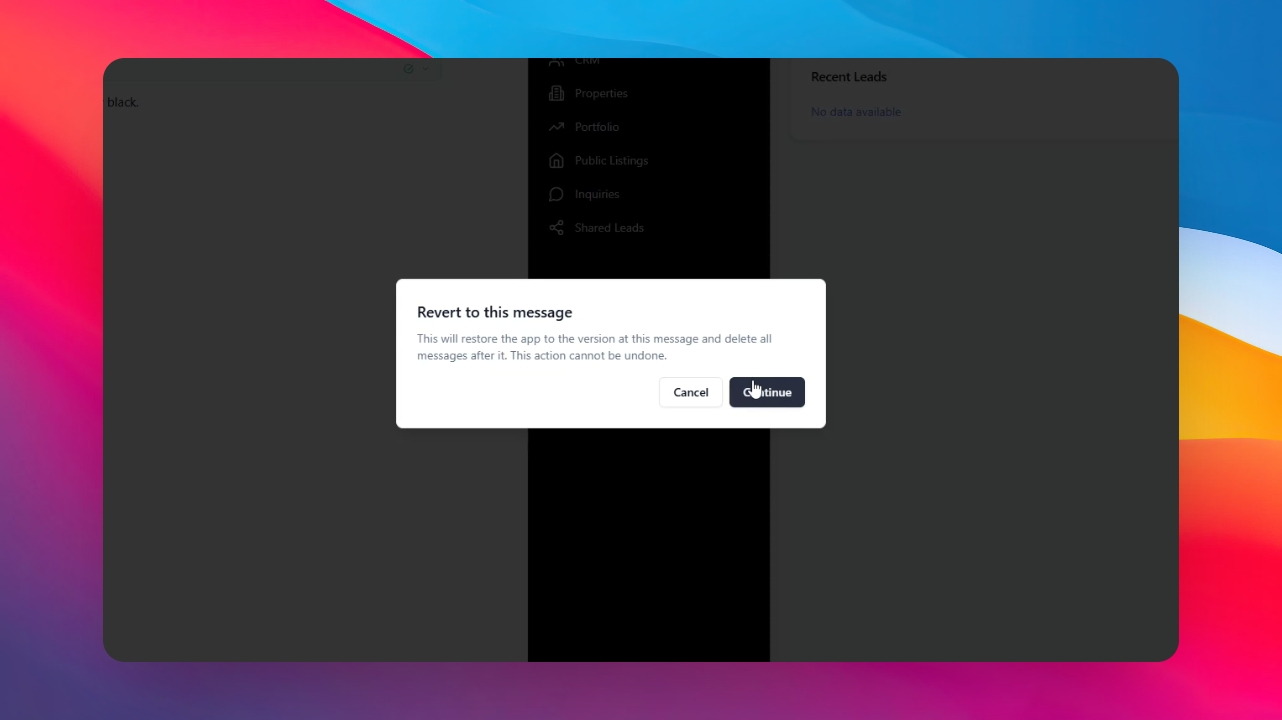
Step 3: Confirm the Rollback
Click on the rollback symbol. A confirmation message will pop up; click Rollback to proceed. After a few seconds, your app will return exactly to the state it was in before that message.
Step 4: Method 2 - Access Version History
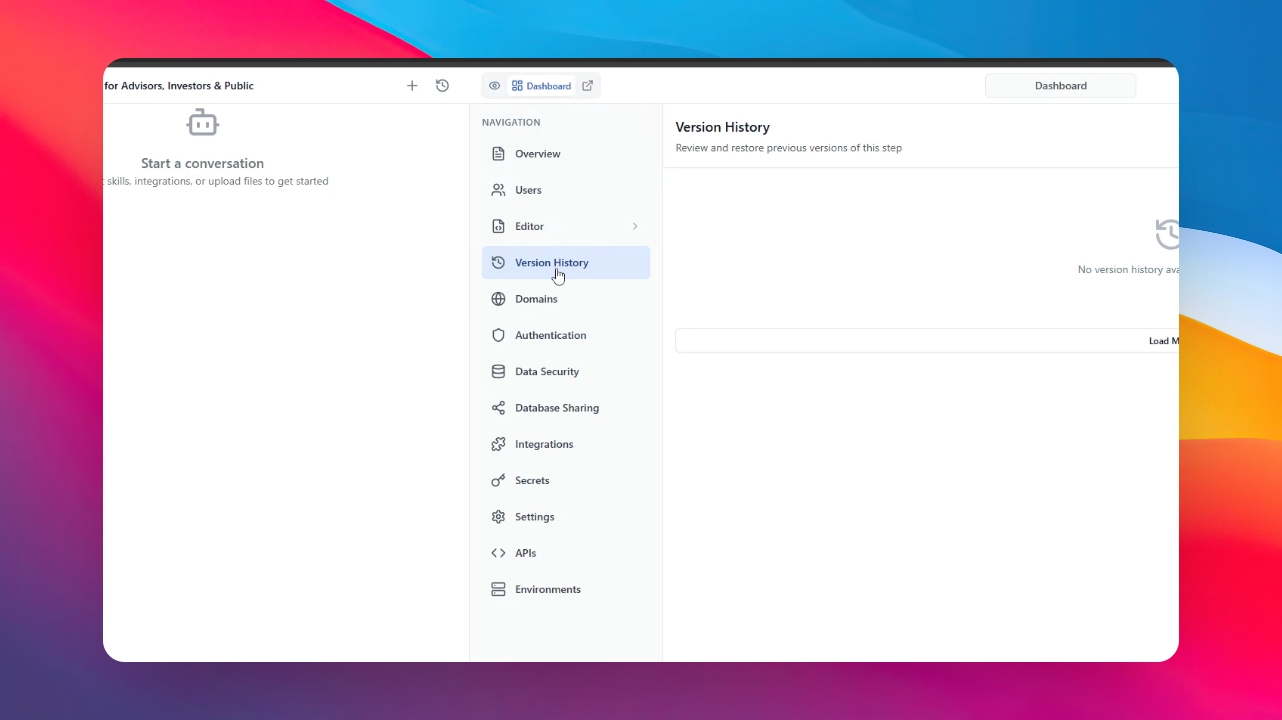
For more control, click on the Dashboard icon and select the "Version History" option.
Step 5: Review Changes
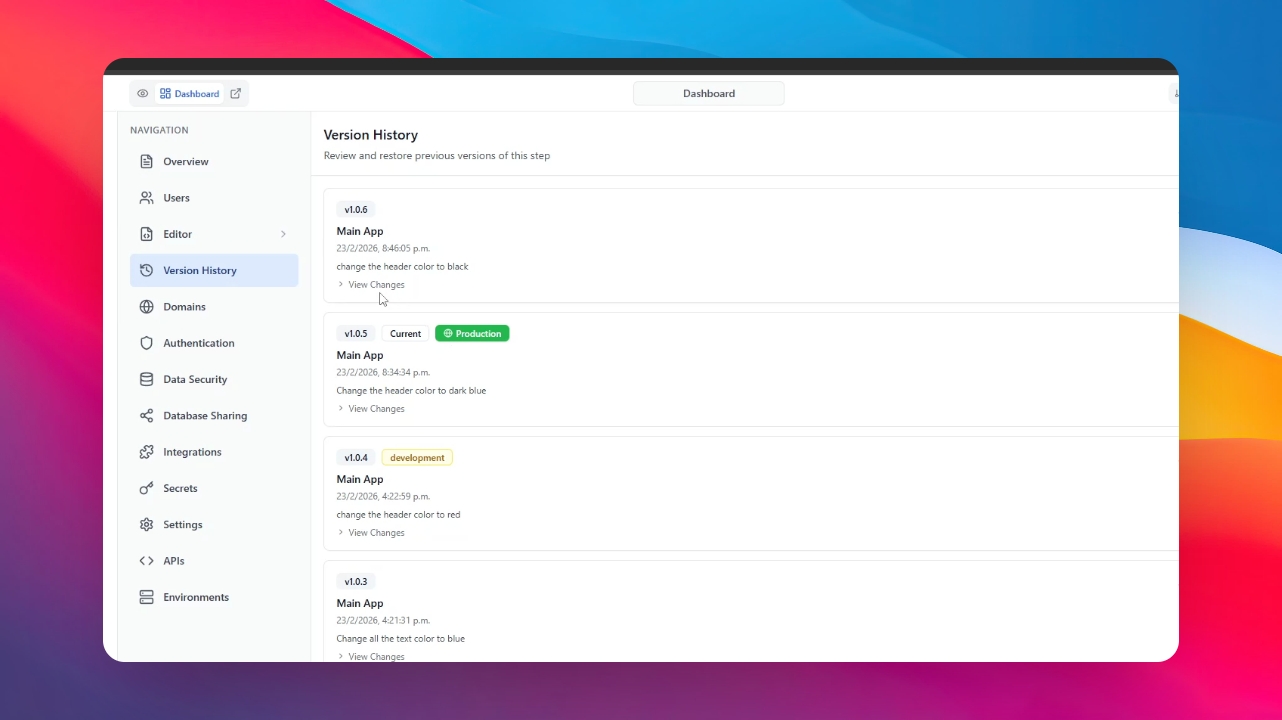
In this section, you will see a list of messages and changes, including the version number, date, and time. You can click "View Changes" to see exactly which files were updated in each version.
Step 6: Select and Revert
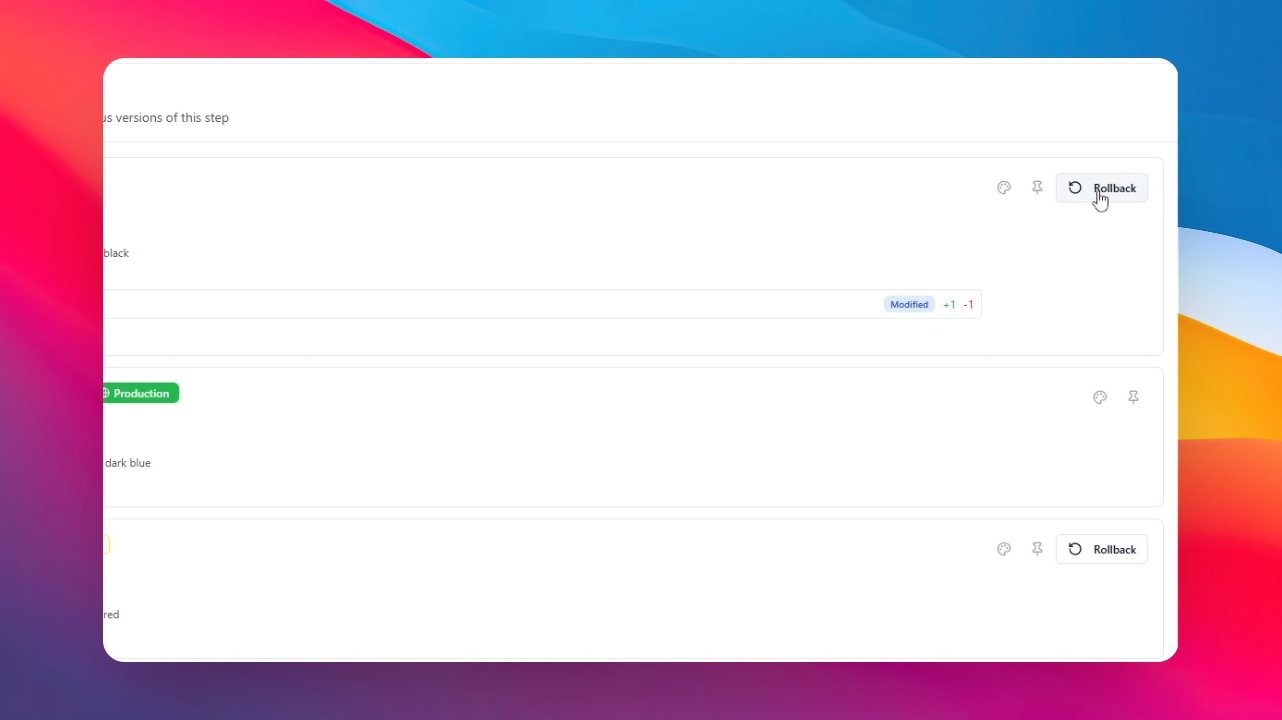
Choose the specific version of your app you want to revert to and click the Rollback button.
Step 7: Process Complete
Wait a few seconds for the system to apply the changes. Your app is now successfully rolled back to your chosen version.