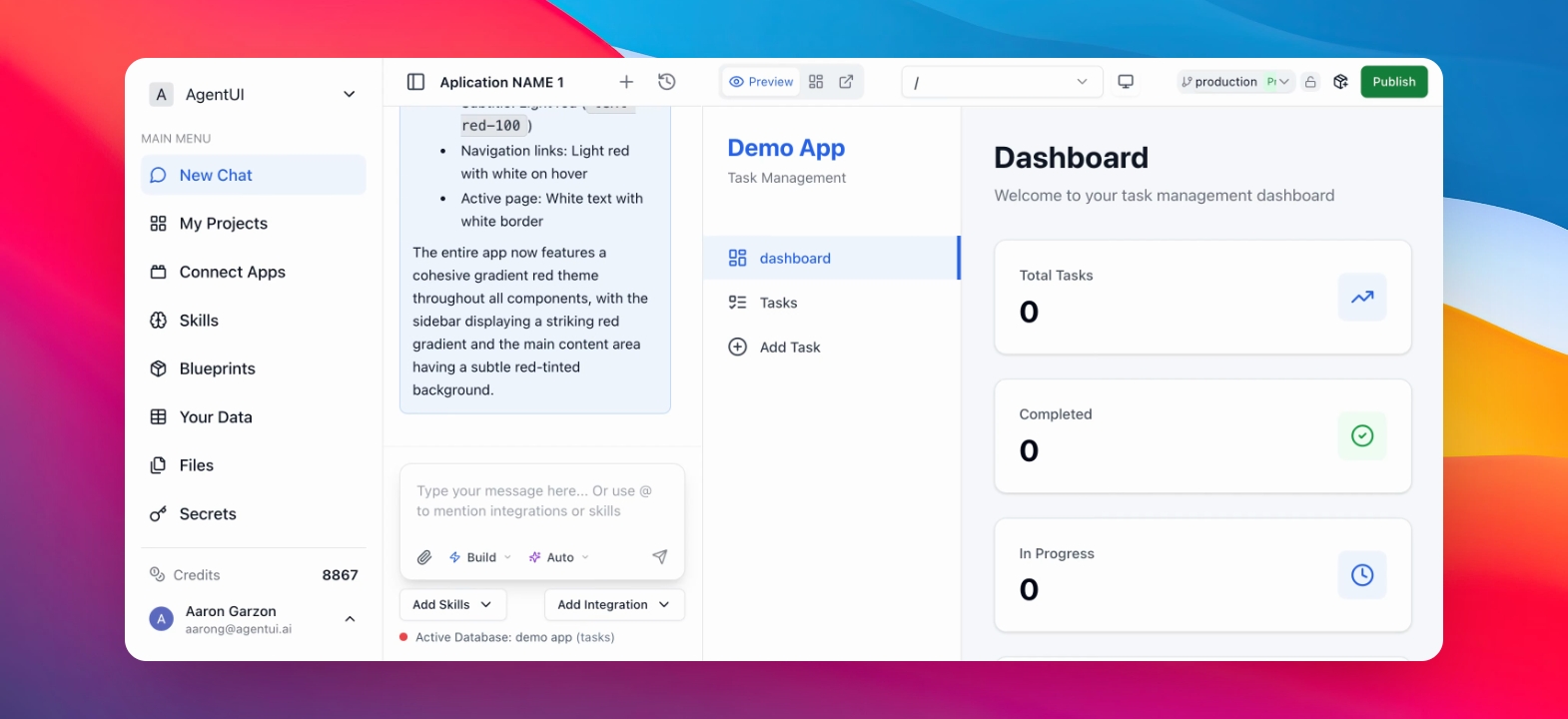
Rollback to a Previous Version
The Rollback to Previous Version feature lets you safely restore an earlier state of your project by selecting a past message or action in the conversation history.
Each time a change is made, the system stores the exact message and context that produced that result. This allows you to go back to a specific point in time and recover how the project looked and behaved at that moment.
How it works
Every message sent (by you or the system) creates a new version.
Versions include the full message content, not just the final output.
You can select a previous message from the history timeline.
When you roll back, the project is restored to the state generated by that message.
What gets restored
The structure, logic, and configuration generated at that point
Example
Message A: “Create a dashboard with sales by month” → Version created
Message B: “Add filtering by region” → New version created
If you roll back to Message A, the project returns to the original dashboard before regional filtering was added.
When to use rollback
A recent change broke something
You want to compare results between versions
You want to undo multiple changes at once
You want to recover a working state without rebuilding manually
Rollback is safe and non-destructive,you can always move forward again or choose a different version.
Step by step guide
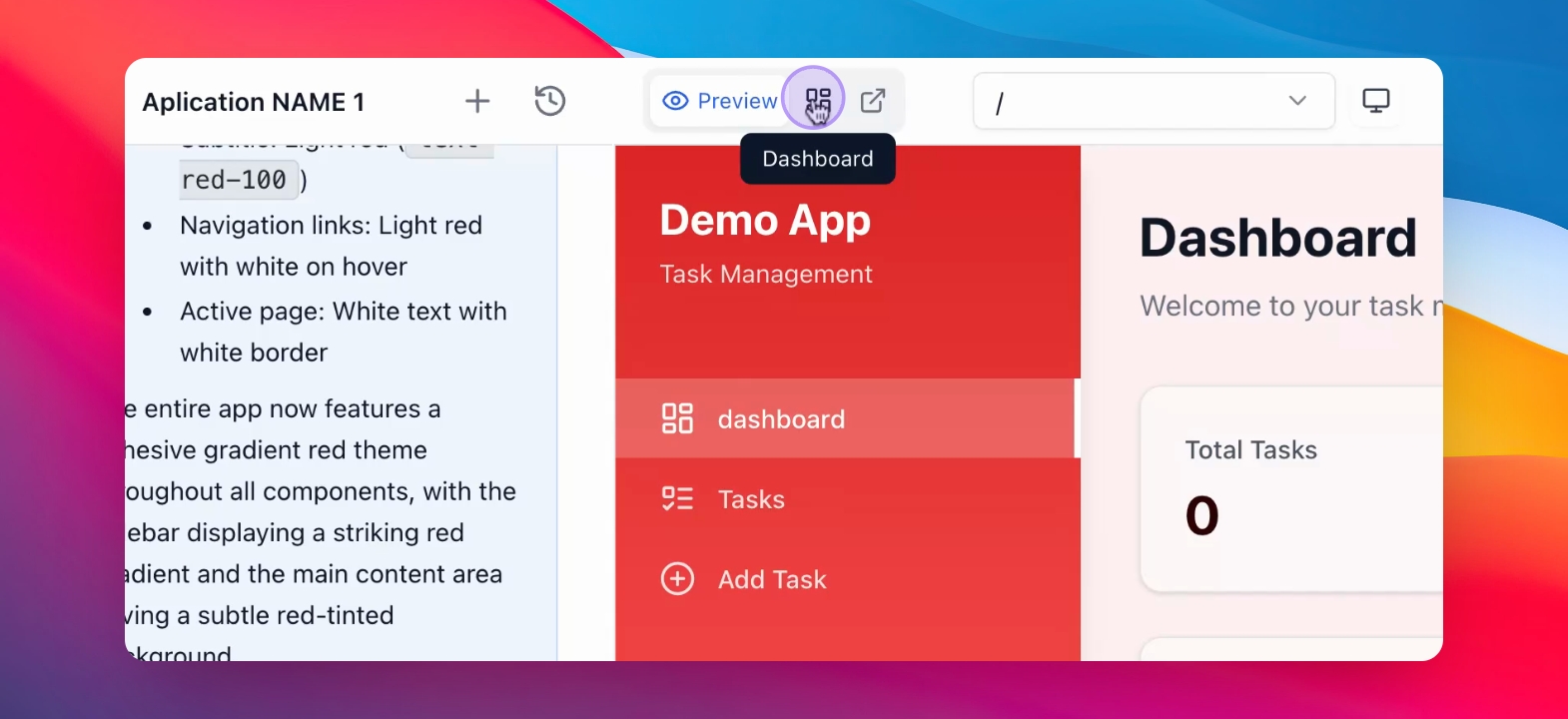
Step 1: Access Dashboard
Click on Dashboard.
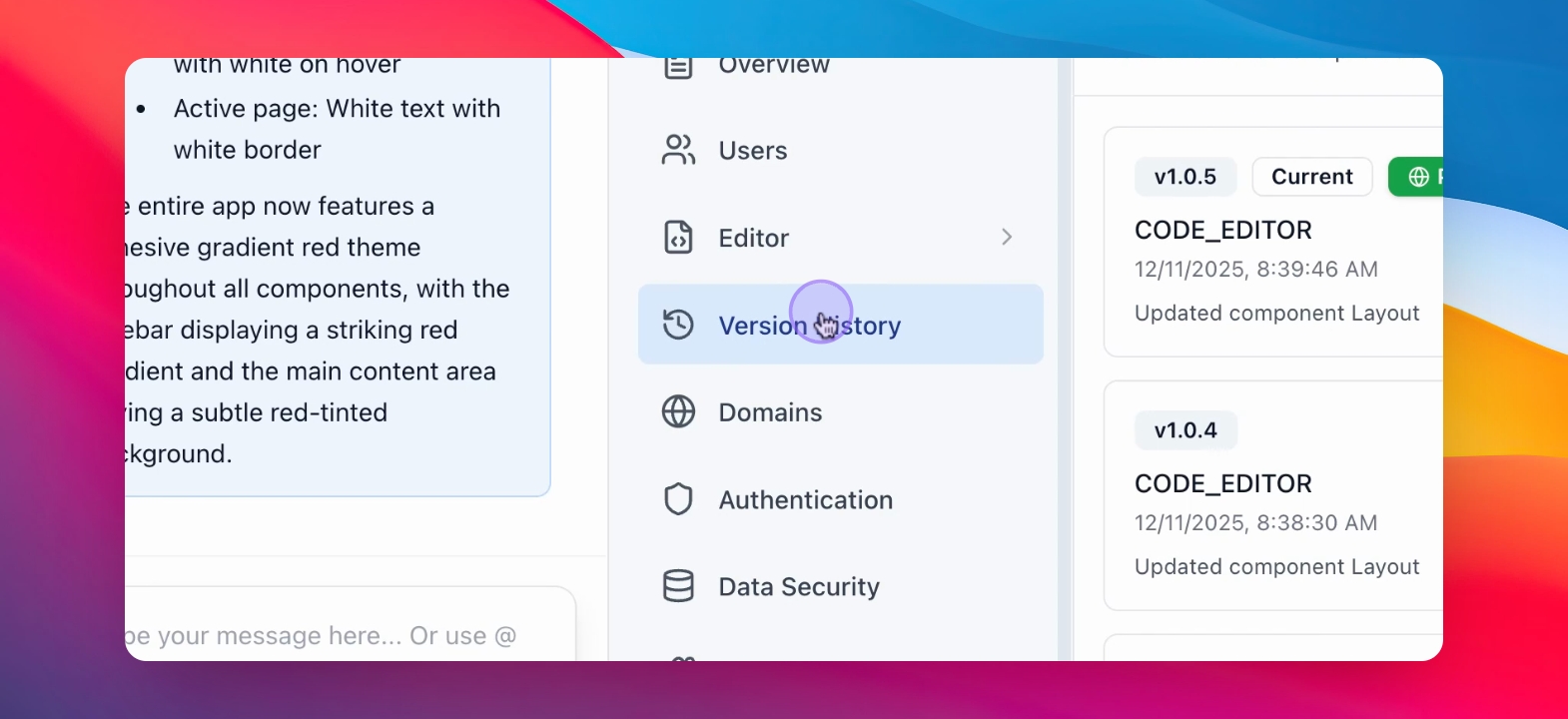
Step 2: Open Version History
Navigate to the Version History section.
Step 3: View Versions
In the Versions view, you can see a complete timeline of changes made to your app.
Each version shows:
The version number (e.g. v1.0.6)
The environment (Current / Production)
The timestamp of when the change was made
The exact message or instruction that generated that version
Use this view to:
Review how your app evolved over time
Understand which message caused a specific change
Compare versions before and after updates
Switch between versions if you need to inspect or restore a previous state
This makes it easy to trace changes, debug issues, and confidently move between iterations without guessing what changed.
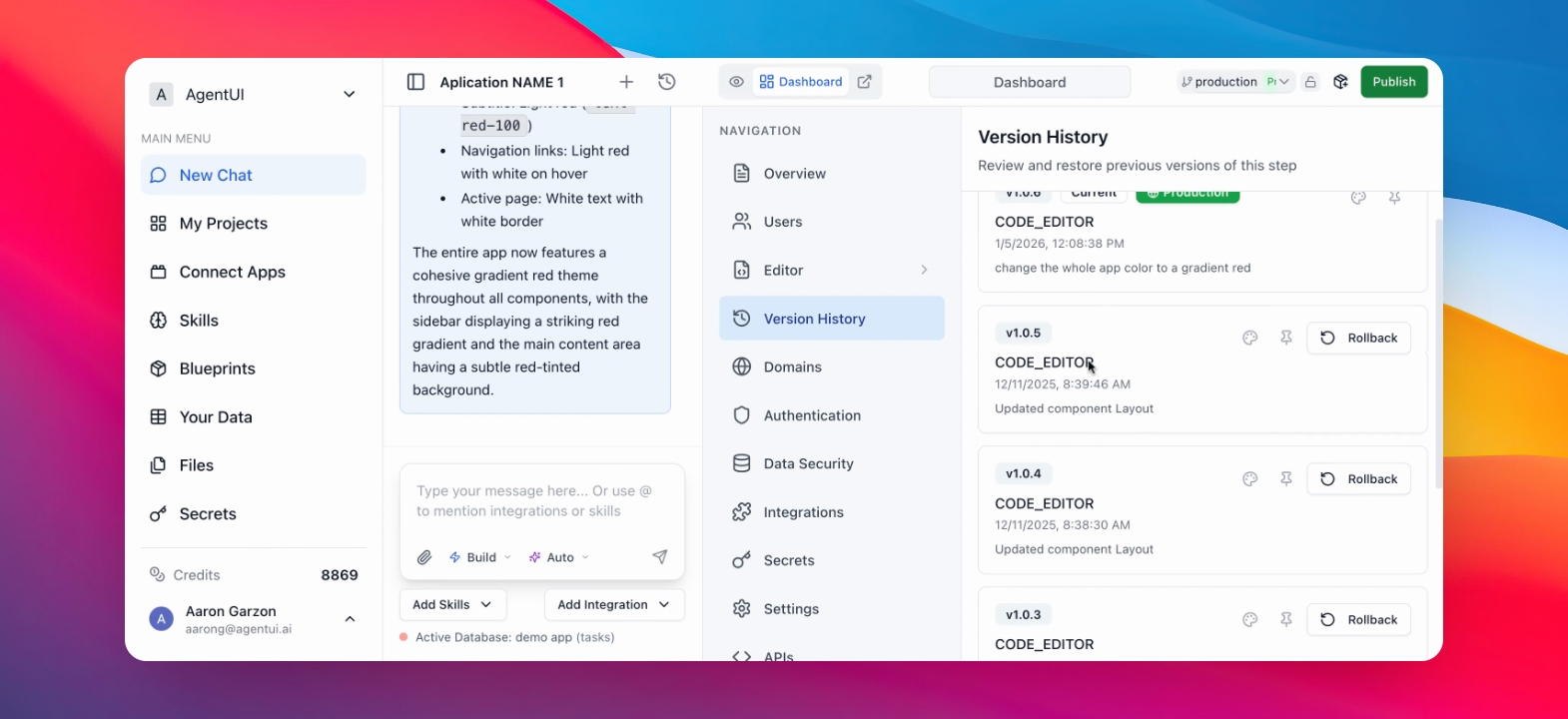
Step 5: Select the version you want to rollback to
Select the version before the recent changes.
Step 6: Rollback Changes
Click on Rollback.
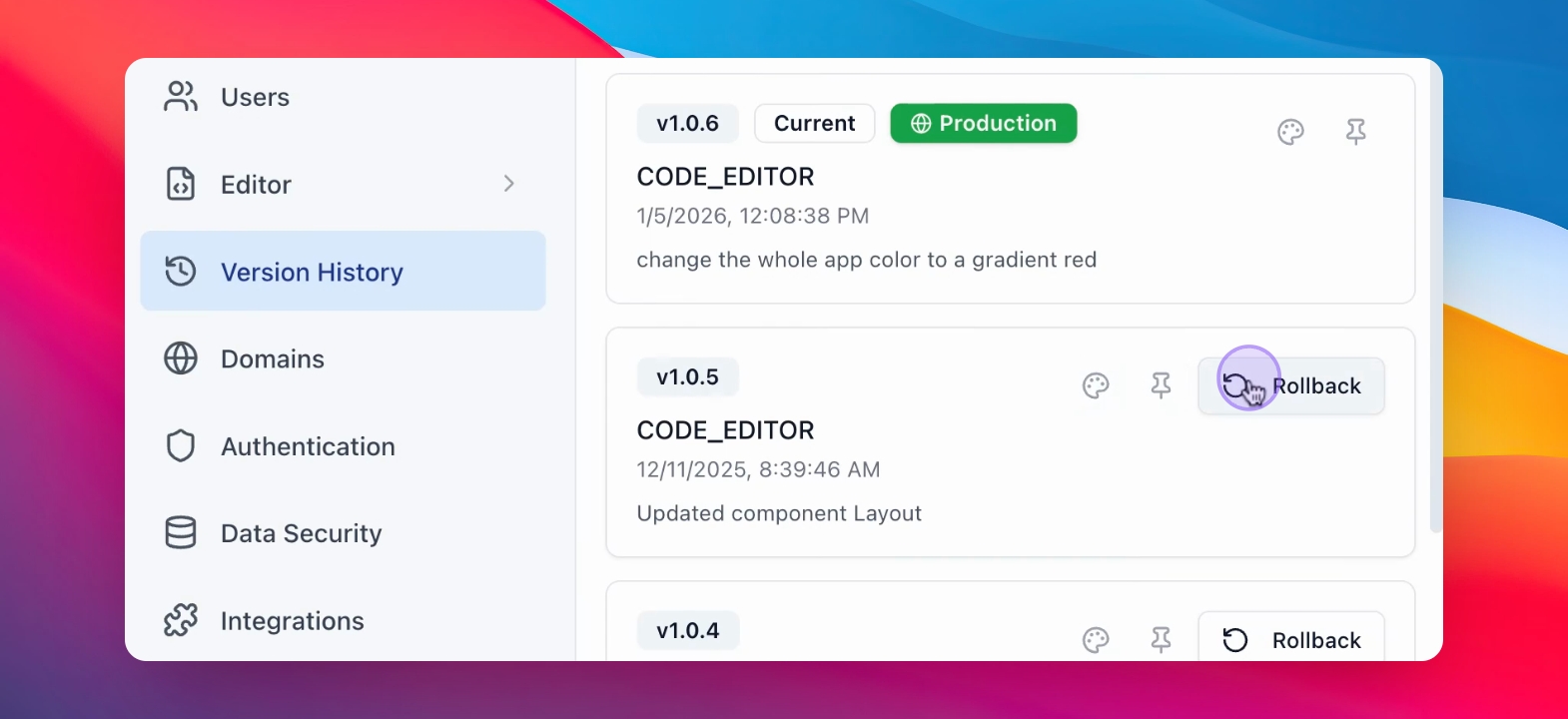
Step 7: Confirm Rollback
Click on Rollback to confirm the changes.
The rollback confirmation message appears.
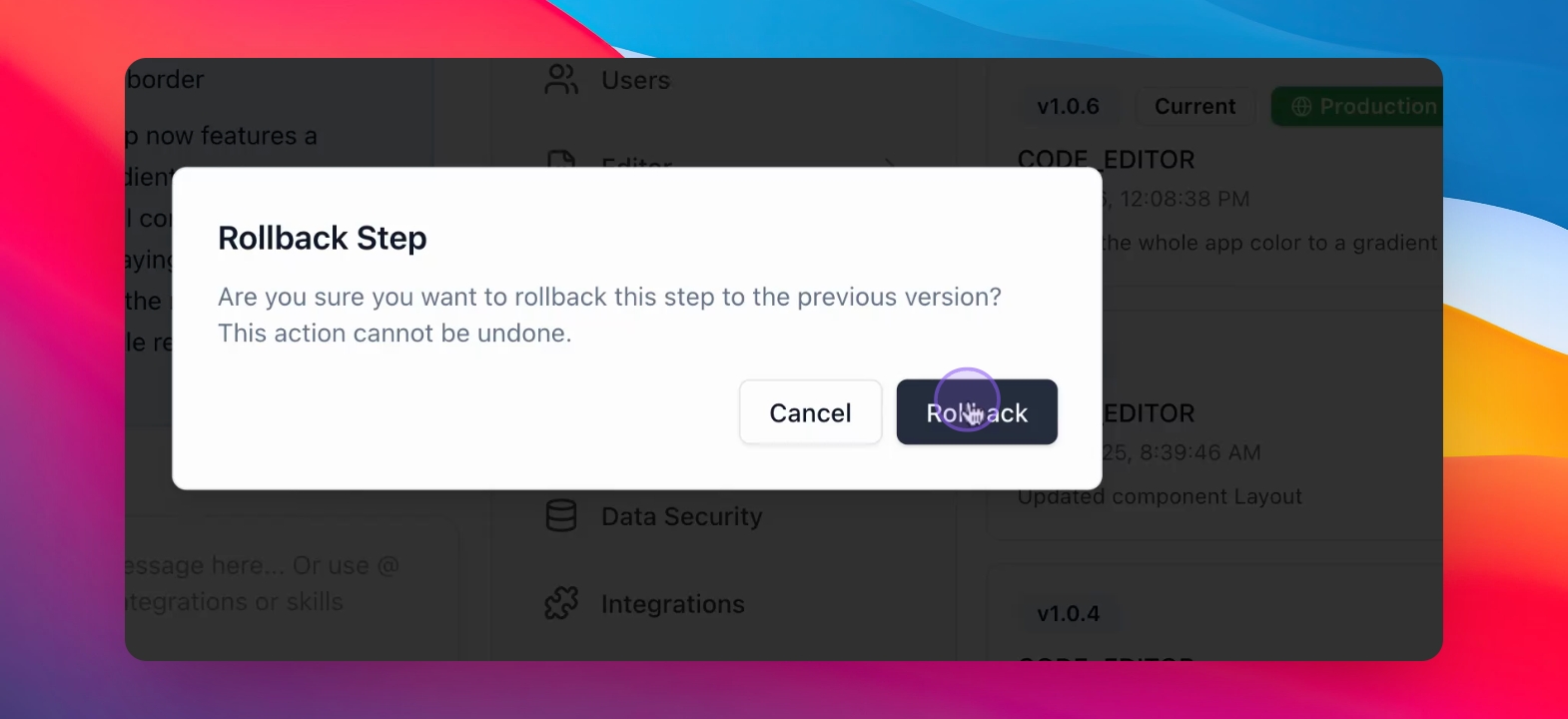
Step 8: Verify Changes
Return to the app to see the previous version restored.
The app displays the previous version successfully restored.