Step by step guide
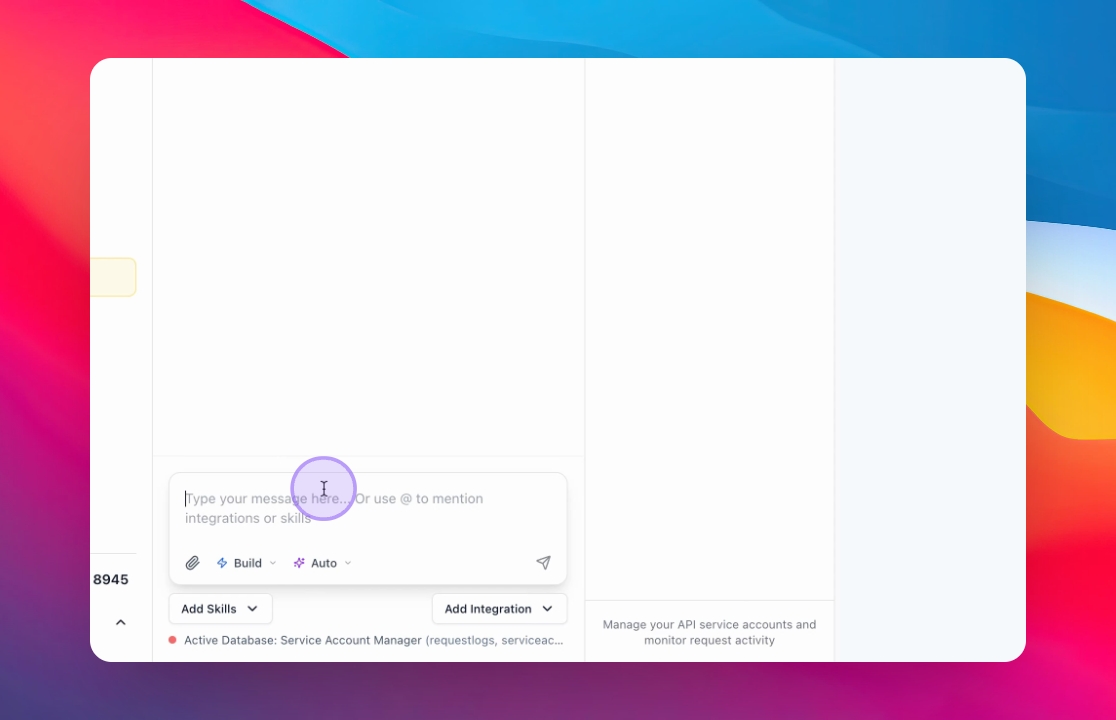
When to start a new chat
Always create a new chat when:
You start working on a new feature or idea
You switch to a different task or goal
The conversation feels long or off-track
You want clean, more accurate results from the AI
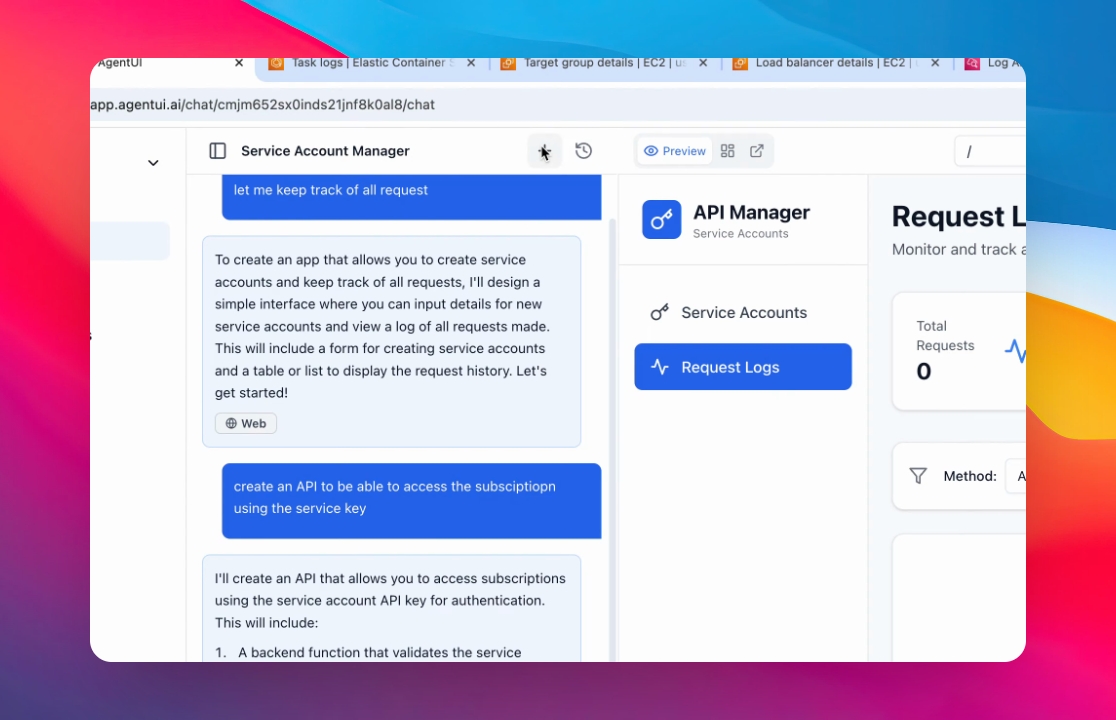
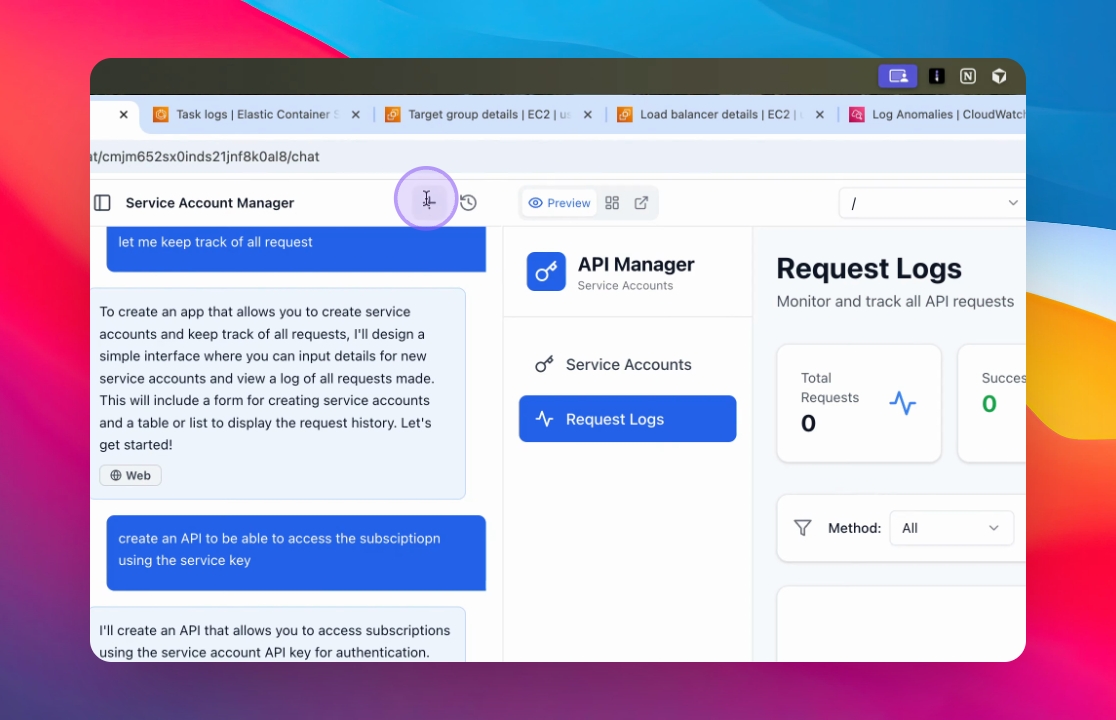
Click the + icon to open a new chat.
Starting fresh gives the AI clear context and helps it focus on your current task.
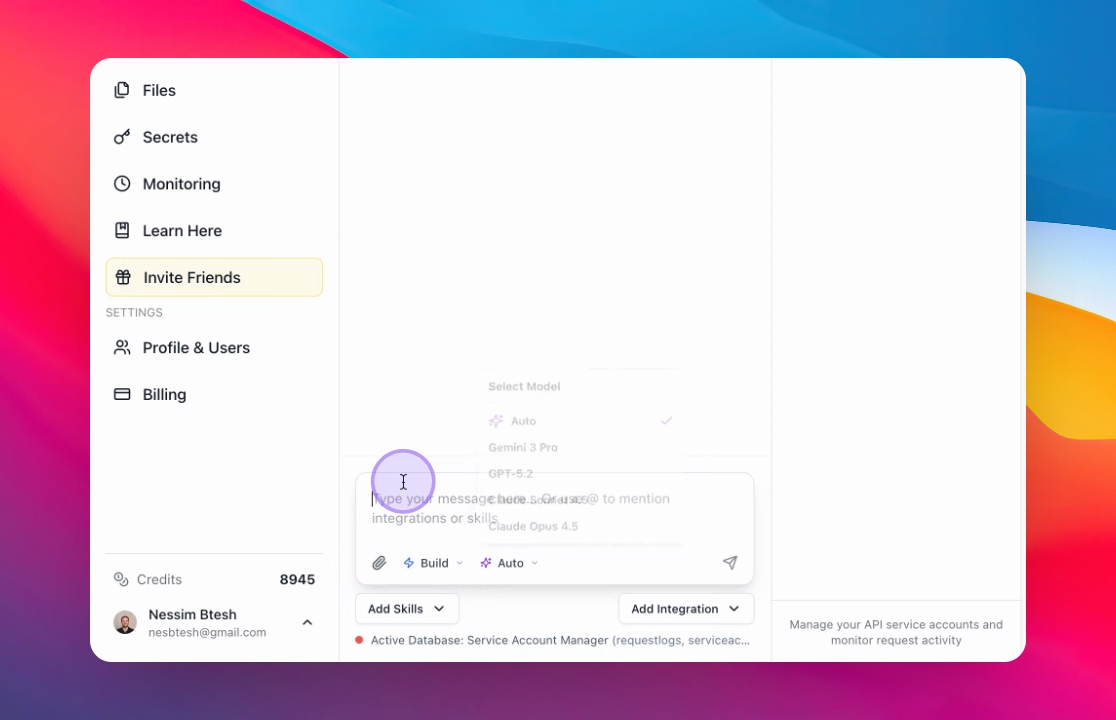
Understand what each model is good for
Gemini 3, Best for debugging, fixing issues, and quick corrections
Claude Opus, Best for complex reasoning and multi-step tasks
Claude Sonnet, Best for building new features and structured implementations
GPT-5.2, Best for UI/UX, layouts, and design-focused work
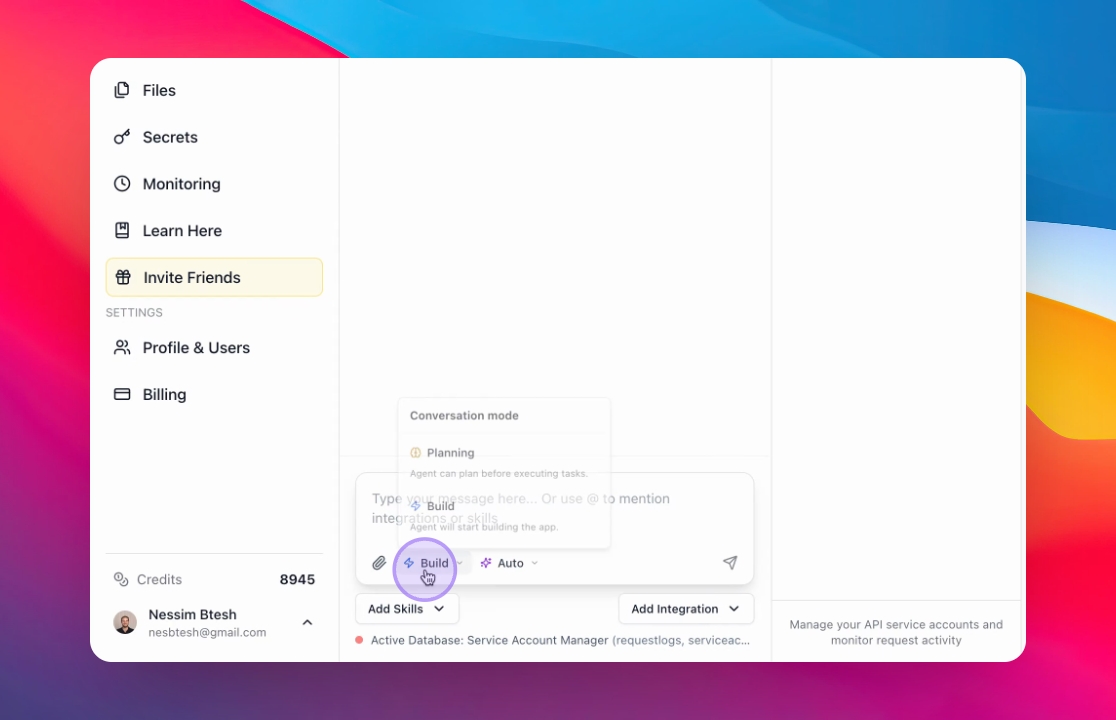
Use Build and Planning Modes
Build mode, Use this when you want the AI to create, modify, or implement features (code, logic, UI, integrations).
Planning mode, Use this to discuss ideas, plan architecture, or think through strategy before building.
Refresh stuck processes
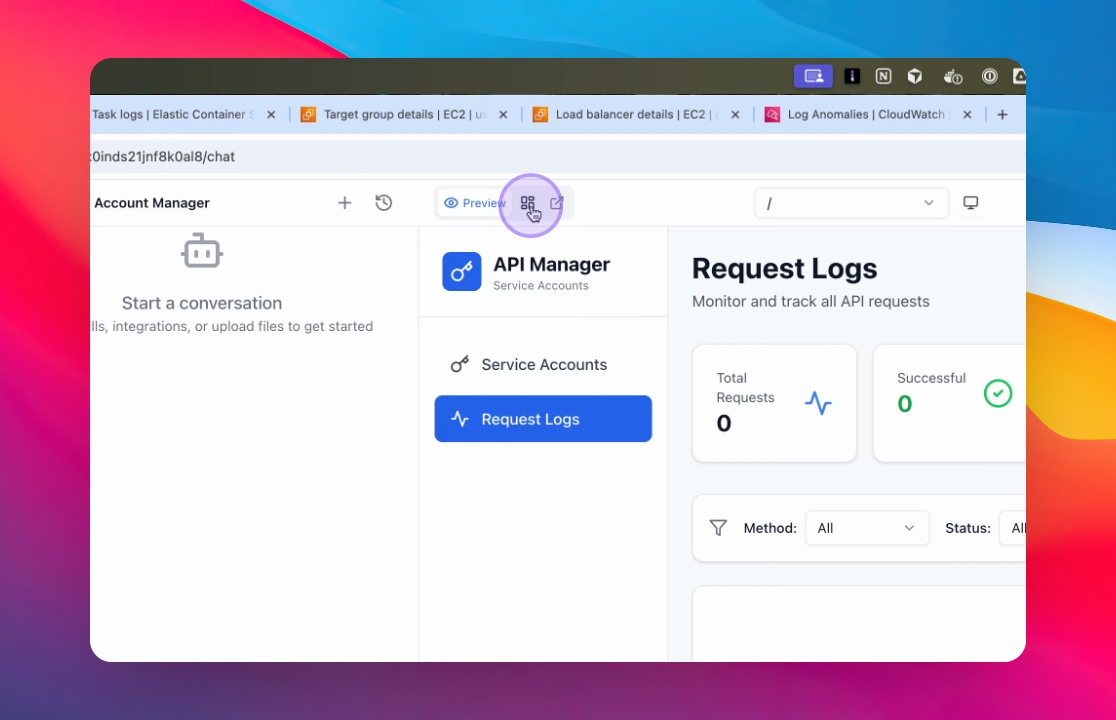
If a build gets stuck or stops responding:
Go back to the Dashboard
Click Preview again to resume the process
This refreshes the build and helps it continue cleanly.
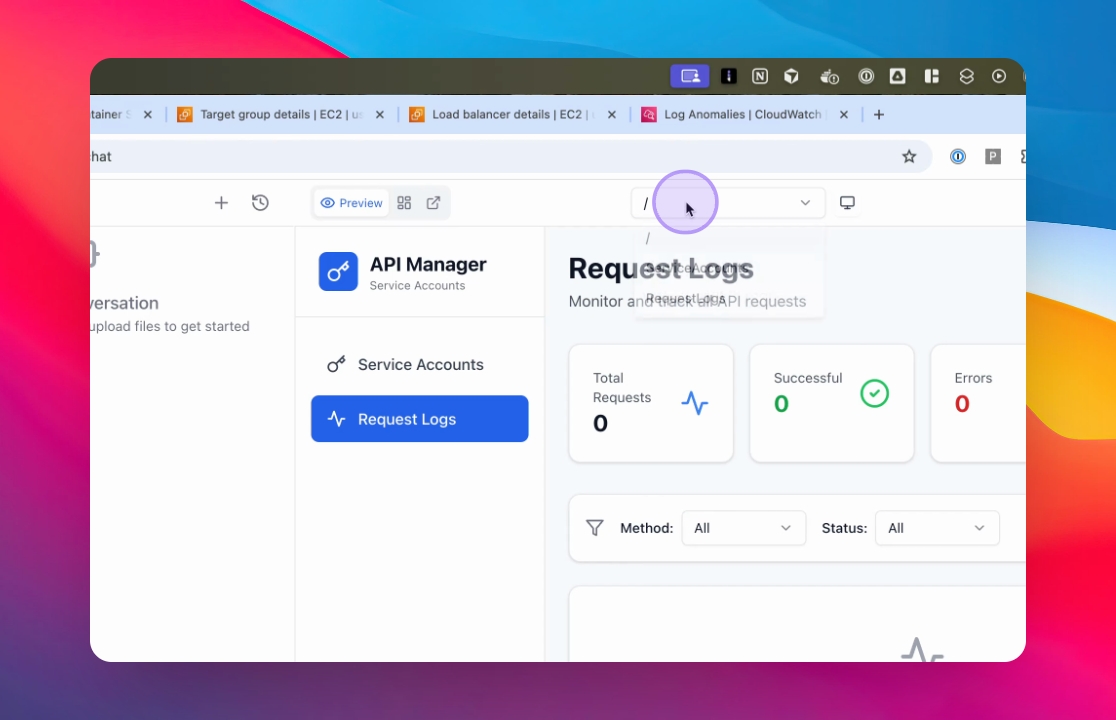
The AI Works on the Page You’re Viewing
Use the top bar to move between pages while you work.
The AI sees what you see, so always reference the page or screen you’re currently viewing to get accurate changes.
Specify Page Names
When asking the AI to modify a something, specify the page name.
This allows the AI to locate the feature accurately.