Step 1: Open Project Settings
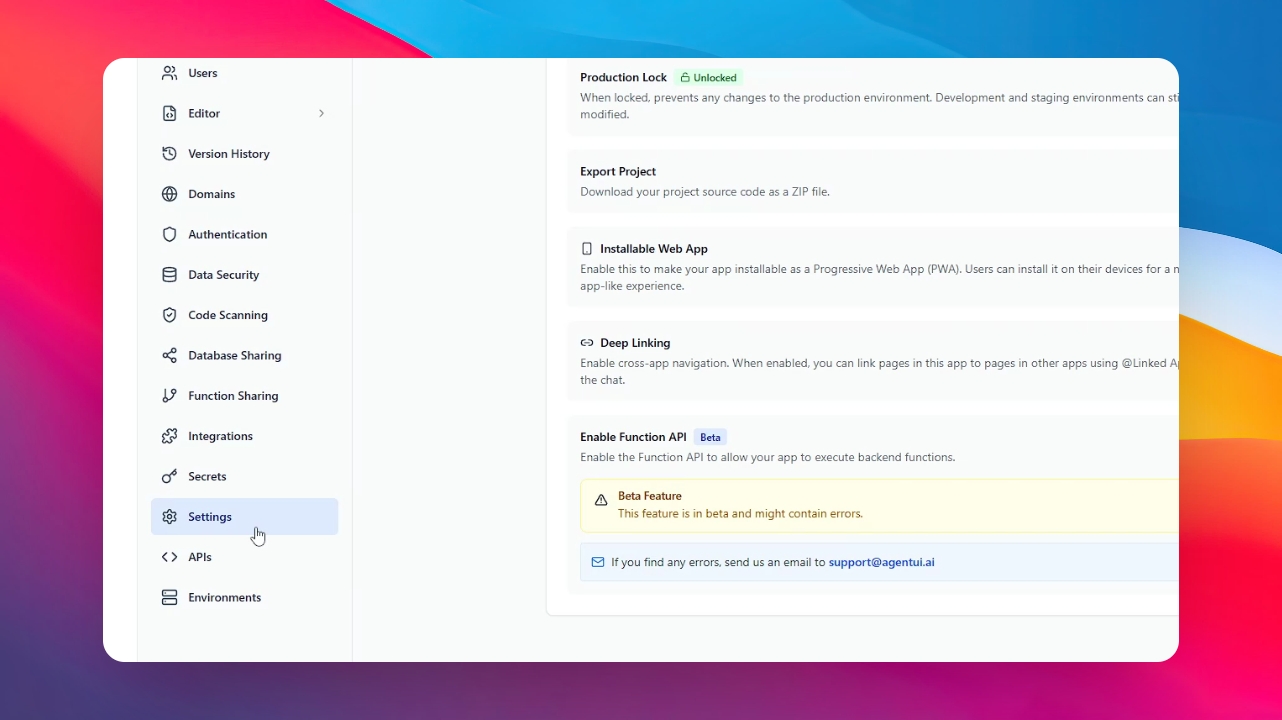
Start by selecting the project you want to configure. Click on the Dashboard icon and then navigate to the Settings tab.
Step 2: Enable App Installation
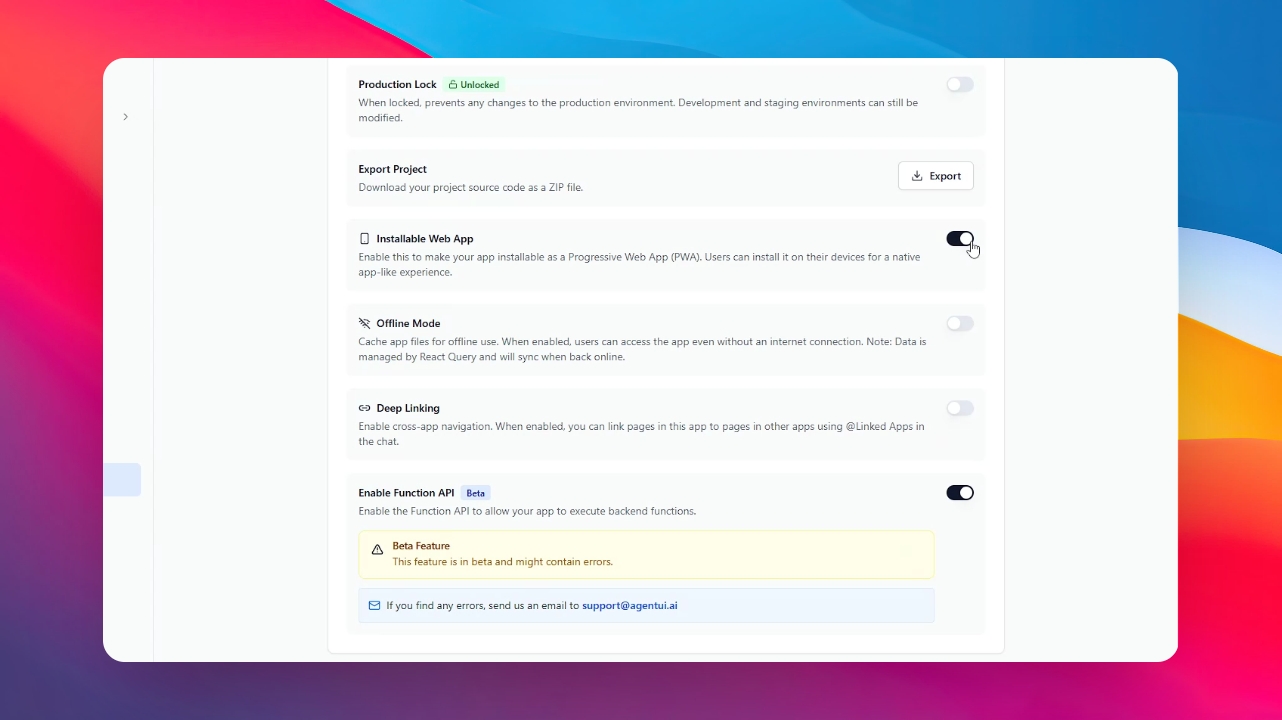
Locate the option labeled "Installable Web App" and toggle it on. This allows your users to "install" the web app directly onto their home screen or desktop, making it feel like a native application.
Step 3: Activate Offline Mode
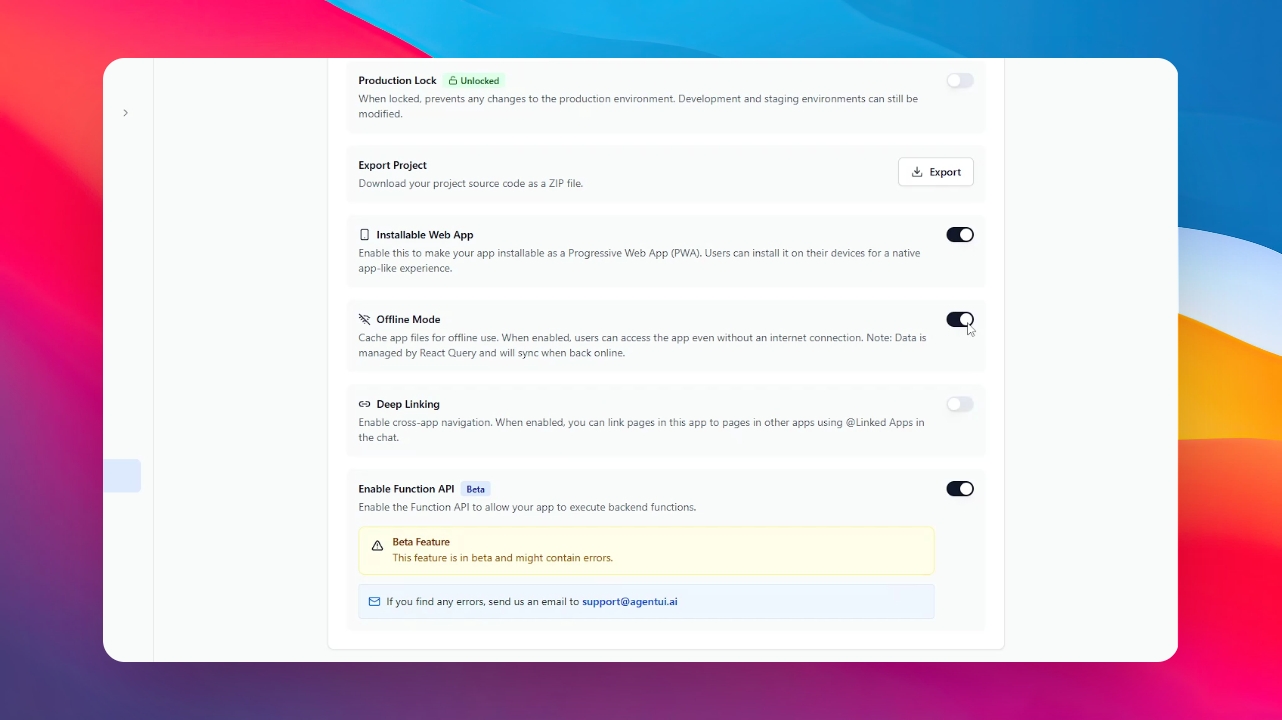
Right below, you will find the "Offline Mode" toggle. Enable this to ensure the core structure of your app remains accessible even when there is no data connection.
Step 4: Request Data Persistence via AI
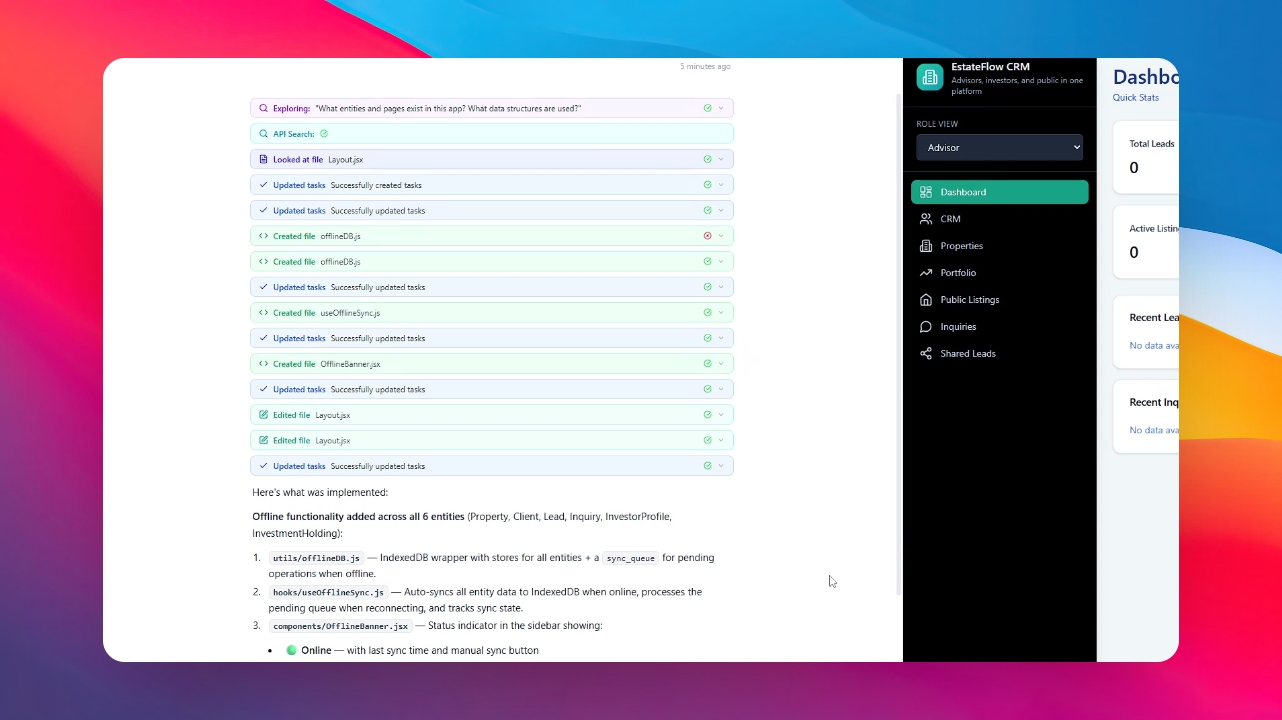
To ensure your app actually does something while offline, return to the Chat. You need to instruct the AI to handle the data sync. For example, say: "Add offline functionality to my app and include all current project data for offline use."
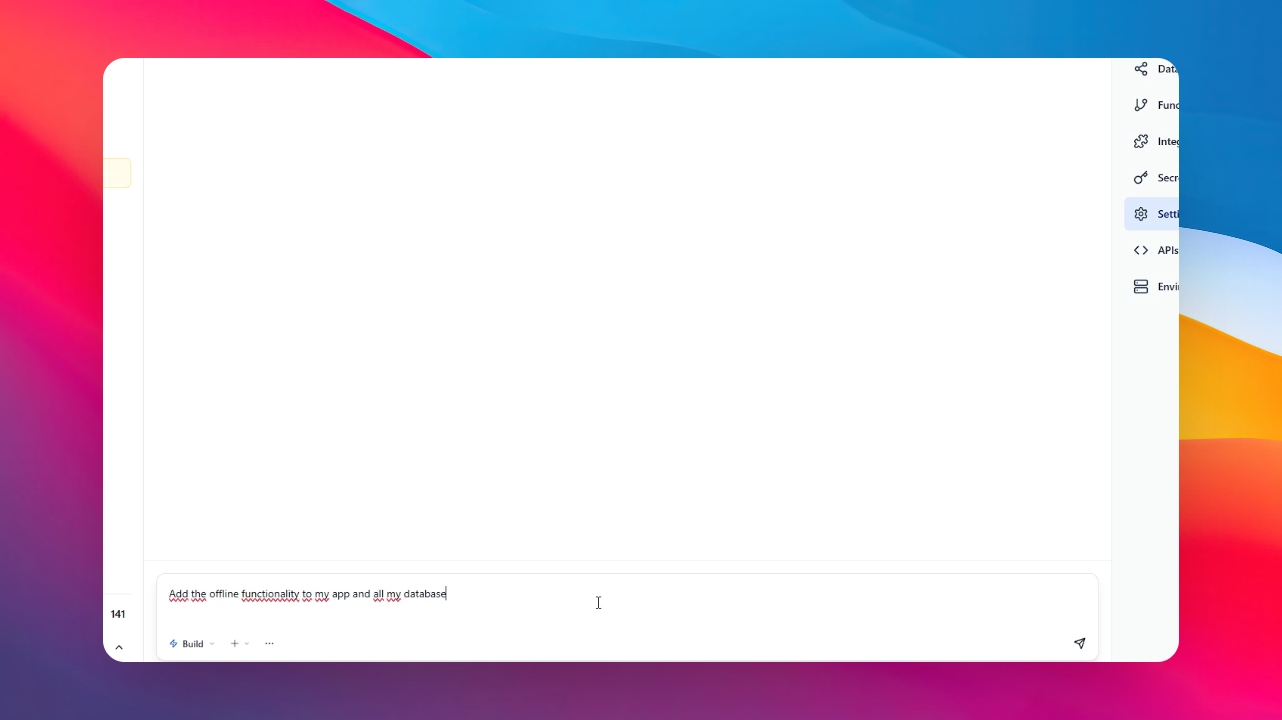
Step 5: Define Offline Data
Be specific about which information you want the user to see when they aren't connected. The AI will then configure the local storage and caching logic for those specific data sets.
Step 6: Wait for Implementation
The AI will take a few seconds to apply these technical changes to your app’s architecture. Once finished, your app is ready to be installed and used anywhere.