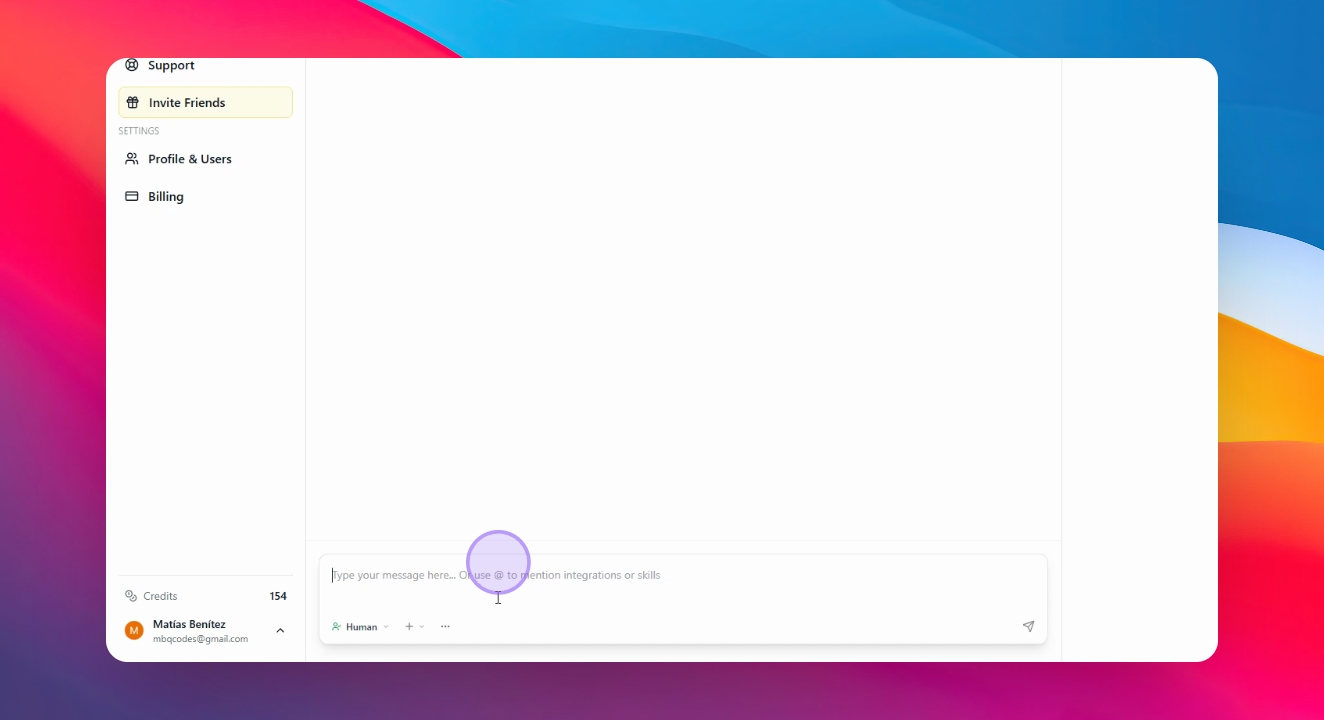
Welcome to this tutorial on how to use the Conversation Modes inside AgentUI.
AgentUI is designed to help you move from idea to implementation faster by giving you three powerful ways to interact with your app: Planning, Build, and Human. Each mode is built for a specific stage of your workflow — whether you're exploring a new feature, implementing functionality, or requesting hands-on support.
In this guide, you’ll learn how to switch between modes, when to use each one, and how to go from a simple idea to a fully working feature inside your project. By the end, you’ll understand how to use AgentUI more strategically to build smarter and ship faster.
Planning
Use this when you have an idea but aren’t sure how to build it.
The AI helps you think it through and creates a clear step-by-step plan.
Build
Use this when you’re ready to add something to your app.
The AI takes your instructions and turns them into real features inside your project.
Human
Use this when you need direct help from our team.
Submit your request and we’ll review it and follow up with you.
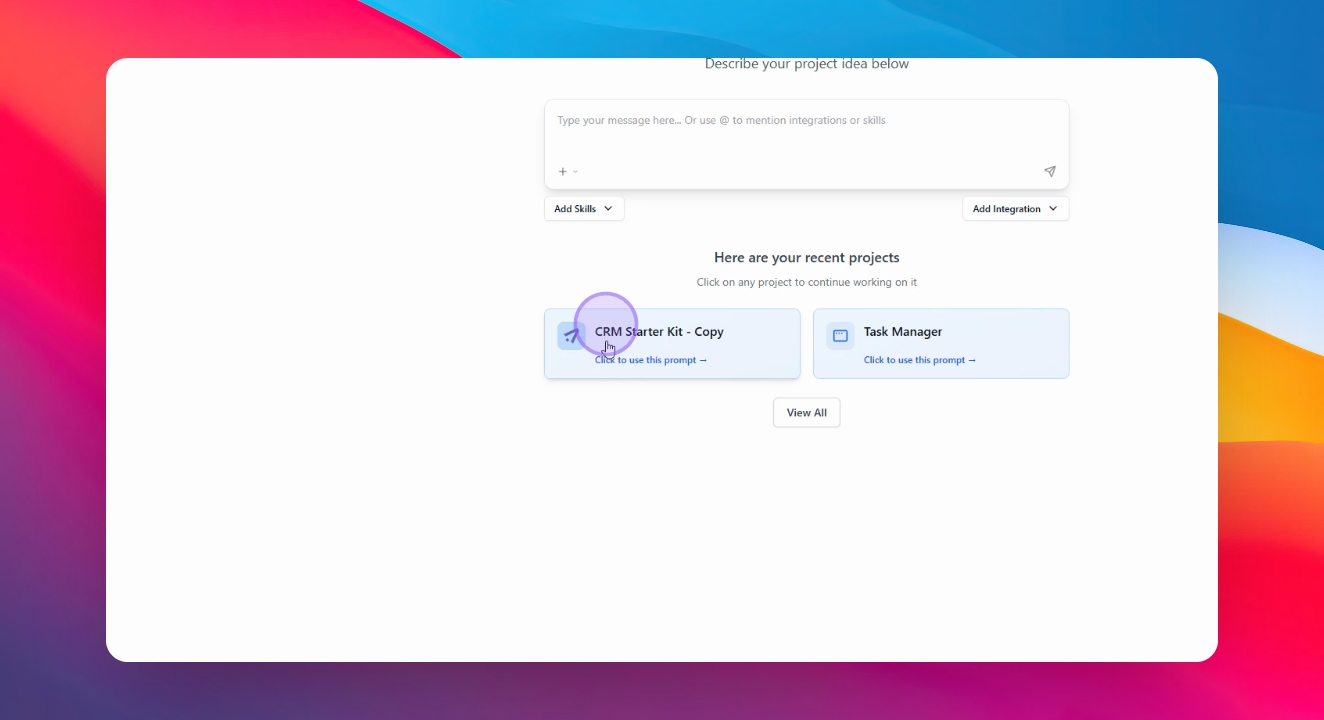
Step 1: Select Project
To see these options, select the project that you want to work on from the main menu.
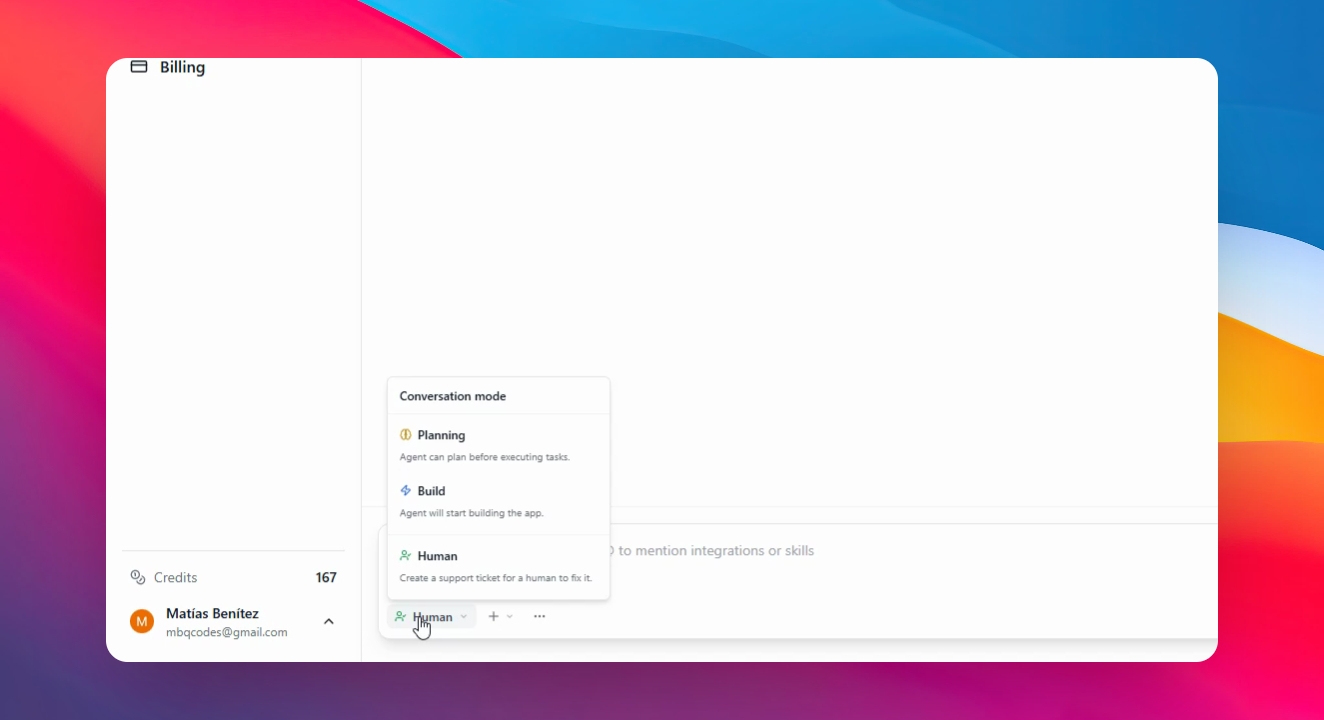
Step 2: Select the Conversation Mode that you want to use.
Find the mode selector at the bottom of the screen and select one to use.
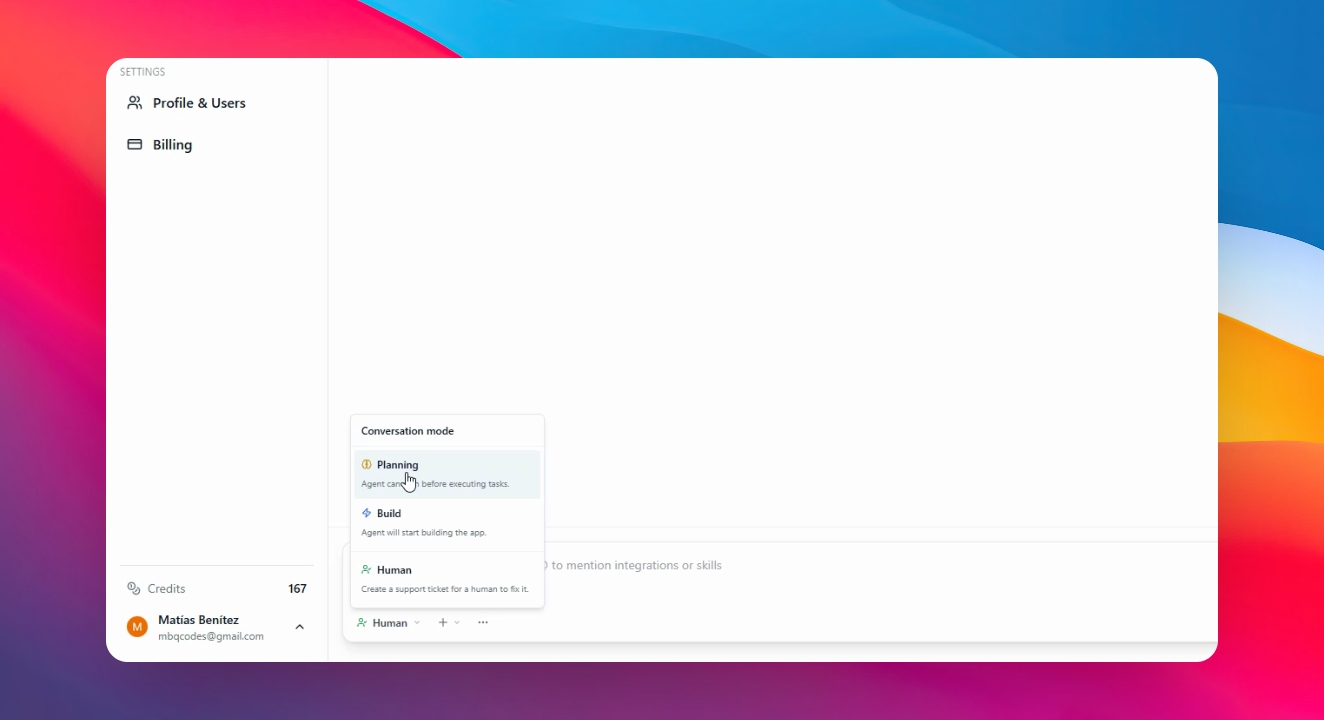
Step 3: Use Planning Mode
Planning is best used when you want to build a new feature in your app but aren’t sure how to approach or implement it.
Step 4: Create a Plan
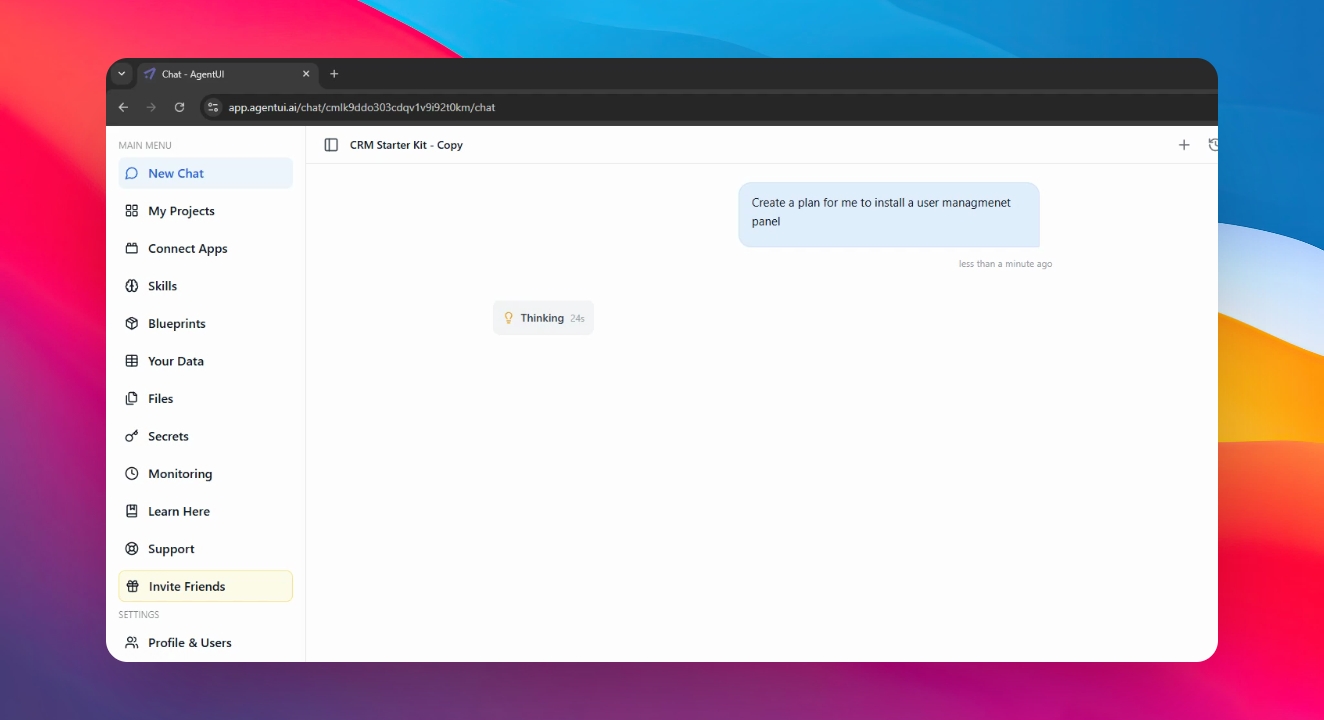
Describe your needs to the AI, and it will create a complete plan for you to achieve your goal. For example, say "Create a plan for me to create a user management panel."

Step 5: Wait for Response
Wait a few minutes for the AI to respond with a detailed plan. If the AI asks questions, answer them.
Step 6: Use Build: Copy and Paste Plan
The best time to use Build is when you want to add new functionality to your app. Tell the AI exactly what you want to add to your project and review the proposed changes.
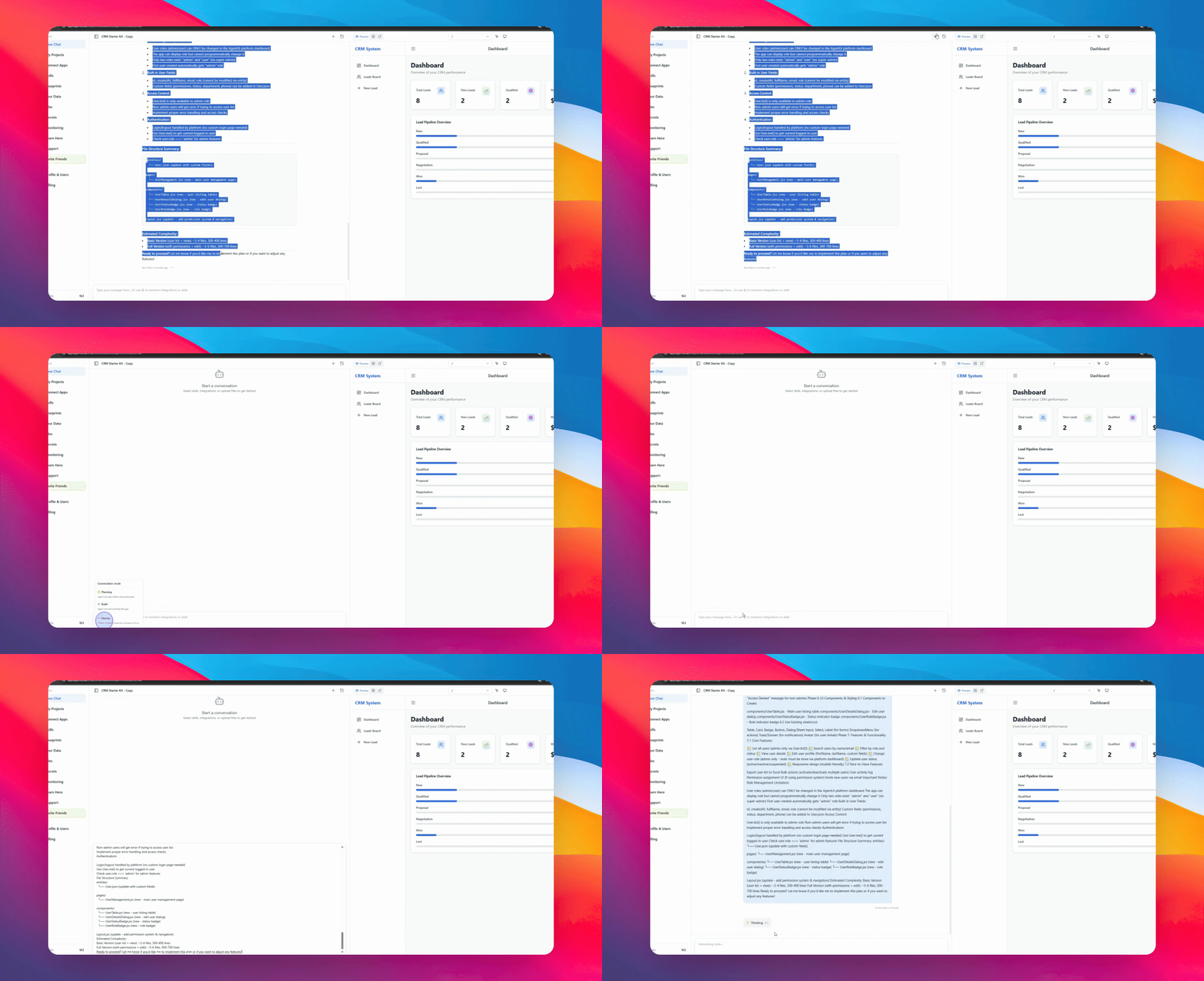
To do this, copy the AI’s message, open a new chat, select Build, and paste the plan.
Step 7: Implement Features
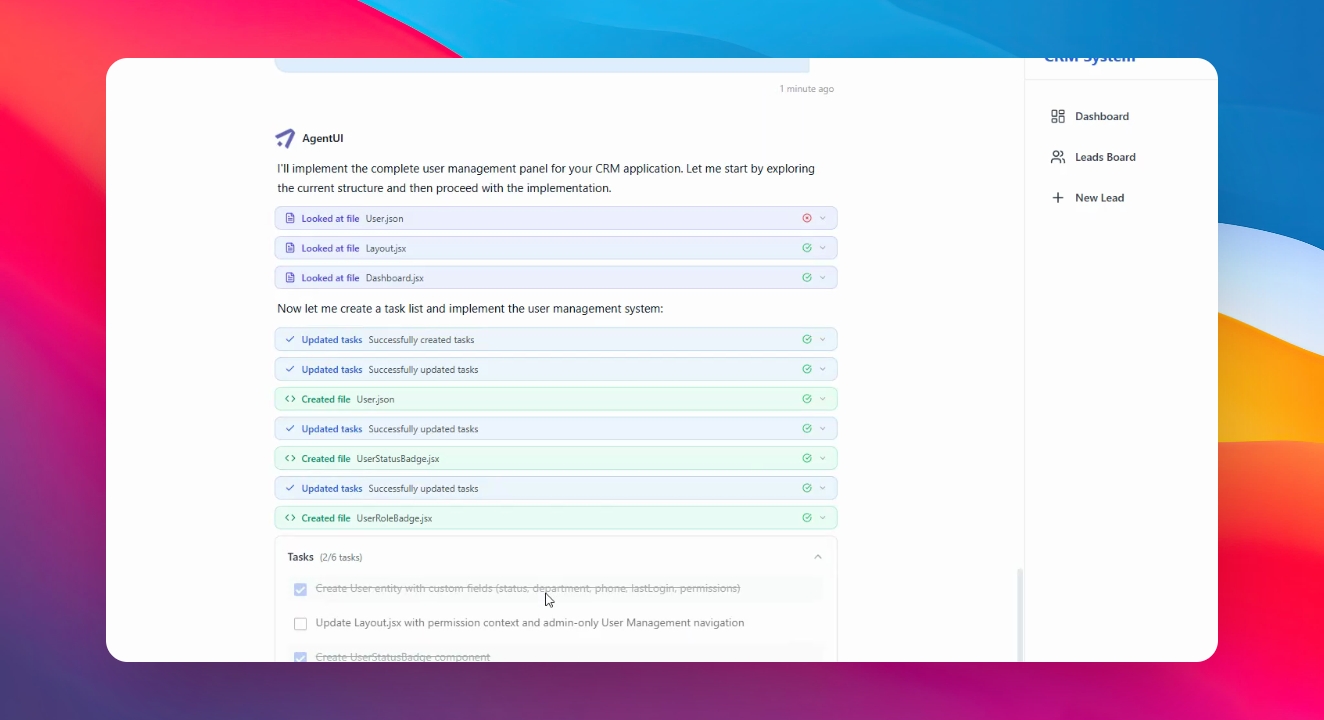
The AI will start adding the new features to your app based on the plan.
Step 8: The new functionalities get installed.
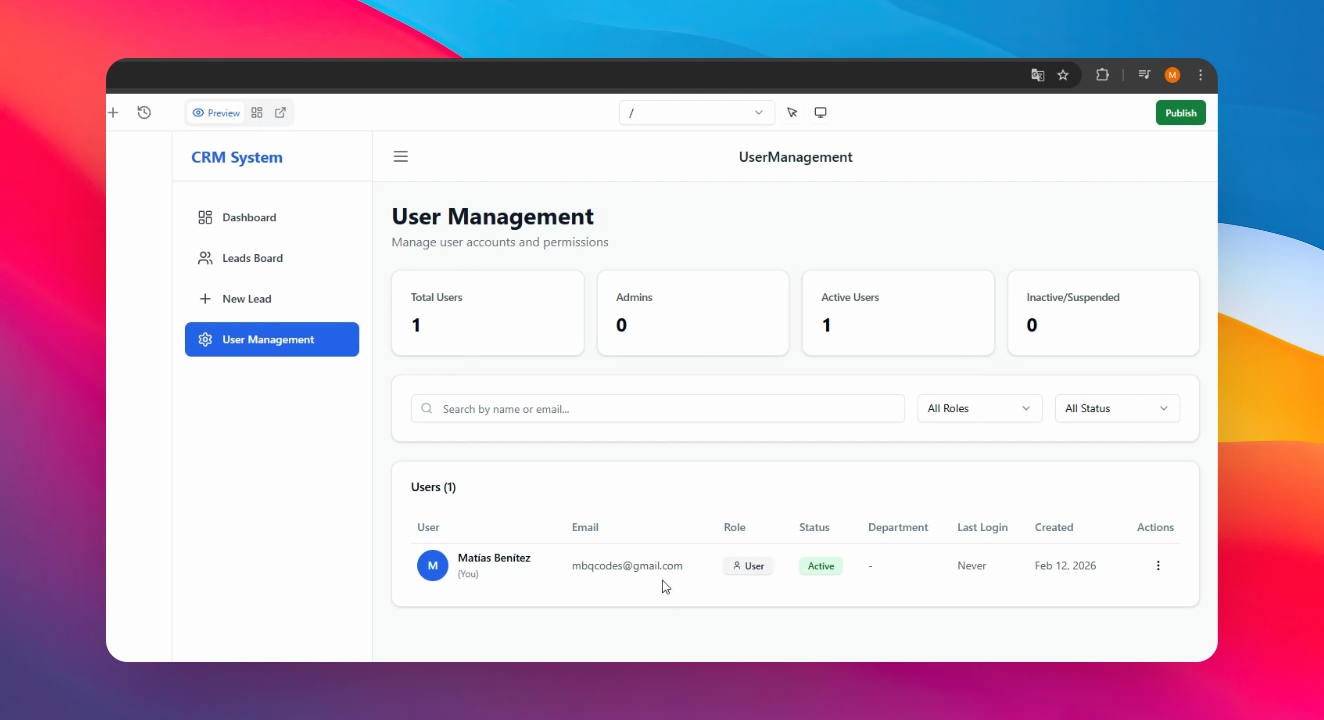
After a few minutes, the AI applies all your planning to your app. You can now see it in the Preview Panel.
Step 9: Use Human Mode
If you need direct assistance, open a new chat and select Human to submit a support ticket.
Our team will review your request and follow up with you as soon as possible.