

Step by step guide
Step 1: Open Dashboard
The Dashboard opens.
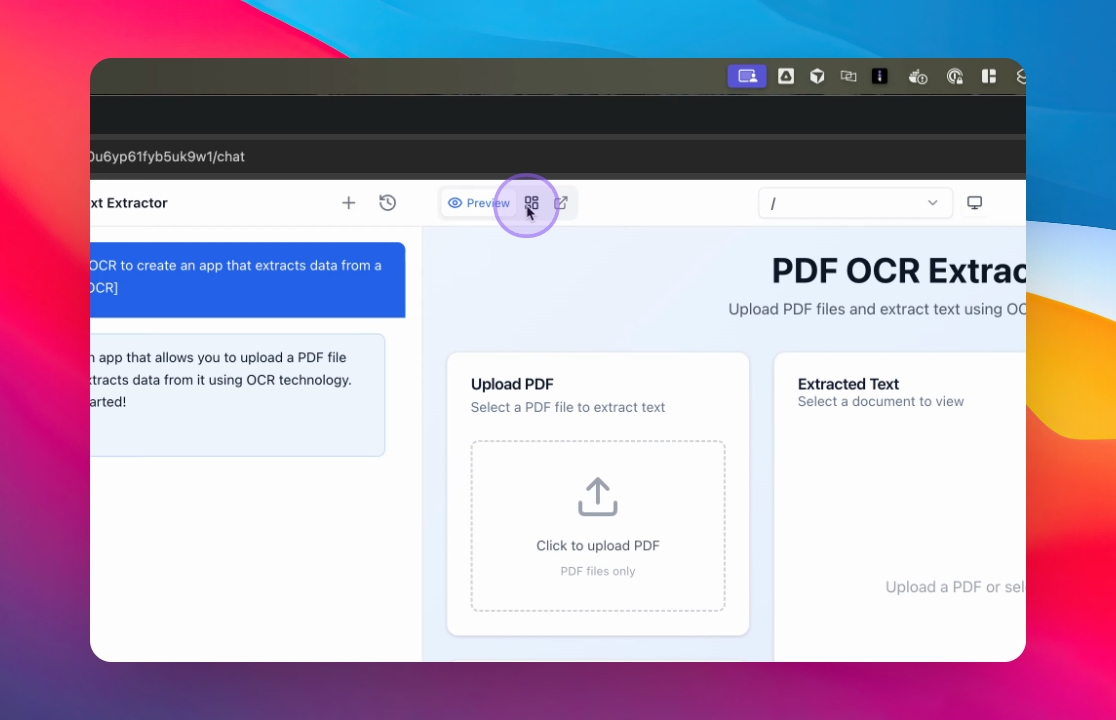
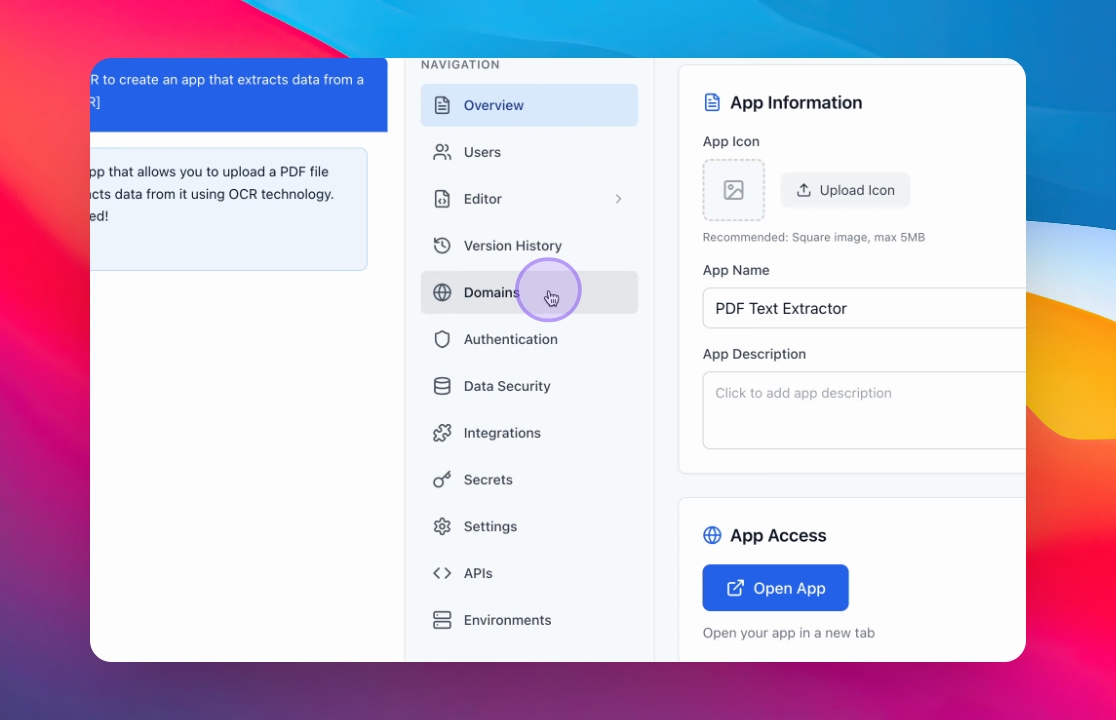
Step 2: Navigate to Domains
You access the Domains section.
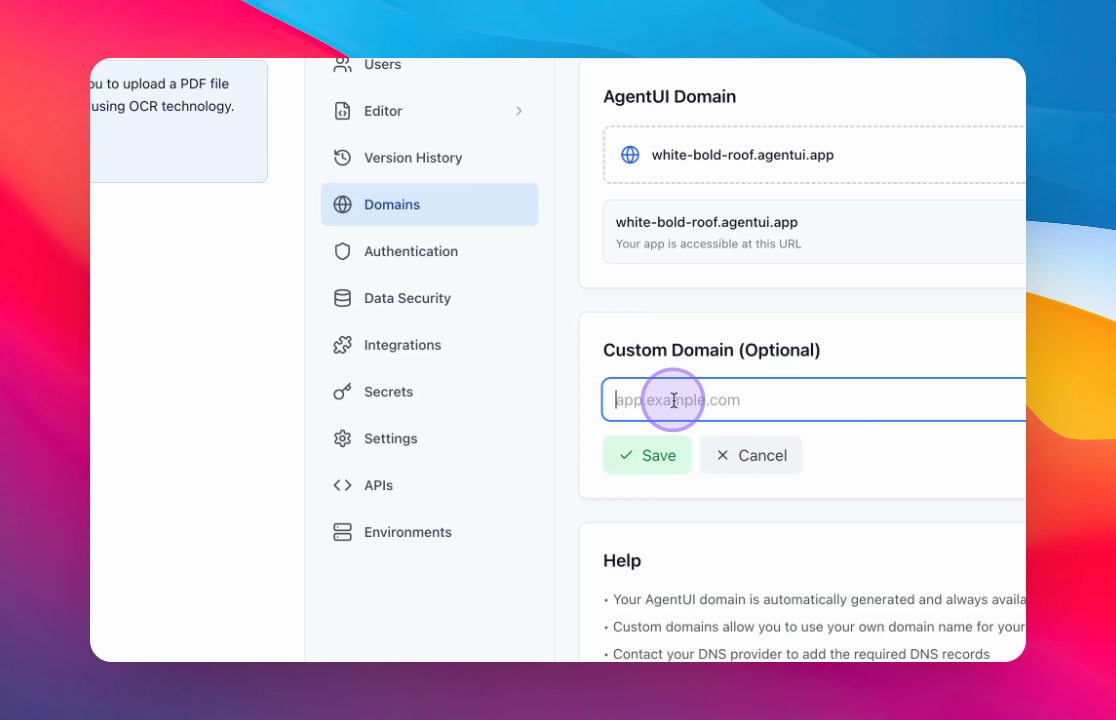
Step 3: Enter Your Domain
Input your domain in the provided field.
Your domain is entered successfully.
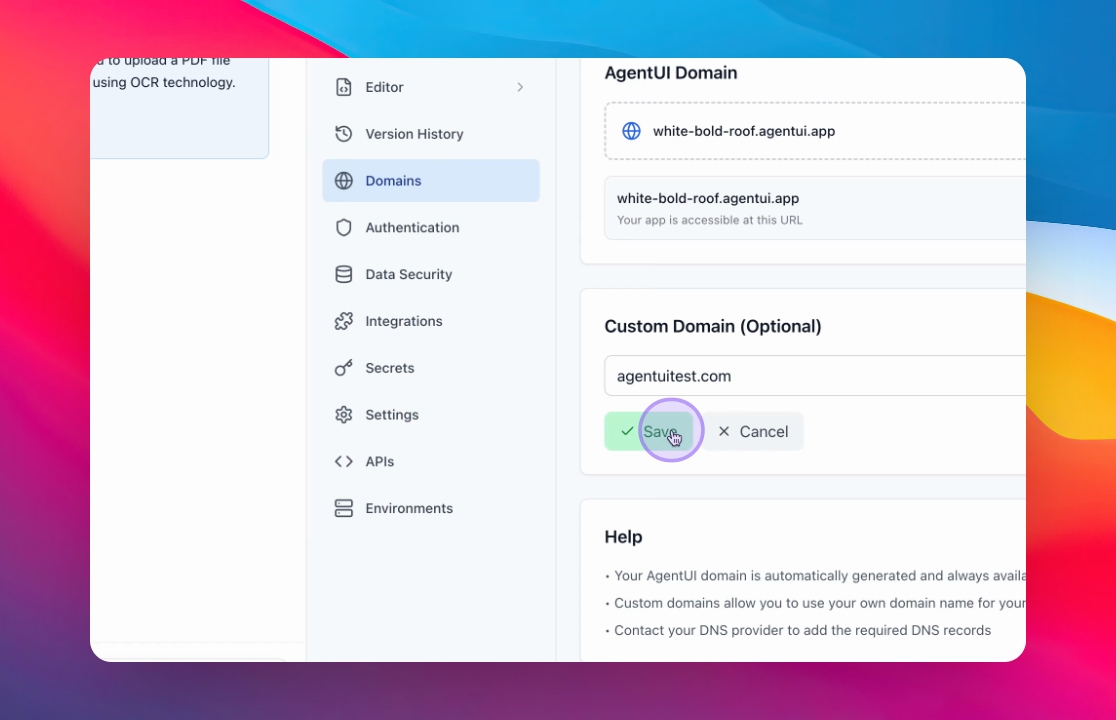
Step 4: Save Changes
Your domain is saved.
Step 5: Obtain A Record
You will receive an A record for your domain.
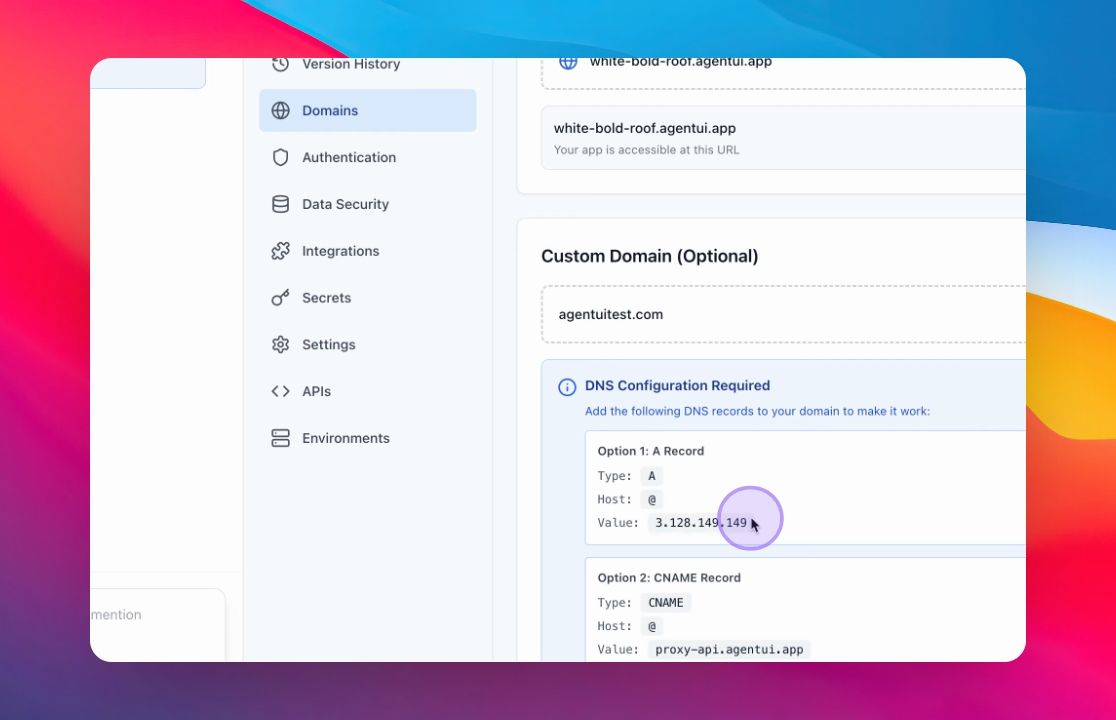
Step 6: Add A Record to Provider
Go to your domain provider.
And add A record with the domain to your domain.
🌐 How to add A record in each domain provider
GoDaddy
🔗 GoDaddy — Add an A record (official support)
https://www.godaddy.com/help/add-an-a-record-19238
Namecheap
🔗 Namecheap — How to set up an A (address) record
https://www.namecheap.com/support/knowledgebase/article.aspx/319/2237/how-can-i-set-up-an-a-address-record-for-my-domain/
Name.com
🔗 Name.com — Adding an A record
https://www.name.com/support/articles/115004893508-adding-an-a-record Name.com
Google Domains / Google Cloud DNS
🔗 Google Cloud DNS — Set up DNS records for a domain name
https://docs.cloud.google.com/dns/docs/set-up-dns-records-domain-name
Hostinger
🔗 Hostinger — How to manage DNS records (incl. A records)
https://www.hostinger.com/support/1583249-how-to-manage-dns-records-at-hostinger/
🔗 What is an A Record & How to Add It (generic tutorial)
https://easydmarc.com/blog/what-is-dns-a-record-and-how-to-add-an-a-record-to-dns/ EasyDMARC