

Let's do it together!
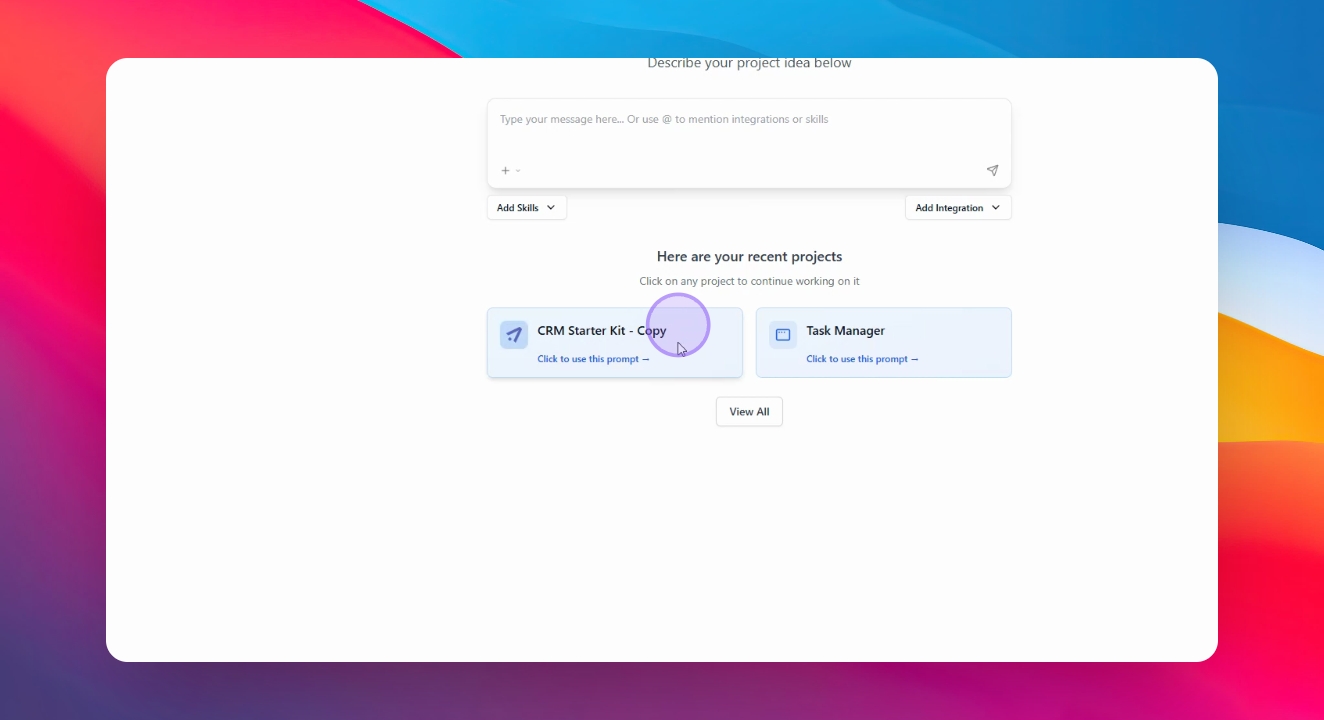
Step 1: Select the source app
Click on your project to view the names of the databases you want to share.
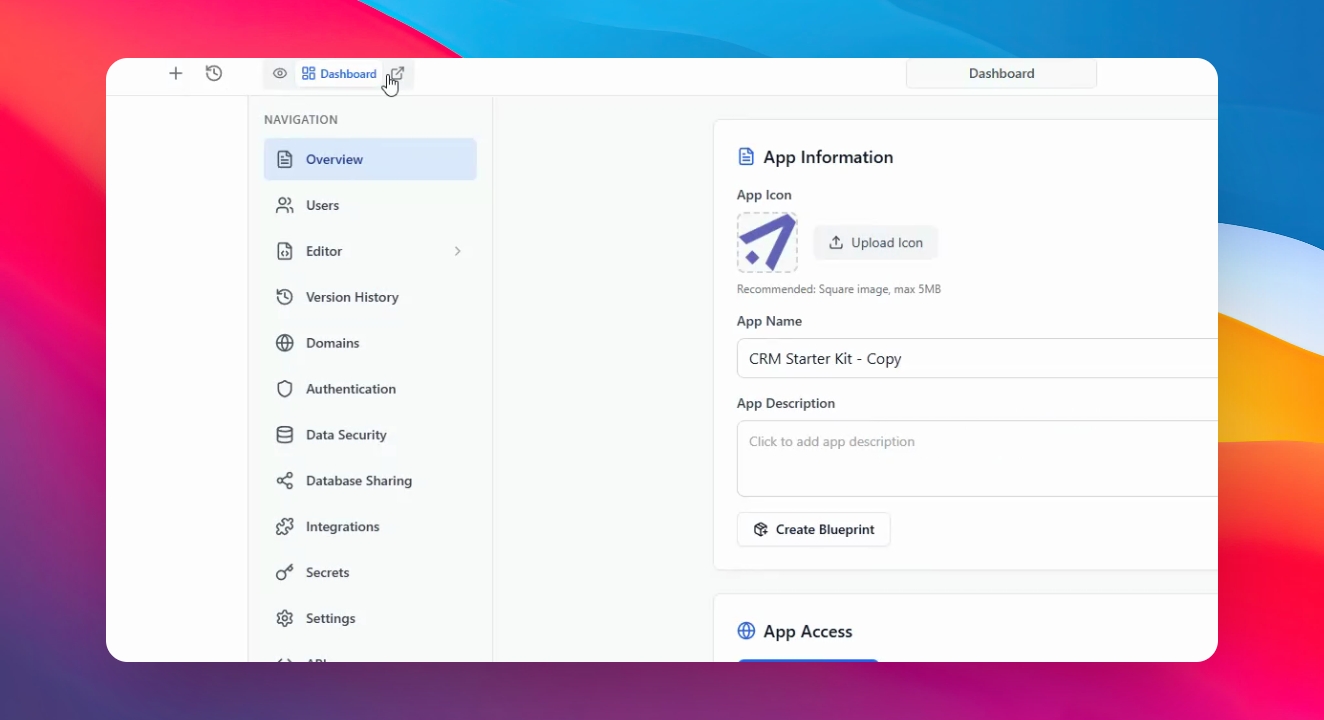
Step 2: Open Dashboard
Navigate to Dashboard and then go to Overview to see all your data.
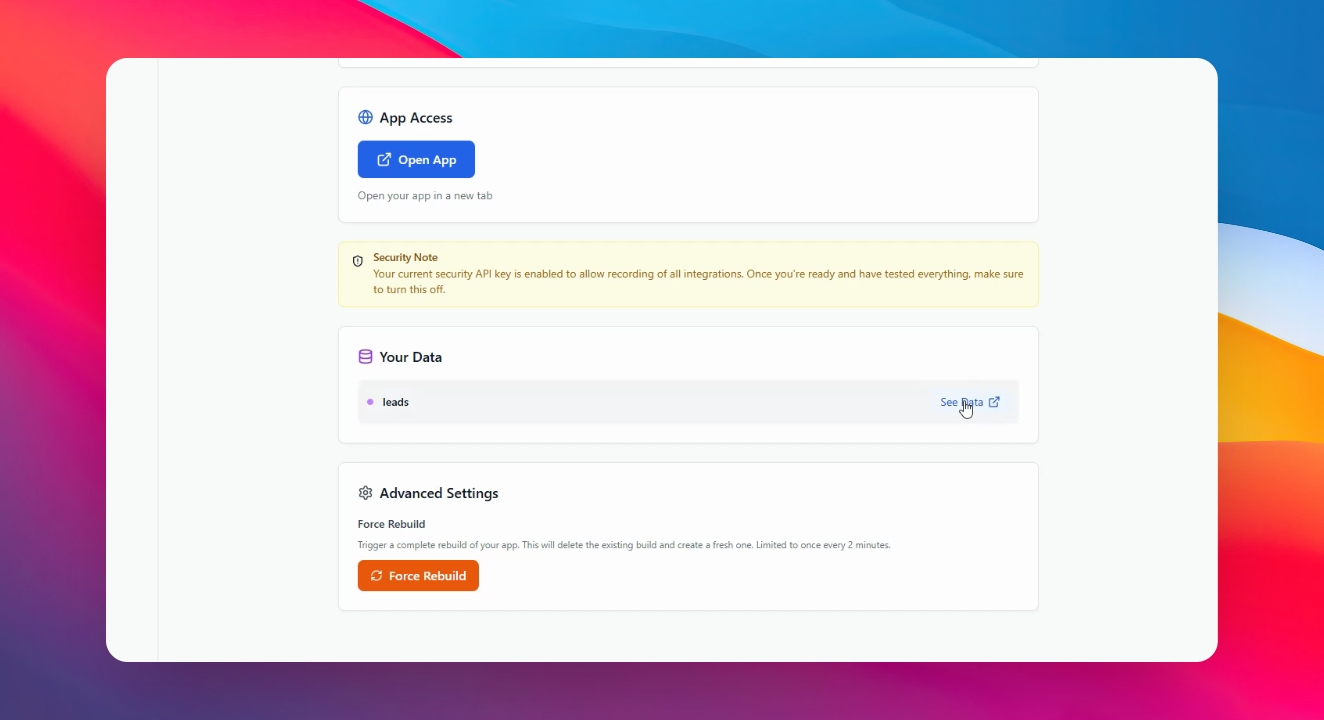
Step 3: Click on “See Data”
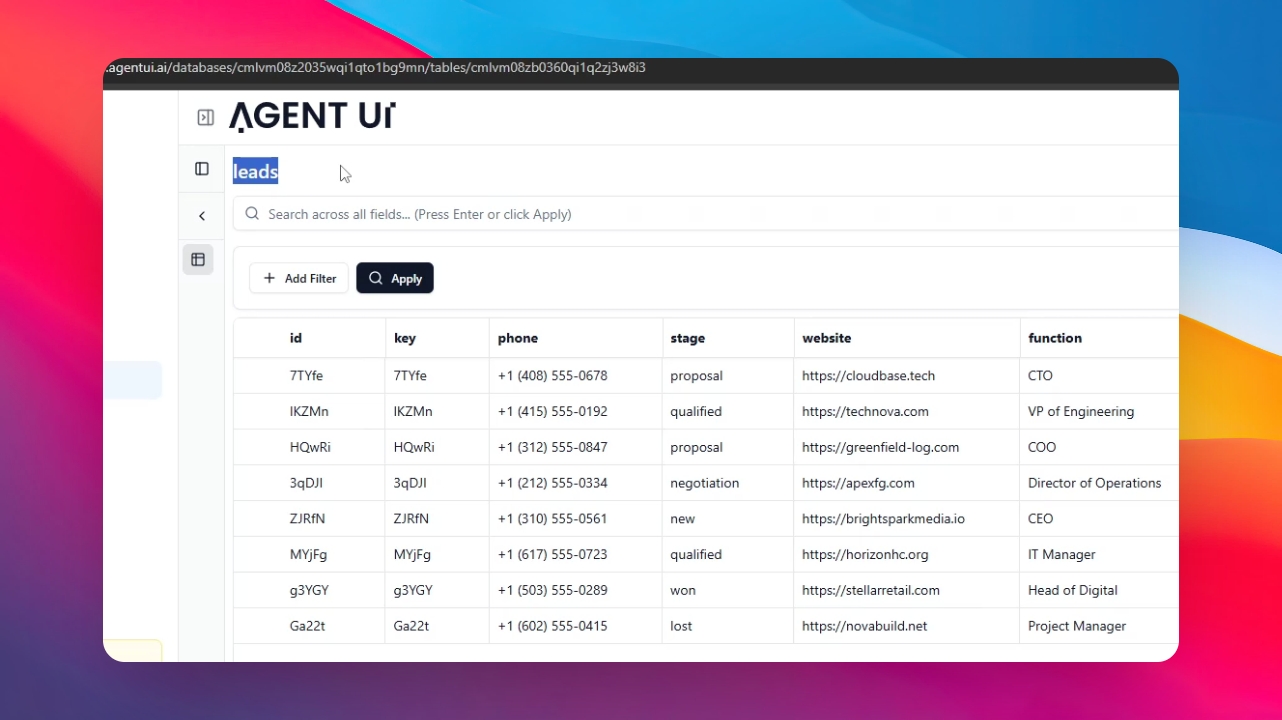
Click on “See Data” in the chosen database. This will take you to another tab, where you can see all the information in your database, as well as its name. Remember the name of your database.
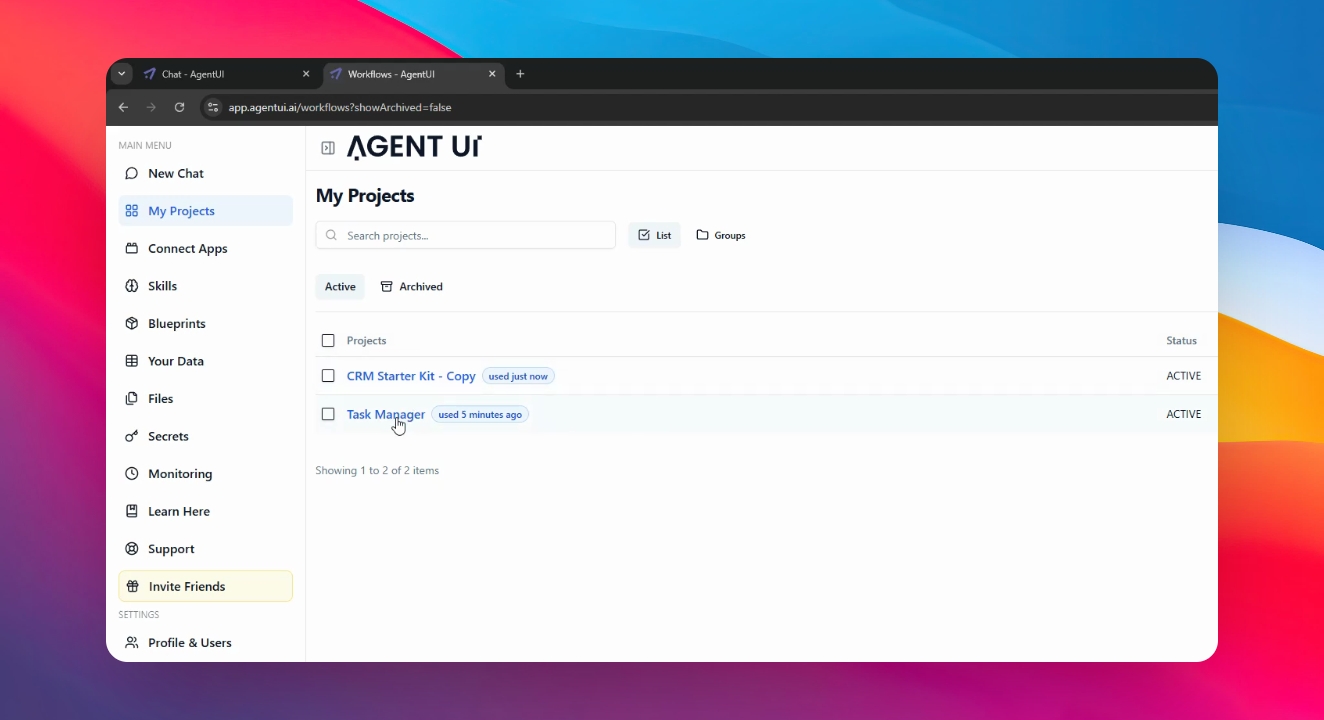
Step 4: Go to my projects
Enter a project where you want to access a database from another app.
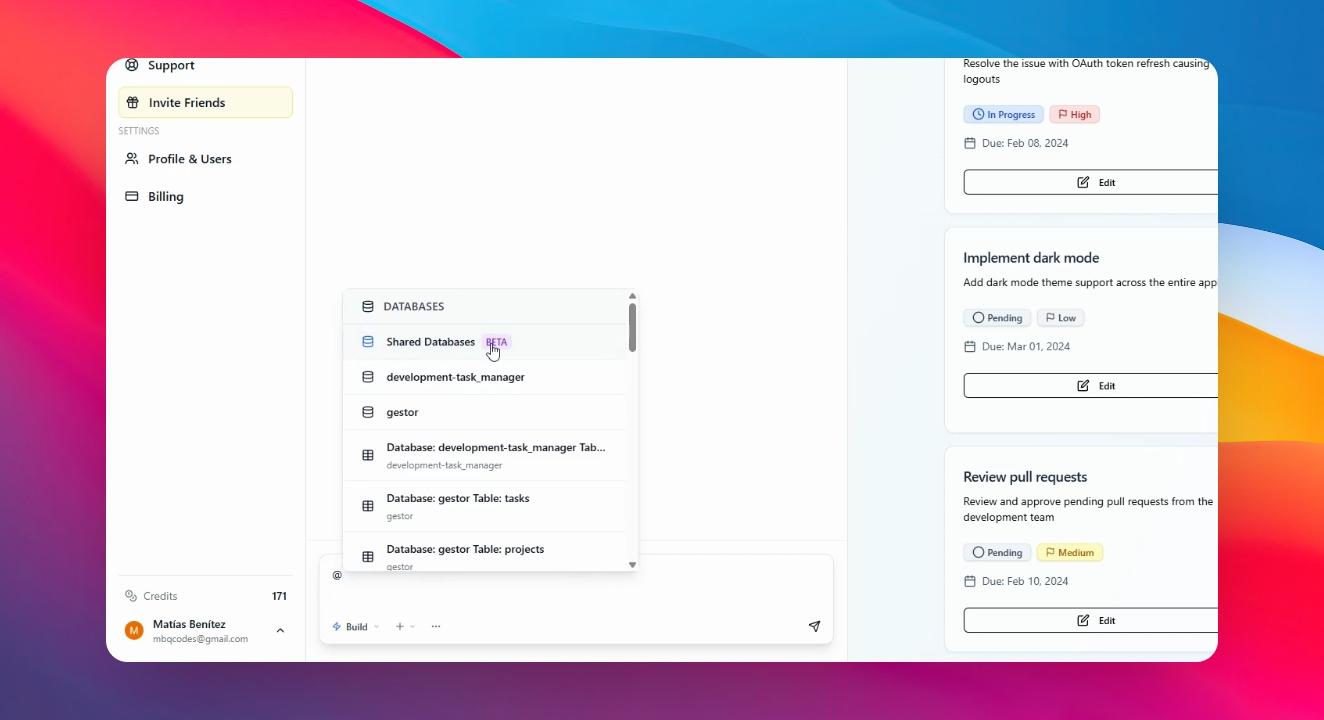
Step 5: Initiate Sharing
Type @ and click on Shared Database to begin sharing.
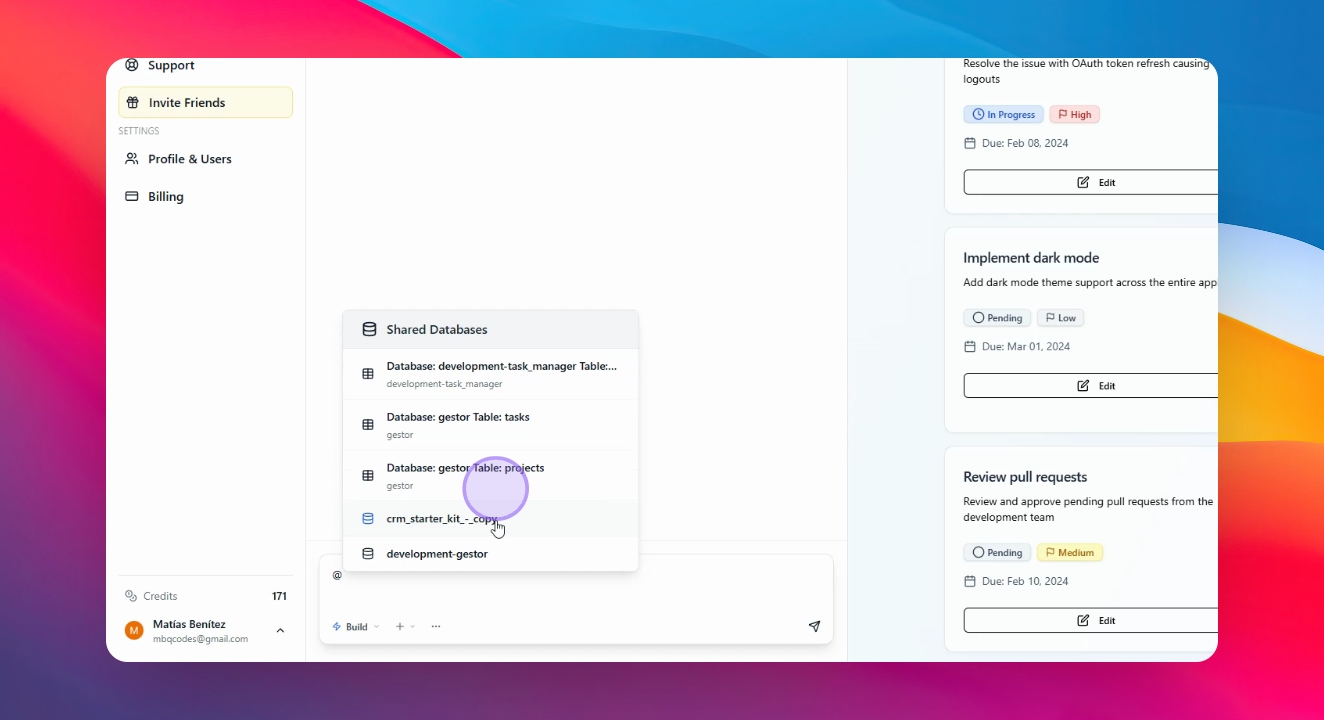
Step 6: Choose Database
Select your application database and the specific table you wish to share.
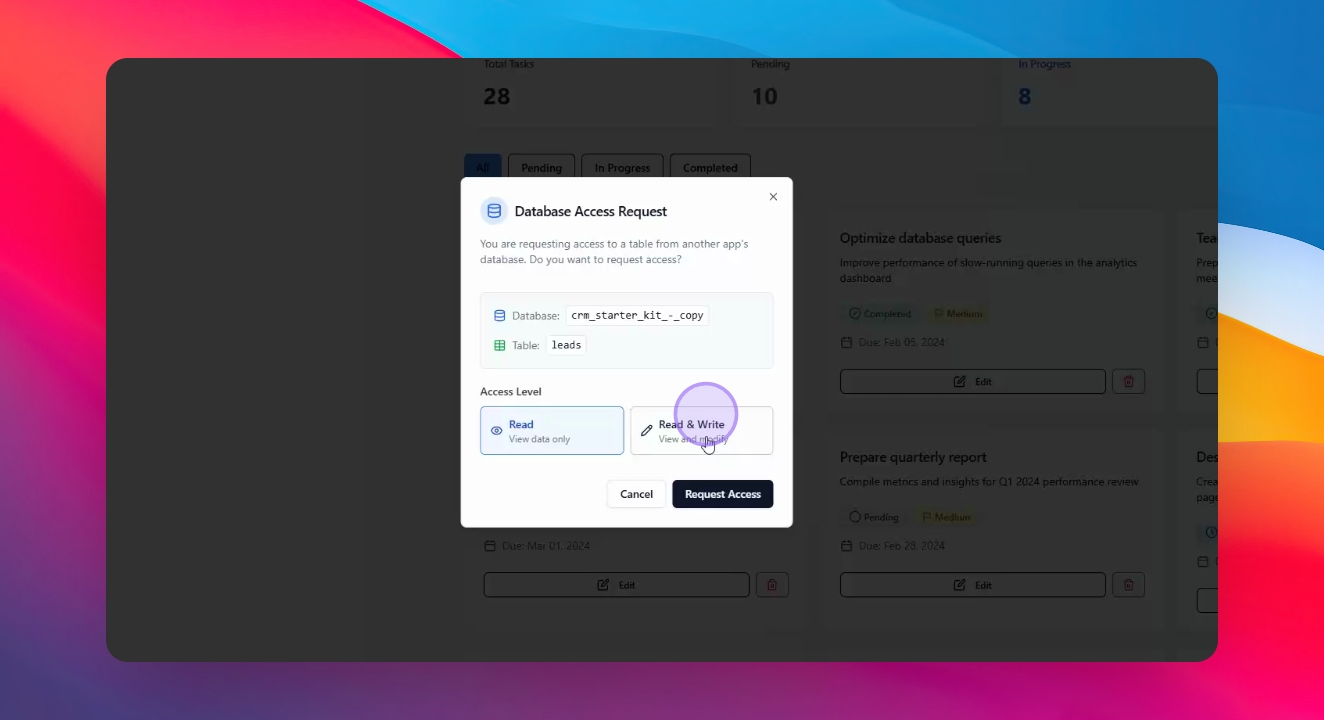
Step 7: Set Access Level
Decide on the access level, either read-only or read and write, then click Request Access.
Step 9: Use Shared Database
Instruct the AI on what to do with the shared database, such as reading data or creating a screen.
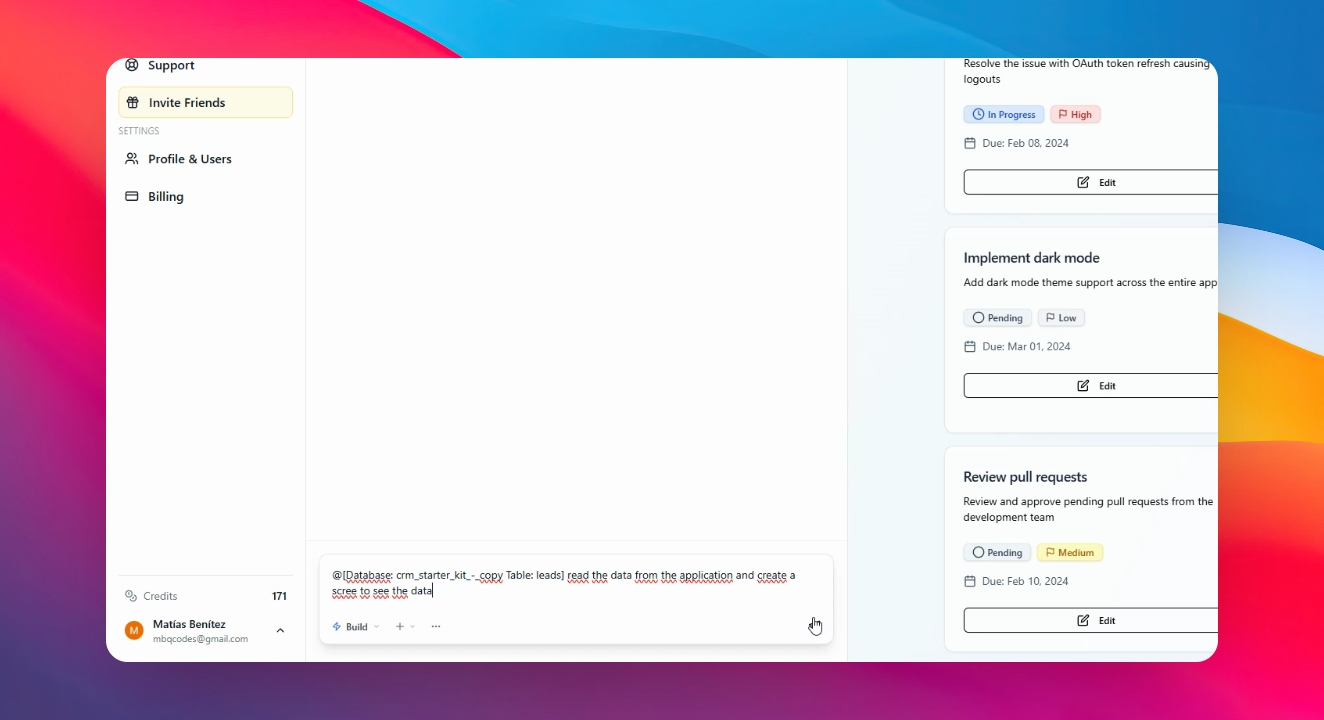
Step 10: See the changes.
After a few seconds, access to the shared database is granted. You now have a scree to see it.
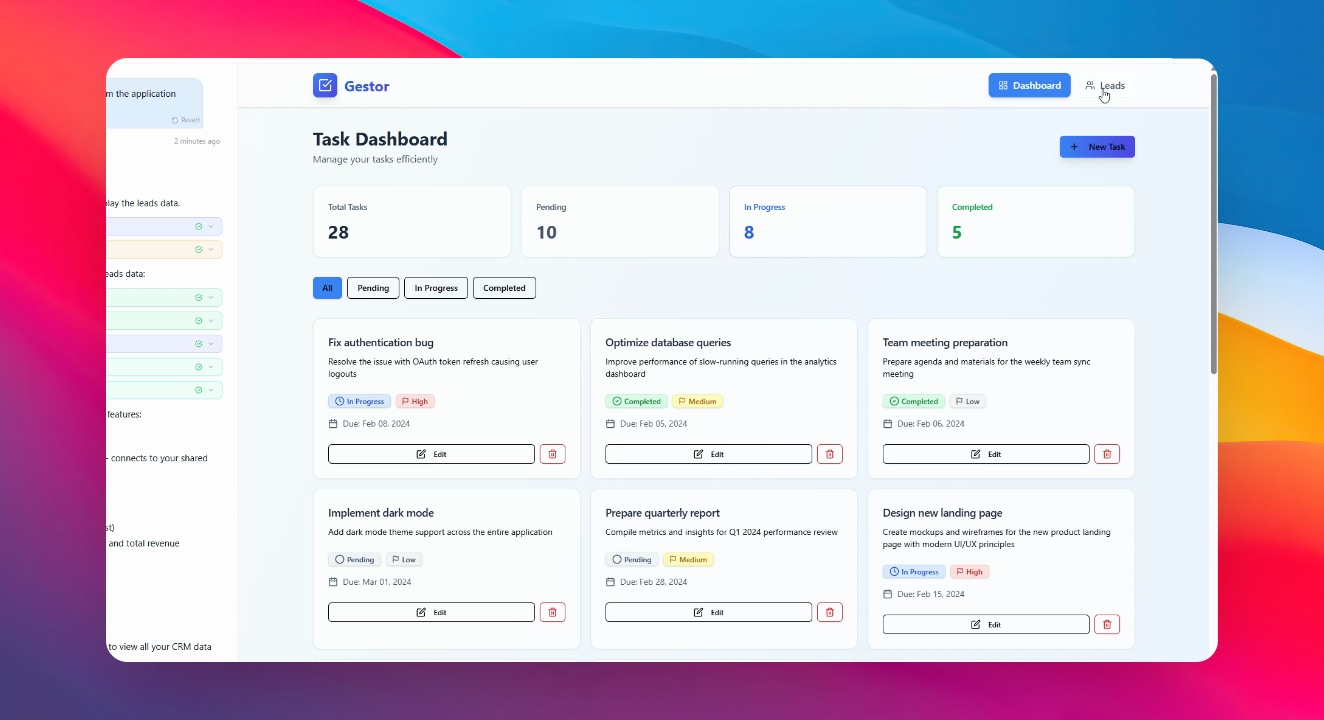
Step 11: Access Complete
You now have a shared database between applications.