

Step 1: Access Billing Settings
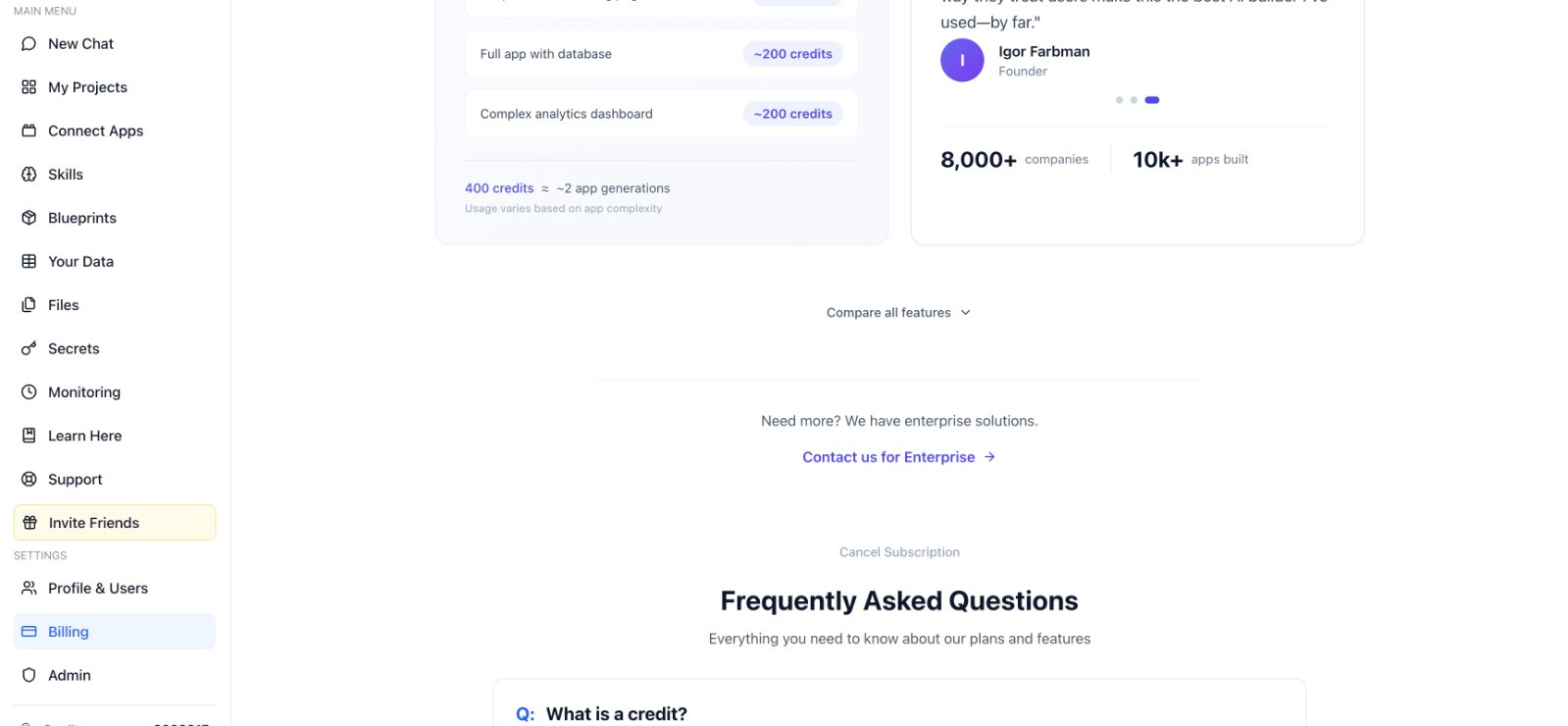
Open the main menu on the left sidebar. Under the Settings section, click on "Billing".
Step 2: Locate the Cancellation Button
Once in the Billing section, scroll down past your plan details and credits. You will find a small text link that says "Cancel Subscription" located just above the Frequently Asked Questions.

Step 3: Provide Feedback
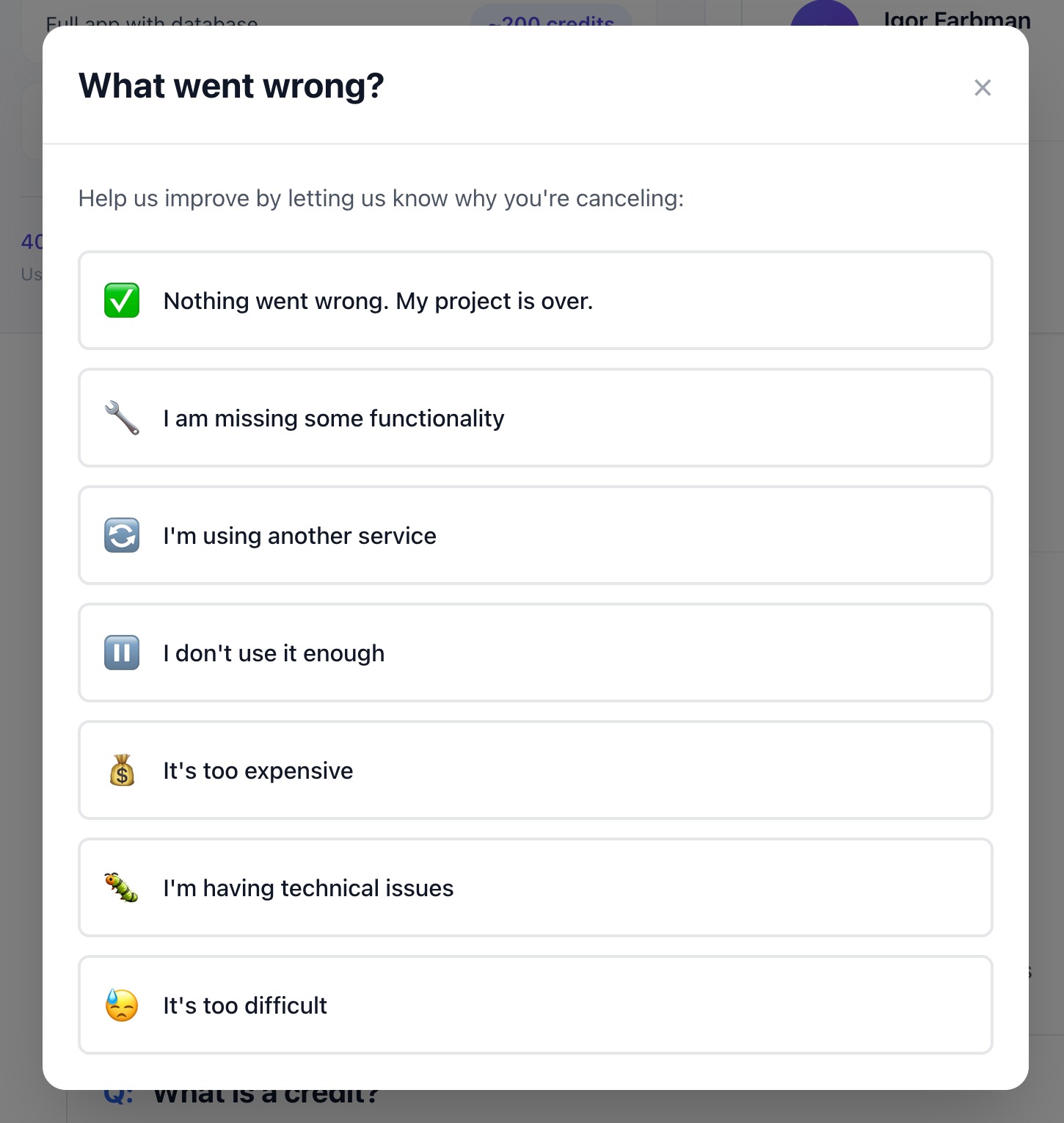
A window titled "What went wrong?" will appear. Please select the reason why you’ve decided to cancel (for example, "My project is over" or "It's too expensive"). Your feedback helps the team improve!
Step 4: Confirm Your Cancellation
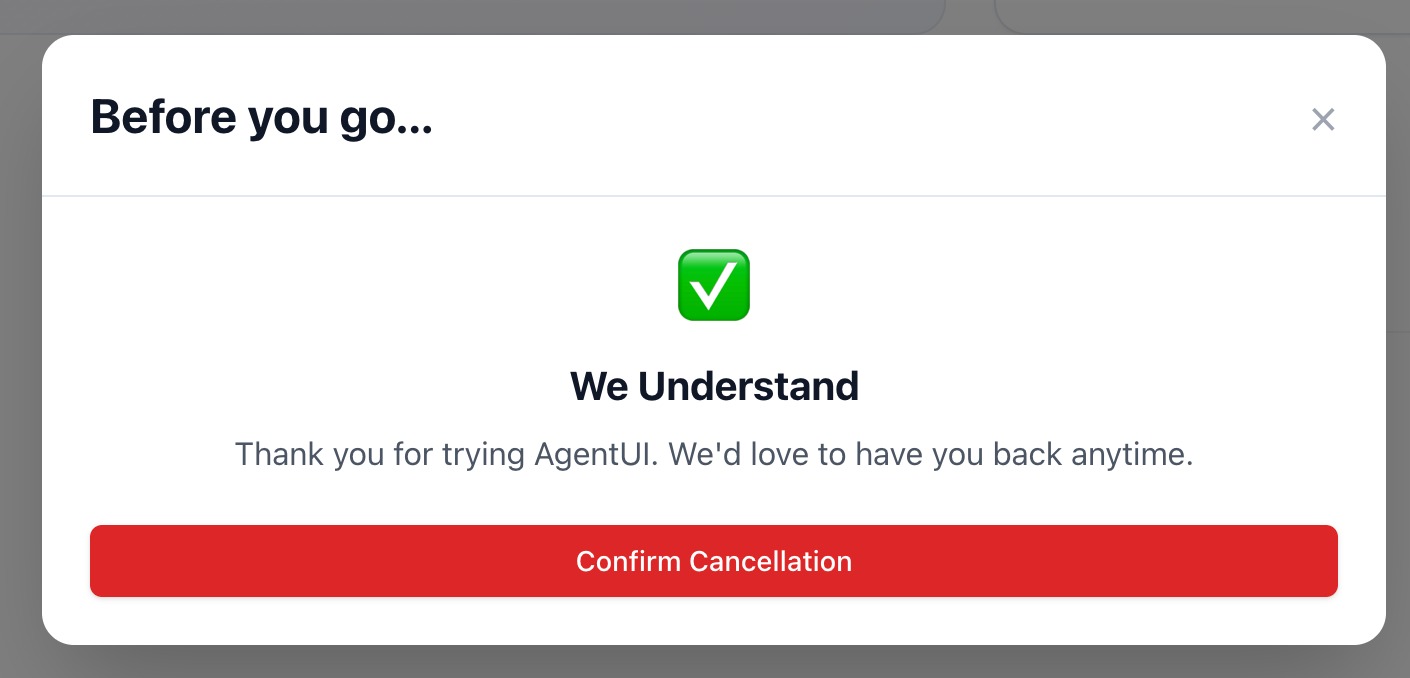
A final confirmation screen will appear saying "Before you go...". Click on the red "Confirm Cancellation" button to finalize the process.
Step 5: Process Finalized
Your subscription is now canceled. You will receive a confirmation, and you won’t be charged in the next billing cycle.