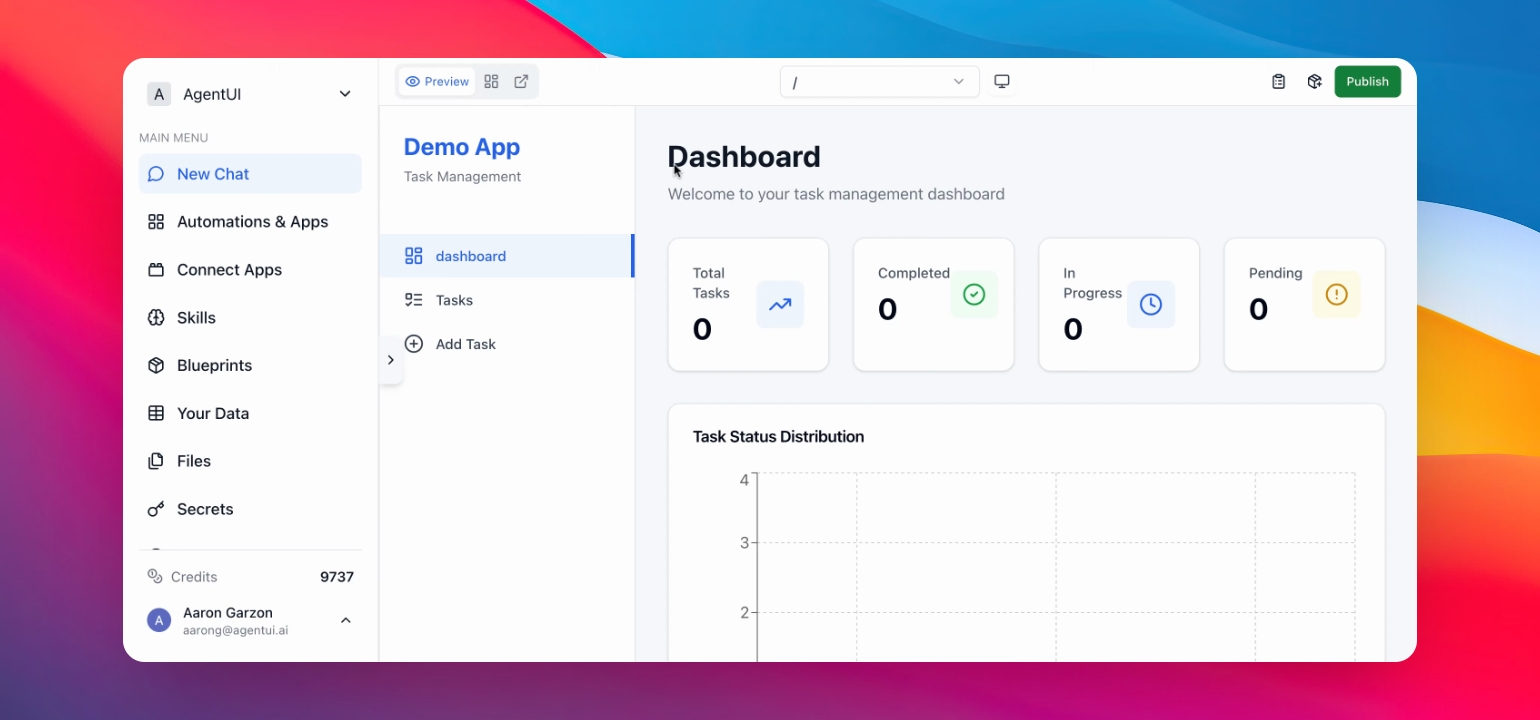
TL;DR
1
Access Dashboard
Go to the Dashboard section.
2
Find Editors
Locate and open the Editors section.
3
Select and Edit File
Choose a file and edit the code.
4
Save Changes
Click the Save button to apply changes.
5
View Updated App
Wait for the build and view your changes.
Let's Do It Together!
With this tutorial, you can edit the code of your apps manually or let another user do it.
Step 1: Access Dashboard
Go to the Dashboard section, the icon in the top right of the menu.
You are now in the Dashboard.
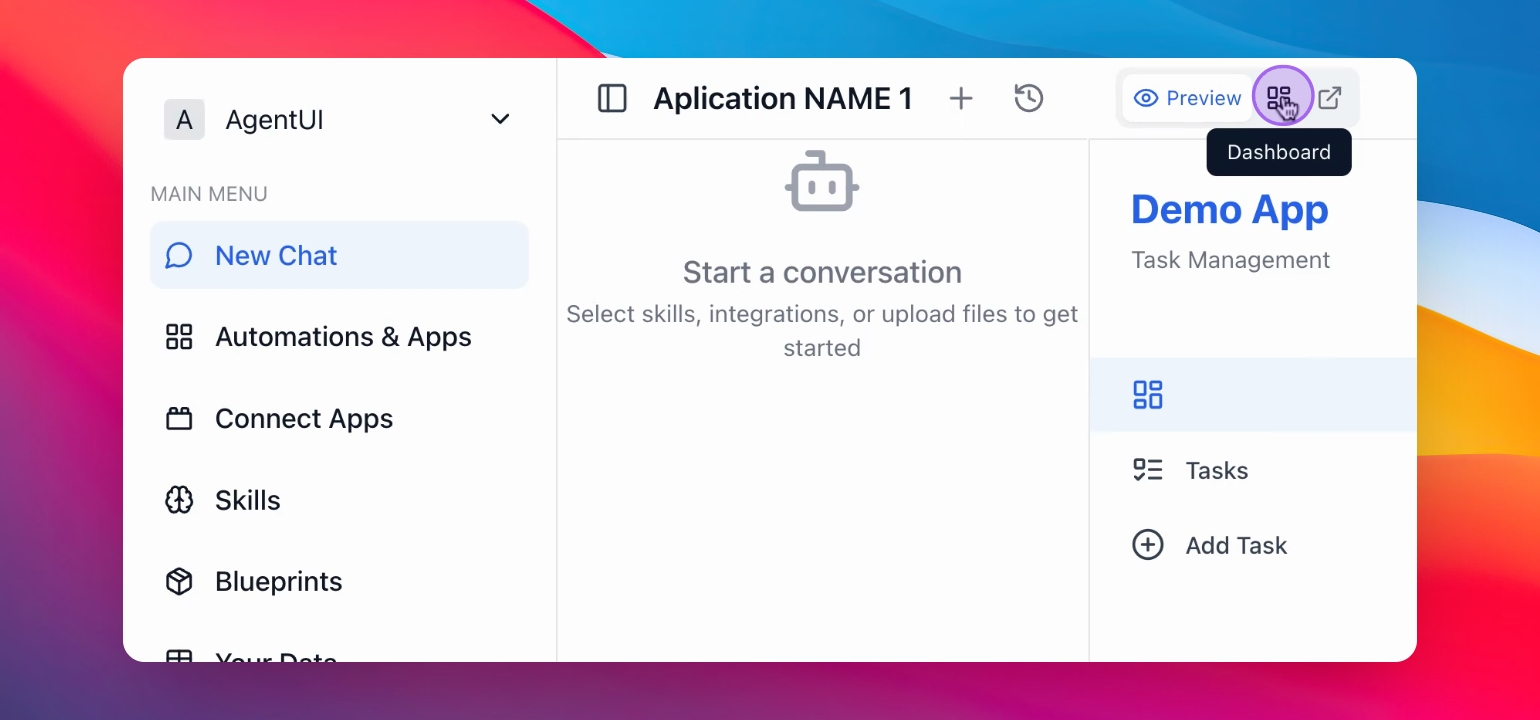
Step 2: Find Editors Section
Locate the Editors section and click it.
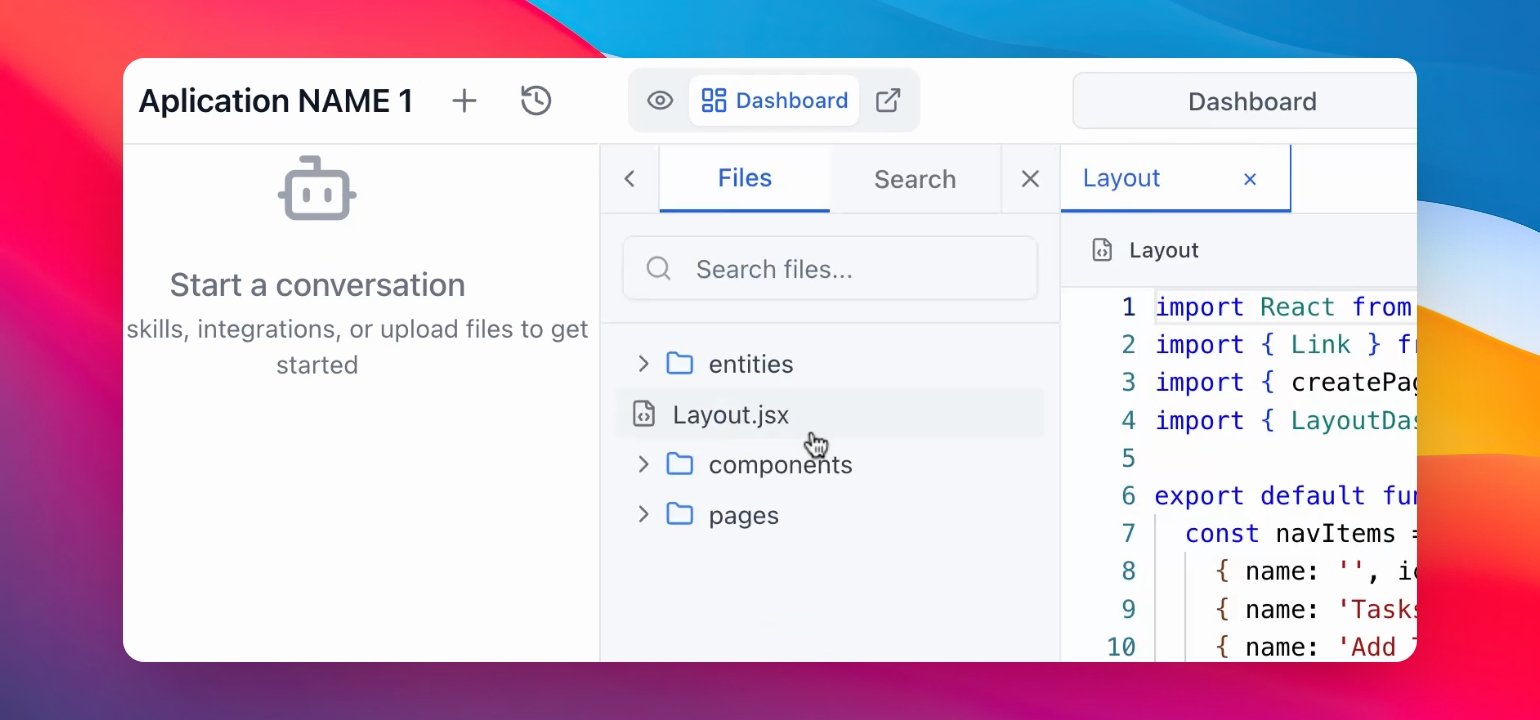
Step 3: Open Editors
Press the Edit option.
From here you can view and edit all the files or folders created by the AI to create your application.
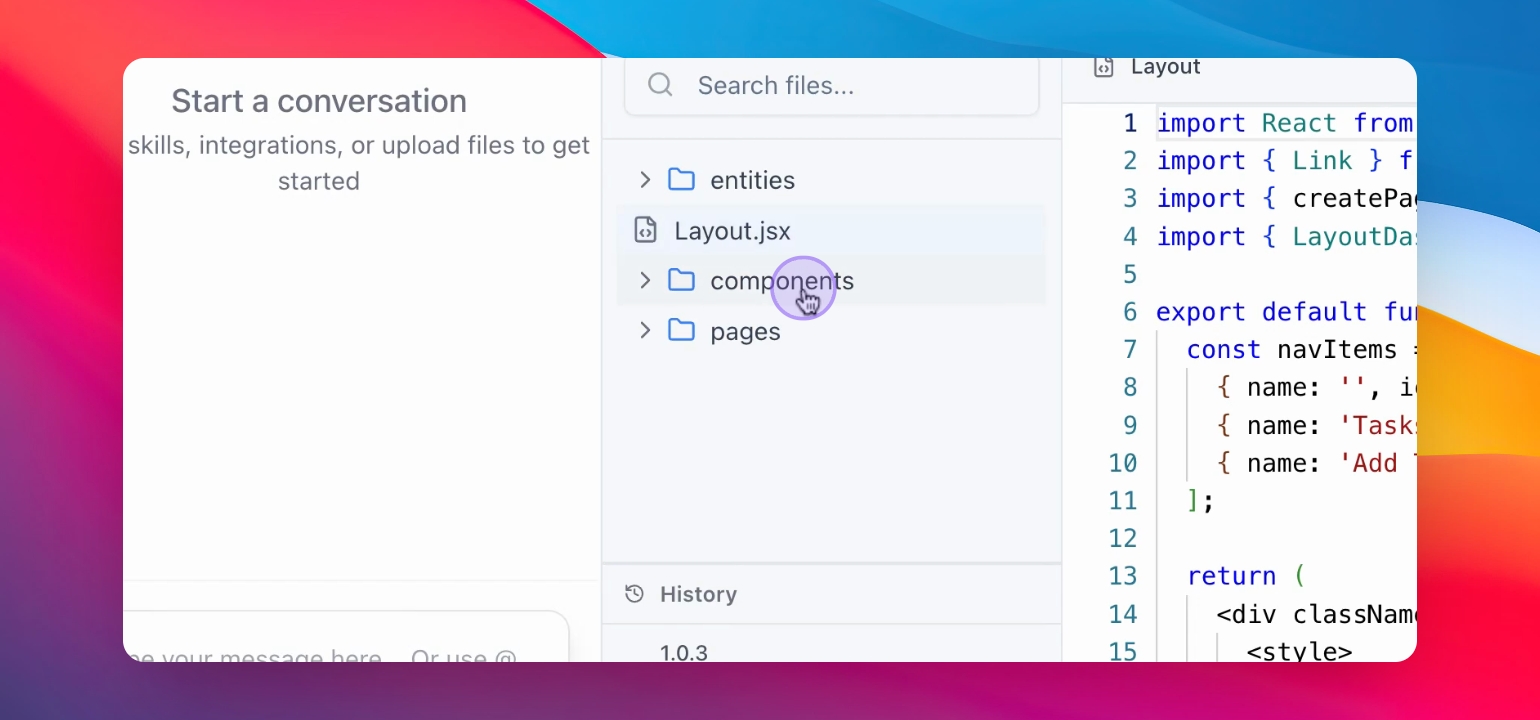
Step 4: Select File to Edit
Now, you can select any file that you want to edit. The code of the file is in the right section of your screen.
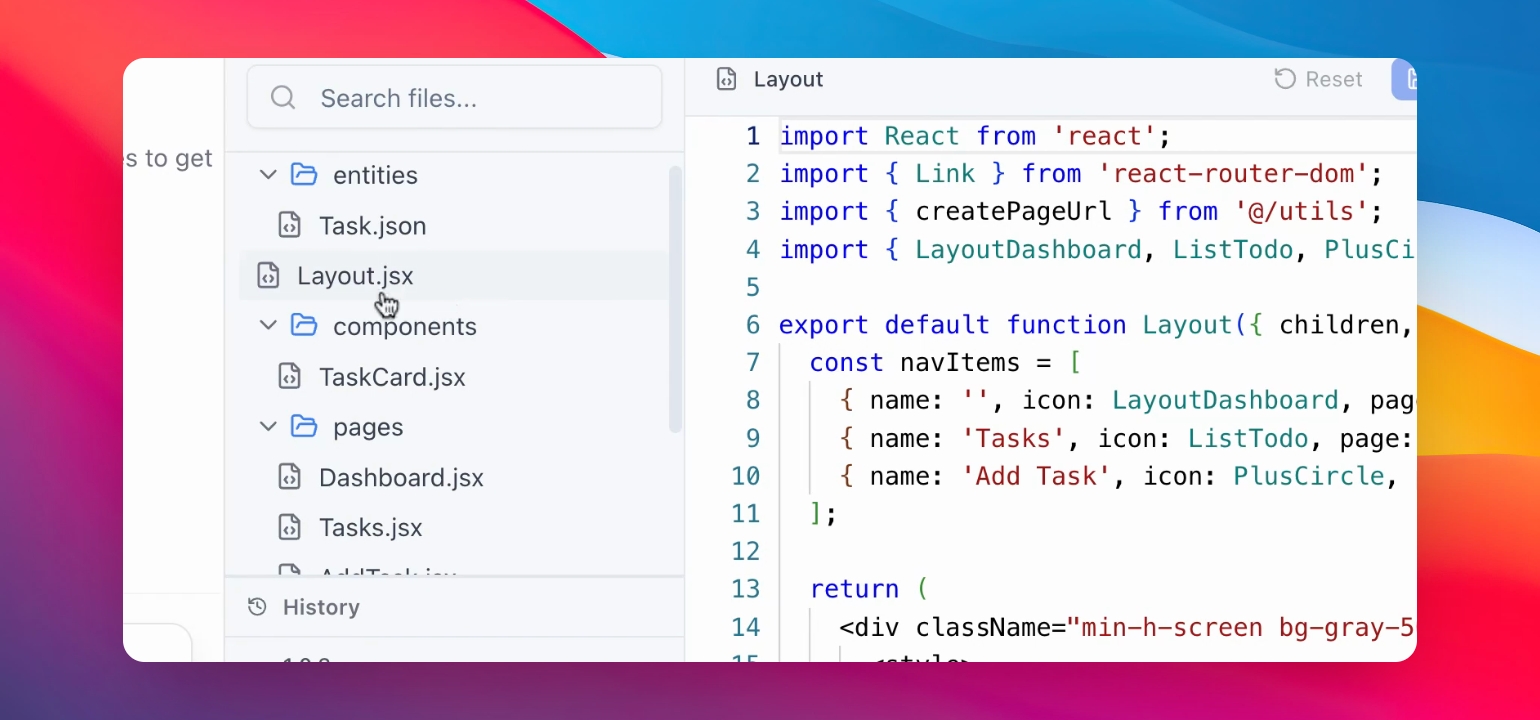
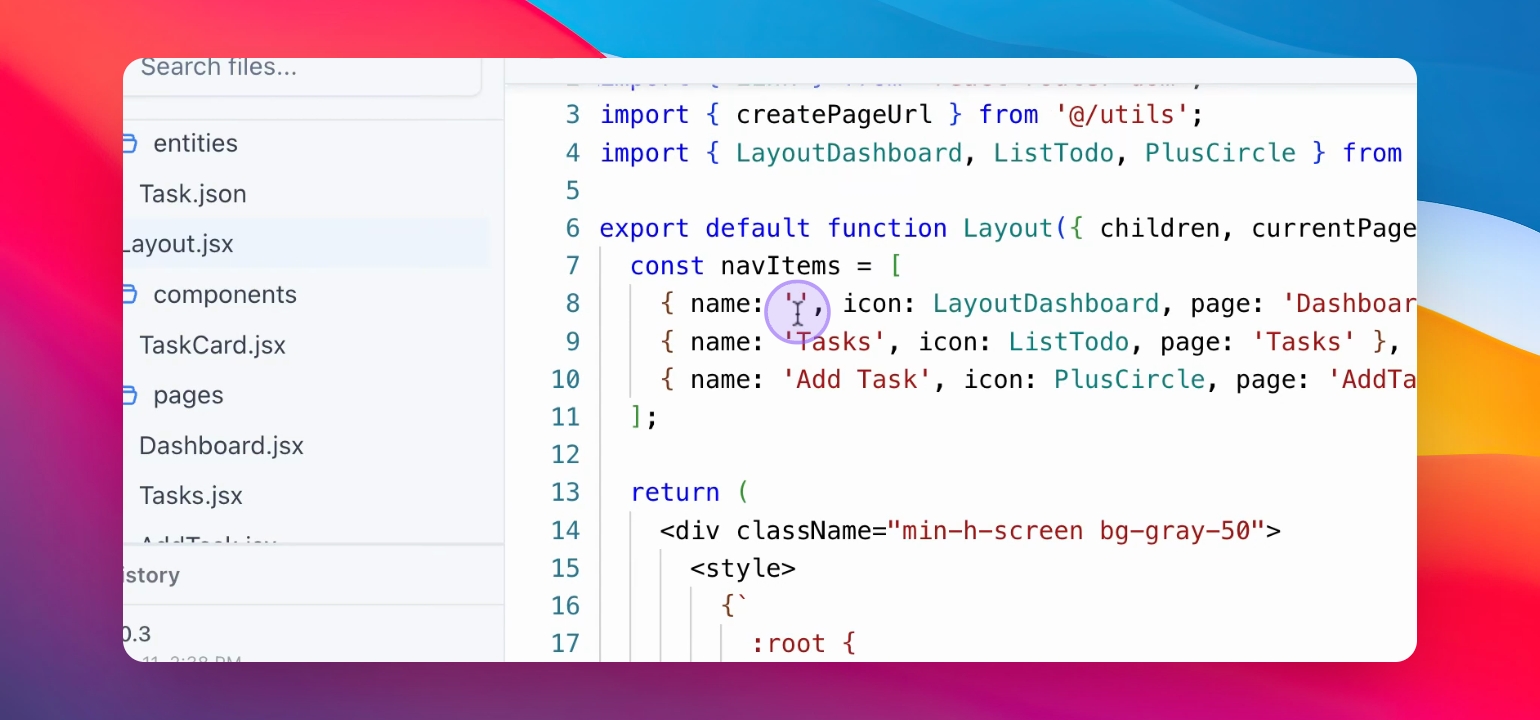
Step 5: Edit the Code
Edit any line of code at your preference.
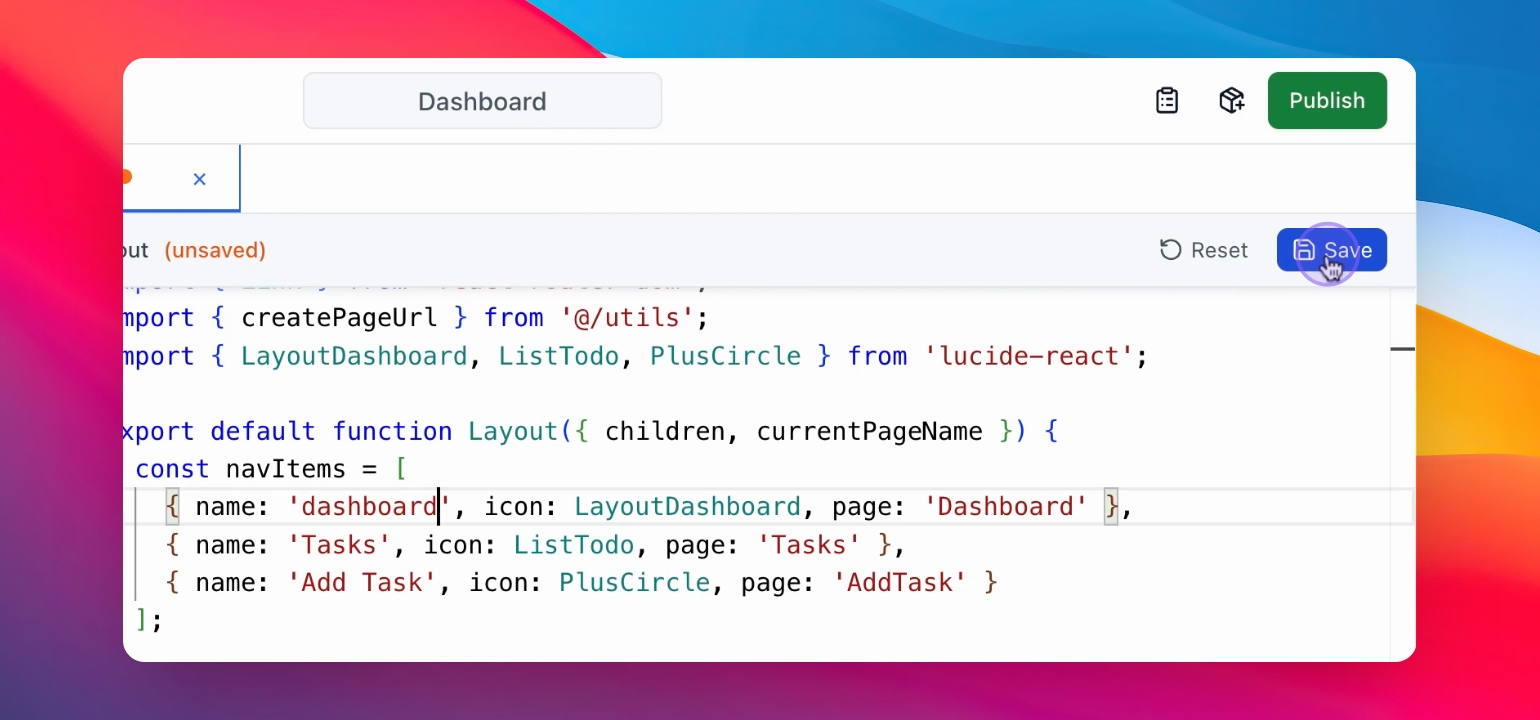
Step 6: Save Changes
Click the Save button.
Your changes are now saved.
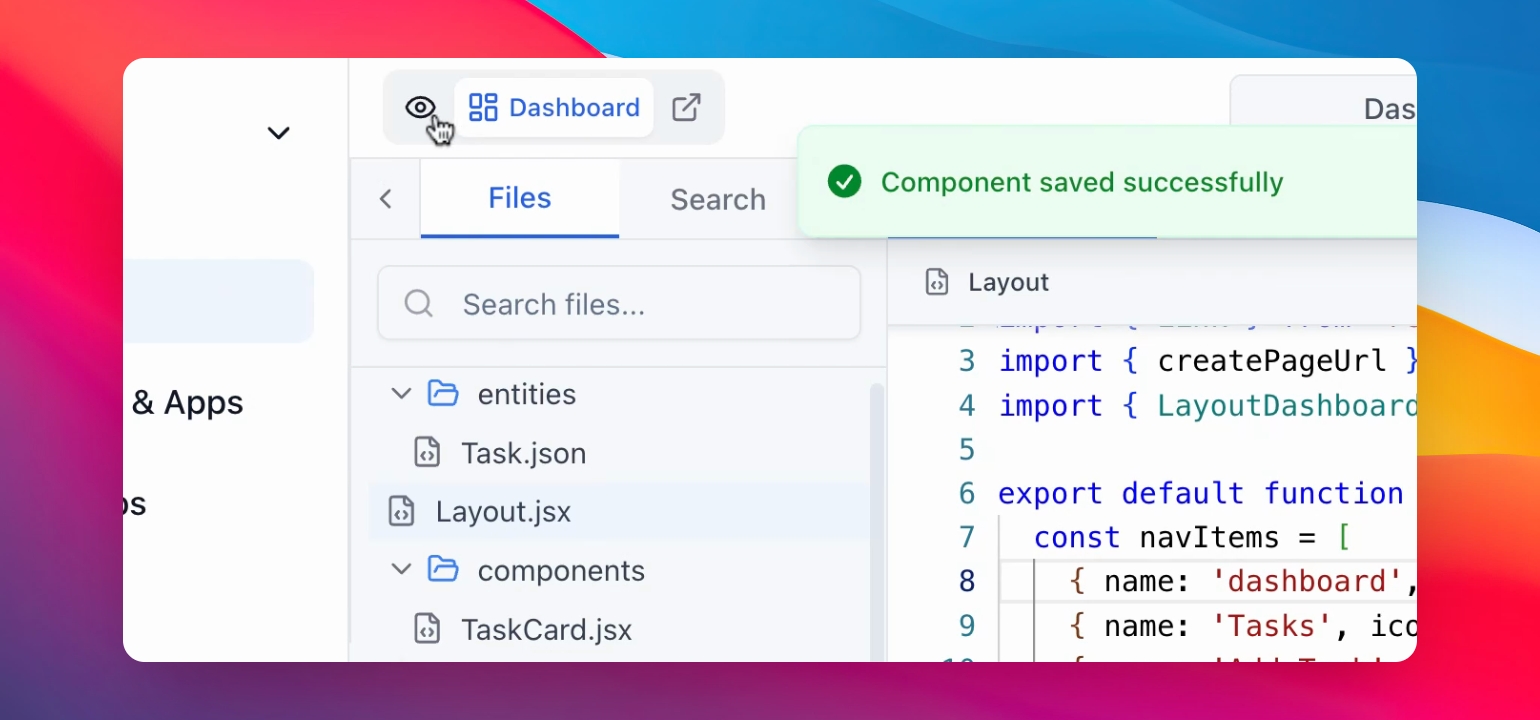
Step 7: Wait for Build
Click the "Preview" Button to the left of "Dashboard" and wait a few seconds for the app to build.
Step 8: View Changes
Your new changes will be displayed.
Check the updated application.